
On this page
- How do you fix a WordPress 500 internal server error fast?
- Where do you find the error log for a WordPress 500 internal server error?
- How do you fix a corrupted .htaccess file?
- What if a plugin or theme is causing the 500 error?
- Is PHP memory or PHP version behind the wordpress internal server error?
- When should you call your host?
- Will a 500 error hurt your Google rankings?
- Getting help with a WordPress 500 error
- Frequently asked questions
A wordpress 500 internal server error means the server hit a problem it could not name, and you fix it by working through a short list in order: the error log, .htaccess, plugins, theme, then PHP memory and version. Stop at the first step that brings the site back. If none of them works, the cause is probably on the host’s side and support needs to see your log.
This guide gives you that order, the exact actions for each step, and the point where it is faster to hand the problem over. If you would rather not work through it alone, Emergency Dev Hours covers exactly this kind of breakage.
How do you fix a WordPress 500 internal server error fast?
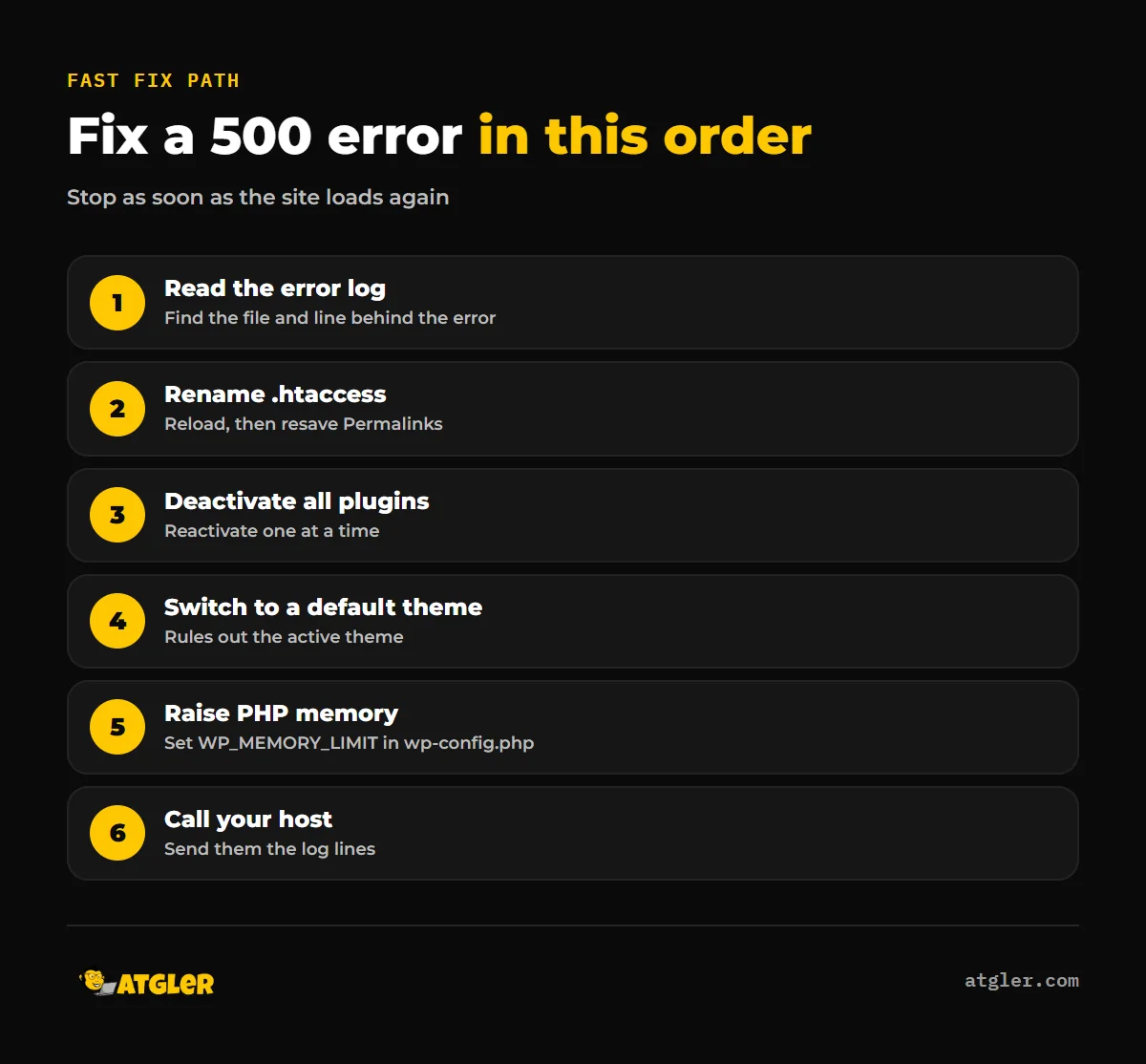
Work through these five actions in order and stop when the site loads. Take a backup first if your host lets you, because some of these steps change files.
- Read the error log to see which file or plugin is failing.
- Rename the .htaccess file and reload the site.
- Deactivate all plugins, then reactivate them one at a time.
- Switch to a default theme.
- Raise the PHP memory limit and check your PHP version.
A 500 is a generic message, not a diagnosis. The WordPress.org documentation says there can be a number of reasons for an Internal Server Error, which is why the log comes first here: it can point straight at the cause and save you the guesswork. Note that WordPress.org’s own common-errors page starts with .htaccess instead, and the host Kinsta puts logs and database checks before it. Both orders work. Logs first just avoids changing things blindly, so stop as soon as the site loads again.
| Step | What you do | Needs wp-admin? |
|---|---|---|
| Error log | Read debug.log or your host’s error_log files | No |
| .htaccess | Rename via FTP or File Manager, reload | No |
| Plugins | Rename the plugins folder or deactivate via FTP | No |
| Theme | Switch to a default theme | Not required |
| PHP memory and version | Edit wp-config.php or use your host panel | No |
Where do you find the error log for a WordPress 500 internal server error?
It depends on your host and setup, and the log is the fastest way to see what actually failed. Check the places below in order.
WordPress’s own debug.log
According to the WordPress.org debugging documentation, WP_DEBUG is assumed to be false by default, and the docs advise against using it on live sites. WP_DEBUG_LOG saves errors to a debug.log file, but only works when WP_DEBUG is true. The file goes to wp-content/debug.log unless you set a custom path.
WP_DEBUG_DISPLAY defaults to true, which prints errors on the page. The docs say setting it to false hides them and recommend pairing that with WP_DEBUG_LOG. In practice, that means turning on WP_DEBUG and WP_DEBUG_LOG, setting WP_DEBUG_DISPLAY to false, reproducing the error, reading the log, then switching debugging back off. That sequence is our reading of the docs, not wording found on that page.
Your host’s logs
Hosts differ. Krystal’s help documentation says the cPanel Metrics > Errors icon shows the most recent errors for your account but is not an exhaustive list. PHP errors go to files named error_log, created in the directory containing the script that caused the error. To find them all, search for error_log in cPanel File Manager. Other hosts use different tools, and we cannot name one path that applies everywhere. If your log is empty or missing, that is itself useful to tell your host.
When you open a log, look for the last fatal error and the file path in it. A path inside wp-content/plugins/ names a plugin. A path inside wp-content/themes/ names your theme. A message such as “Allowed memory size exhausted” points at memory.
How do you fix a corrupted .htaccess file?
Rename it, reload the site, and let WordPress write a fresh one. The WordPress.org common-errors page calls a corrupted .htaccess file the most likely issue, though that is the page’s judgment, and no figure backs it up.
- Connect with FTP or your host’s File Manager and turn on hidden files.
- Rename .htaccess in the site root to something like .htaccess_old.
- Reload the site. If it loads, go to Settings > Permalinks in wp-admin and click Save to generate a new file.
If the error persists, put the old name back and move on. A custom redirect or security rule may live in that file, so keep the renamed copy rather than deleting it. Search for “wordpress htaccess 500 error” and you will find advice to edit rules line by line, but renaming first tells you in one minute whether the file is involved at all.
What if a plugin or theme is causing the 500 error?
If .htaccess was not the cause, test plugins next, then the theme. Both are covered on the WordPress.org common-errors page.
Plugins, including a 500 error after plugin update
A 500 error after plugin update is a common pattern, and the log will usually name the plugin. Deactivate all plugins. If you cannot reach wp-admin, do it through FTP, for example by renaming the plugins folder under wp-content. If the site comes back, restore the folder name and reactivate plugins one at a time, reloading after each, until the error returns. Kinsta suggests using a staging site for this where possible, which is sensible on a live store.
In our experience, a plugin or theme that does not support the latest PHP or WordPress version is the most common cause of layout or function problems after an update. That observation is from our own maintenance work, not a published statistic. Our safe update checklist covers how to update without causing this.
Theme
Switch to a default theme such as Twenty Twenty-One. WordPress.org notes that WordPress 5.8 and below need Twenty Twenty-One, because Twenty Twenty-Two requires 5.9 or later. If the error clears, the theme or a file in it is the problem. If it is an old theme that keeps breaking, patching it repeatedly is rarely worth it, and a rebuild is usually the better advice.
If you see a message instead of a plain 500 page, our guide to the critical error screen covers that variant, and the white screen of death guide covers a blank page.
Is PHP memory or PHP version behind the wordpress internal server error?
It can be, mainly when the log says memory was exhausted. The wp-config documentation says WP_MEMORY_LIMIT may be needed if you see “Allowed memory size of xxxxxx bytes exhausted”. WordPress tries to raise PHP memory to 40MB on a single site and 64MB on multisite. WP_MAX_MEMORY_LIMIT sets a separate limit for the admin area, and it must be placed before wp-settings.php is included.
The WordPress.org page gives no recommended value. Kinsta, a managed host, gives 128M as an example and lists several places to set it: cPanel, .htaccess, php.ini, .user.ini or wp-config.php. Your host may cap what you can set, so treat 128M as a vendor example, not a rule.
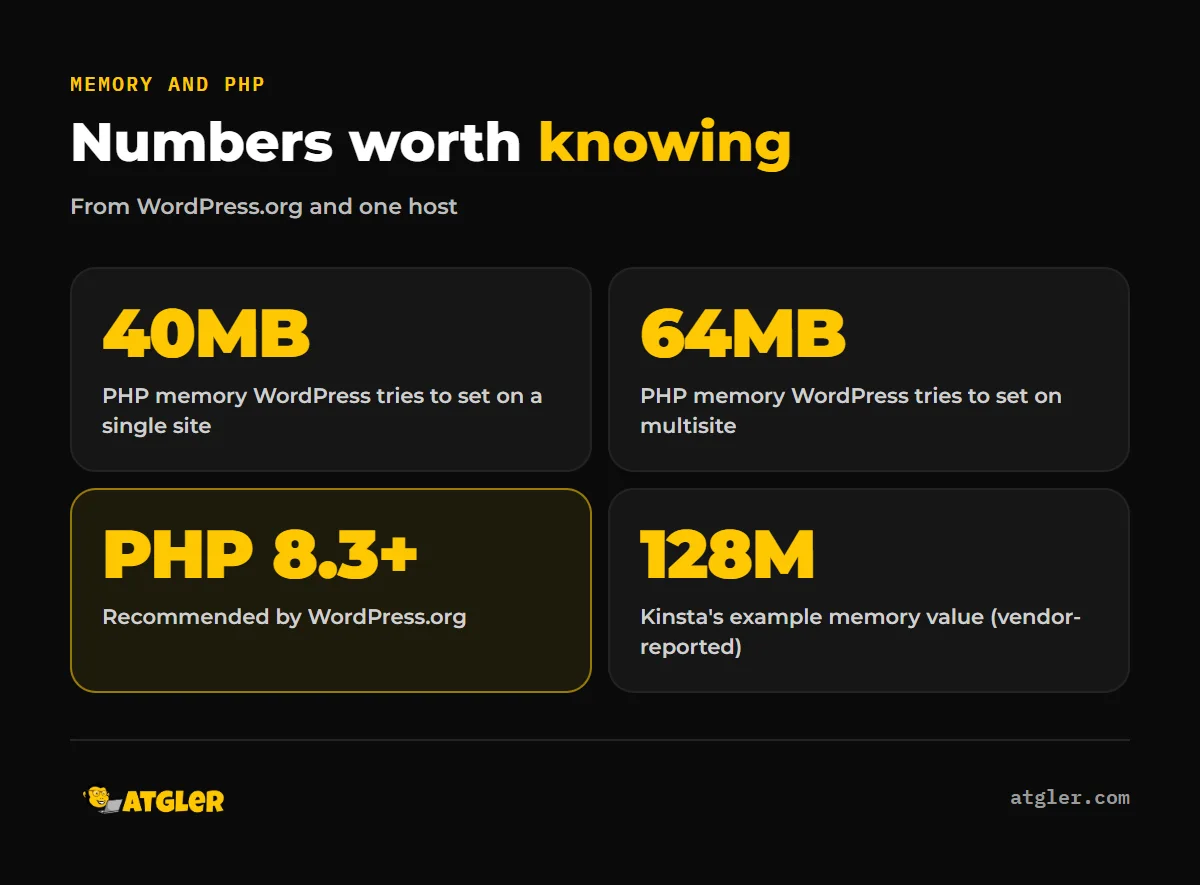
On versions, WordPress.org’s requirements page lists PHP 8.3 or greater as recommended, with MariaDB 10.11 or greater or MySQL 8.4 or greater. It says PHP 7.4 and above still works but has reached end of life and may create security risks. The pages we read do not state that an old PHP version causes 500 errors. Still, a plugin that has dropped support for your PHP version can fail fatally, so check the version when an error follows a host change or an update.
Two more steps appear in the sources if the above fail. WordPress.org suggests re-uploading the wp-admin and wp-includes folders from a fresh WordPress download. Kinsta also lists checking file permissions (files 644 or 640, directories 755 or 750, wp-config.php 440 or 400, vendor-reported) and checking for a database connection error.
When should you call your host?
Call once the log, .htaccess, plugins, theme and memory checks have not cleared the error, or when the log shows a server-side problem. Kinsta lists PHP timeouts and server fatal errors as host issues, and Krystal suggests contacting support if the logs do not reveal the cause. Both are hosting companies, so weigh that, but the advice is reasonable.
Send support these items, so the first reply is not a request for them:
- The exact time the error started and what changed just before it (an update, a migration, a new plugin).
- The last fatal error lines from your log, with file paths.
- What you already tried: renamed .htaccess, deactivated plugins, switched theme, raised memory.
If a recent change caused the error and you have a clean backup, restoring may be quicker than diagnosing. Our guide on restoring WordPress backup files and database explains how.
Will a 500 error hurt your Google rankings?
A short outage is unlikely to matter much, but a long one can. Google’s documentation says 5xx errors make its crawlers temporarily slow down, and any content Google receives from a URL that returns a 5xx status is ignored. For 500, 502 and 503 errors, the crawl-rate reduction scales with how many URLs return errors, and it rises gradually once the server returns 2xx again. URLs already indexed are preserved, but eventually dropped if the errors persist.
Google gives no timeframe for that dropping. Kinsta offers a rough threshold for when Google treats an outage as a site-level problem, but Google’s own page does not confirm any figure, so do not rely on it. The practical advice is simple: fix it quickly, then check Google Search Console for crawl errors.
What the evidence does not tell you
- No source we found says how common 500 errors are, or what share come from plugins, .htaccess or memory.
- The “most likely cause” wording for .htaccess is the WordPress.org page’s opinion, not measured data.
- Where the error log lives varies by host, so no single path is universal.
- Google publishes no exact time before erroring URLs are dropped.
- The pages we read do not link old PHP versions to 500 errors directly.
Getting help with a WordPress 500 error
Atgler has worked with WordPress for 7 years and has built, managed and maintained more than 600 sites. If you are locked out of wp-admin, the log makes no sense, or the site is losing sales while you troubleshoot, Emergency Dev Hours is hourly emergency WordPress support at $99 per hour with no retainer. To avoid repeat breakages, our website care plans include weekly updates, a check that the site works after each one, and uptime monitoring with prompt investigation of downtime.
Frequently asked questions
Can I fix a 500 error if I cannot log in to wp-admin?
Yes. Renaming .htaccess, deactivating plugins and editing wp-config.php can all be done through FTP or your host’s File Manager, without touching wp-admin.
Why is my error log empty or missing?
WP_DEBUG_LOG only writes debug.log when WP_DEBUG is true, and hosts keep PHP error_log files in different places. Search for error_log in your File Manager or ask your host where logs are kept.
Is it safe to leave WP_DEBUG on?
WordPress.org advises against using WP_DEBUG on live sites. Turn it on only while diagnosing, set WP_DEBUG_DISPLAY to false so visitors do not see errors, and switch it off afterward.
Is a 500 error always a WordPress problem?
No. It can come from the server, such as PHP timeouts or fatal errors, which is when your host needs to look at it.
Sources
- WordPress.org Developer Resources: Debugging in WordPress (last updated October 14, 2026)
- WordPress.org Developer Resources: Common WordPress Errors (last modified October 14, 2026)
- WordPress.org Developer Resources: Editing wp-config.php (last updated October 14, 2026)
- WordPress.org: Requirements (last modified May 7, 2026)
- Google Search Central: How HTTP status codes, and network and DNS errors affect Google Search (no date shown)
- Krystal Help: How to find your server and PHP error log files (undated, vendor-reported)
- Kinsta Knowledgebase: 500 Internal Server Error (updated May 25, 2026, vendor-reported)