
On this page
- How do you fix there has been a critical error on your website?
- What does the WordPress critical error actually mean?
- How do you read the WordPress recovery mode email?
- What if the recovery mode email never arrives?
- How do you find the failing plugin or theme?
- Did a PHP version change cause the critical error?
- What should you not do when you see the critical error?
- What does the evidence not tell you?
- When should you get help with a WordPress critical error?
- Frequently asked questions
There has been a critical error on your website is WordPress telling you a fatal PHP error stopped a page from loading, usually because of a plugin, a theme or edited code. WordPress also emails the administrator a recovery mode link that pauses the failing item so you can log in and deactivate it. Most cases are fixed in minutes once you know which component failed.
This guide shows how to read that email, find the failing plugin or theme, and what to do when no email arrives. It also covers the PHP version angle, since PHP 8.2 security support ends on 31 Dec 2026, and the mistakes that make things worse. If you would rather hand it off, our Emergency Dev Hours are built for exactly this.
How do you fix there has been a critical error on your website?
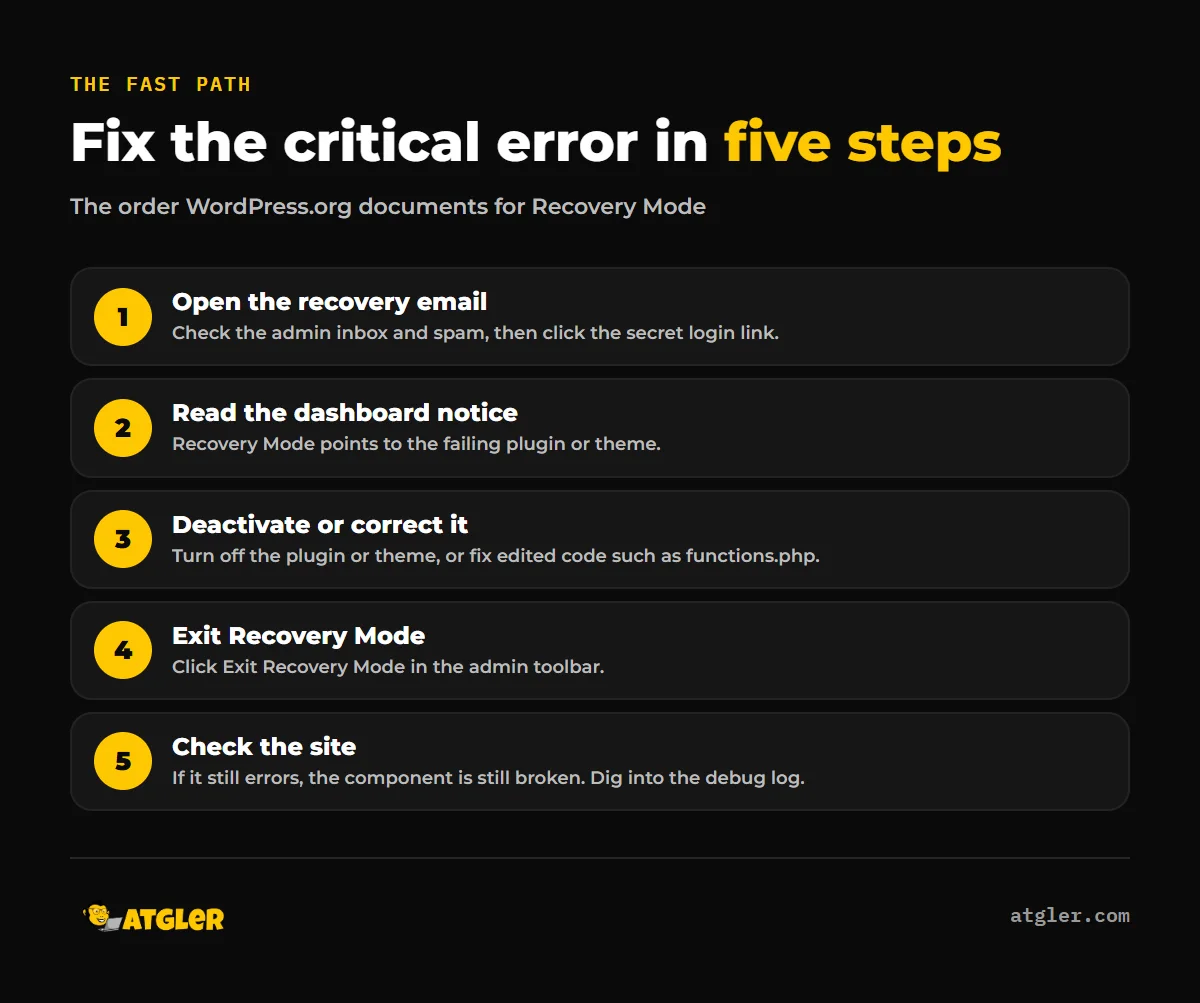
Work through the Recovery Mode steps WordPress.org documents, in this order:
- Open the recovery email sent to the administrator address (check spam too) and click the login link.
- Read the error notice on the dashboard. It points to the failing plugin or theme.
- Go to Plugins or Appearance > Themes and deactivate the failing item. If you edited code such as functions.php, correct it.
- Click “Exit Recovery Mode” in the admin toolbar.
- Load the site in a private window and confirm it works. If the email never came, use the FTP method below.
Each step is explained in the sections below.
What does the WordPress critical error actually mean?
It means WordPress hit a fatal PHP error while loading a page. According to the WordPress.org Recovery Mode documentation, Recovery Mode was introduced in WordPress 5.2 and activates when a fatal error happens during a regular page load, not during CRON or other background tasks.
Visitors see “There has been a critical error on this website. Learn more about troubleshooting WordPress.” Your own copy of the message may read “your website” or “this website”, but the cause is the same: a plugin, theme or piece of custom code that PHP could not run. This is what people also call a WordPress fatal error.
The message alone does not tell you which component failed, and it does not tell you whether the site was hacked. It only tells you PHP stopped.
How do you read the WordPress recovery mode email?
The recovery mode email is sent at the moment of the error and contains a link that logs you in with Recovery Mode switched on. The WordPress.org documentation says it goes to the administrator’s email address. The original 5.2 developer post says it goes to the site admin address and the super admin address, with a “secret link”.
That link sets a cookie. The failing plugins and themes are paused only for your browser, so other visitors still see the broken site. The documentation says the pause lasts “just for your admin session.”
Once logged in, look at the dashboard notices. They name the failing component. Then:
- Deactivate the failing plugin, or switch the theme under Appearance > Themes.
- If you recently edited functions.php or another file, undo or correct that change.
- Click “Exit Recovery Mode” in the admin toolbar. This removes the cookie.
Be aware that exiting does not repair anything. The 5.2 post notes that any extension still broken will cause the error again. The docs also call deactivation “typically a temporary solution”, so a plugin you rely on needs an update, a replacement or a developer’s attention.
What if the recovery mode email never arrives?
It can fail to arrive, and WordPress.org explains why. Plugins load in a set order, so if the fatal error happens before an SMTP or mail plugin loads, the email is sent directly from the web server. If the server’s email settings are not trusted, or its IP is flagged for spam, the message may be filtered or blocked.
The documented fallbacks are the debugging methods in the Advanced Administration Handbook, contacting your host, or renaming a plugin folder over FTP. The WordPress.org troubleshooting FAQ gives two ways to turn plugins off when you cannot reach wp-admin:
- Rename one folder. Rename a single plugin folder, for example /wp-content/plugins/hello-dolly to hello-dolly-1, to deactivate just that plugin.
- Rename the whole plugins folder. Change wp-content/plugins to something like plugins.hold, log in, then rename it back. The plugins stay deactivated until you reactivate them one by one.
- Edit the database. In phpMyAdmin, set the active_plugins row in wp_options to a:0:{}. The docs say to ask your host if phpMyAdmin is unfamiliar, and to back up before upgrades.
Reactivating one by one is the diagnosis. The plugin that brings the error back is your culprit.
How do you find the failing plugin or theme?
Start with the Recovery Mode notice, because it names the component. If you have no access, use the debug log. According to the WordPress Developer Handbook, WP_DEBUG is false by default. WP_DEBUG_LOG, which requires WP_DEBUG, writes errors to wp-content/debug.log by default or to a custom path. WP_DEBUG_DISPLAY defaults to true, and setting it to false hides errors from page HTML while logging continues.
Two cautions from the handbook. A constant set to the quoted string ‘false’ is read as true, so use the plain value. And the handbook advises against debugging on live sites, recommending a staging environment or a proper backup before you modify anything.
| Method | Needs wp-admin? | What it tells you |
|---|---|---|
| Recovery Mode notice | Via emailed link | Names the failing plugin or theme |
| Rename plugins folder (FTP) | No | Confirms a plugin is the cause; reactivate one by one to find it |
| debug.log | No (file access) | The PHP error and the file path that caused it |
If the log path points into a plugin or theme folder, that is your suspect. If it points to wp-content/themes, switch themes or restore the file you edited.
Did a PHP version change cause the critical error?
It can, and this is the angle worth watching right now. A plugin or theme written for an older PHP version may fail on a newer one, and the reverse is also possible. This is also the usual story behind a WordPress critical error after an update. Atgler has worked with WordPress for 7 years and has built, managed and maintained more than 600 sites. In that experience, a dependent plugin or theme that does not support the latest PHP or WordPress version is the most common cause of problems after an update.
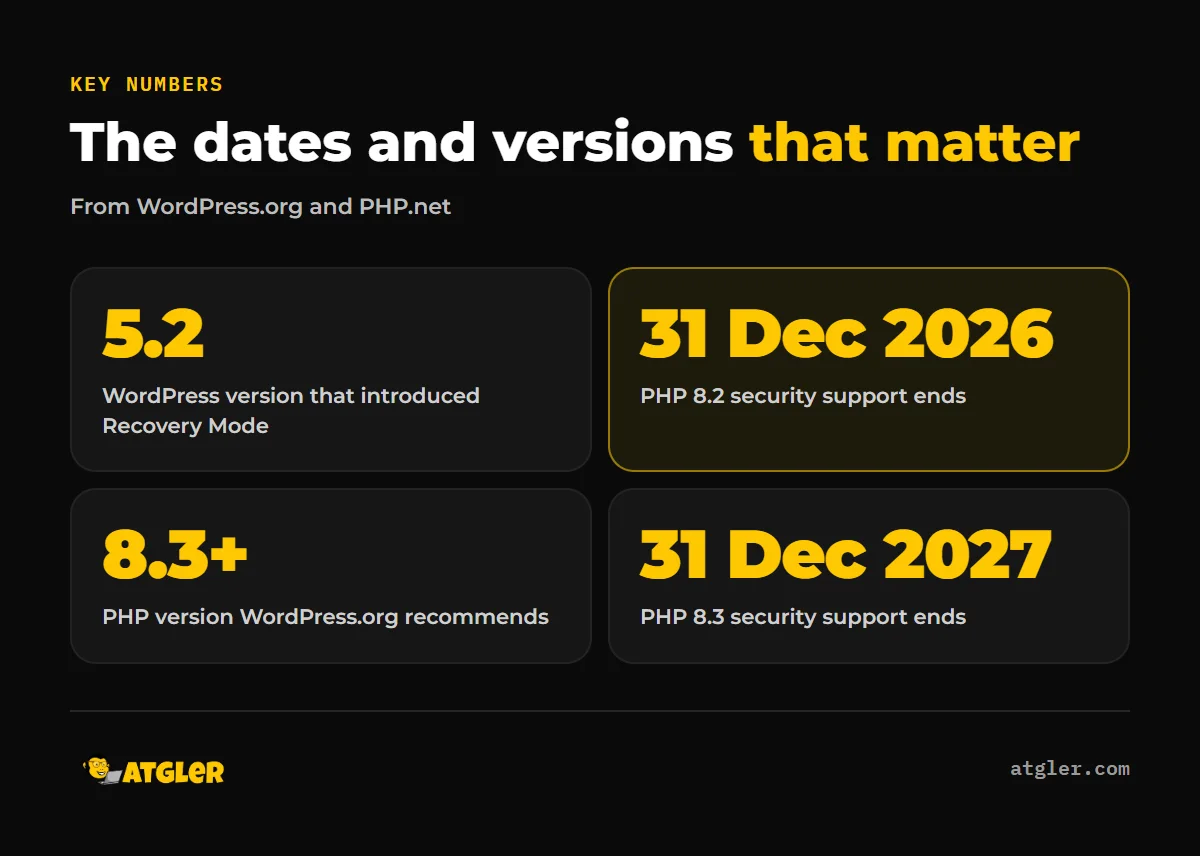
The calendar matters too. According to PHP.net, as of 11 Nov 2026:
| PHP version | Active support ends | Security support ends |
|---|---|---|
| 8.2 | 31 Dec 2024 (ended) | 31 Dec 2026 |
| 8.3 | 31 Dec 2025 (ended) | 31 Dec 2027 |
| 8.4 | 31 Dec 2026 | 31 Dec 2028 |
| 8.5 (released 20 Nov 2025) | 31 Dec 2027 | 31 Dec 2029 |
So PHP 8.2 has under two months of security fixes left. WordPress.org’s requirements page recommends “PHP version 8.3 or greater”, while noting WordPress also works with PHP 7.4+ and that older versions “may expose your site to security vulnerabilities”.
The sources disagree on minimums. The Hosting Handbook compatibility table, updated 2026-11-04, lists PHP 8.2 to 8.5 for WordPress 7.0 and 7.1, yet its minimum-requirements table lists PHP 7.4+. It also says the table does not guarantee full support for every listed version. Treat “recommended” and “minimum” as different numbers. Compatible does not mean supported by PHP itself.
If the error appeared right after your host changed PHP, the log will usually show it. You can ask the host to switch back temporarily to get online, but plan the move to 8.3 or newer rather than staying on 8.2. A planned update is safer than an emergency one, and our WordPress update checklist walks through it.
What should you not do when you see the critical error?
Avoid the moves that turn a fixable problem into a worse one:
- Do not delete plugin folders as a first step. Renaming is reversible. Deleting is not, and you may lose files you cannot easily replace. Premium plugin and theme files must come from the original developer.
- Do not skip the backup. WordPress.org advises backing up before upgrades.
- Do not leave debugging on. Turn WP_DEBUG back off, or at least hide errors from visitors with WP_DEBUG_DISPLAY set to false.
- Do not treat Recovery Mode as the fix. It only pauses the failing item for you. Visitors still see the error until the cause is fixed.
- Do not keep patching a broken theme. If an old theme keeps failing, rebuilding is often the better path than repeated repairs.
What does the evidence not tell you?
Several details are not confirmed on WordPress.org pages. The documentation does not state how long the recovery link stays valid, and it does not give the exact subject line of the email. Some third-party guides mention a constant in wp-config.php to change the recovery address and a once-per-day email rate limit, but we could not confirm either on an official page, so do not rely on them.
WordPress.org also does not say whether PHP 8.2 will drop out of the compatibility table after 31 Dec 2026. No study we found quantifies how often PHP upgrades cause this error. And the critical error itself does not prove a hack. If you also see redirects, spam pages or unfamiliar files, read what to do if your WordPress site is hacked or our hacked site repair service.
When should you get help with a WordPress critical error?
Get help when the email does not arrive and FTP is unfamiliar, when the debug log points at code you did not write, or when the site is losing sales while you troubleshoot. Our Emergency Dev Hours cover emergency WordPress support at $99 per hour with no retainer. If errors keep returning after updates, a maintenance plan that updates weekly and checks the site after each change prevents most of them. See our website care and maintenance plans, from $99 a month.
Frequently asked questions
Is the critical error a sign my site was hacked?
Not by itself. It means PHP hit a fatal error, which is far more often a plugin, theme or code conflict. Look for other signs such as redirects, spam pages or unknown files before assuming a hack.
Which email address gets the recovery mode email?
WordPress.org says the administrator’s email address. The original 5.2 developer post says the site admin and super admin addresses. Check both inboxes and your spam folder.
Can I deactivate all plugins without losing them?
Renaming the plugins folder to something like plugins.hold deactivates them without deleting any files. After you rename it back, they stay deactivated until you reactivate them one by one. Deleting a plugin removes its files, so back up first.
How do I exit Recovery Mode?
Click “Exit Recovery Mode” in the admin toolbar. This removes the cookie. If a component is still broken, the error will return.
Is PHP 8.2 still safe after 31 Dec 2026?
PHP.net ends security support for 8.2 on that date, so it stops receiving security fixes. WordPress.org recommends PHP 8.3 or greater, and 8.3 has security support until 31 Dec 2027.
Sources
- PHP.net: PHP: Supported Versions (fetched 2026-11-11, no update stamp)
- WordPress.org Documentation: Recovery Mode (first published August 14, 2025)
- Make WordPress Core: Fatal Error Recovery Mode in 5.2 (April 16, 2019)
- WordPress.org: Requirements (last modified May 7, 2026)
- Make WordPress Hosting Handbook: Compatibility (last updated 2026-11-04)
- WordPress Developer Handbook: Debugging in WordPress (last updated October 14, 2026)
- WordPress.org Documentation: FAQ Troubleshooting (last updated July 3, 2026)