
On this page
- What is the fast path for WordPress security after hack?
- Why do WordPress sites get reinfected after a cleanup?
- How do you reset credentials and sessions after a hack?
- Which users, logins and updates need attention?
- File permissions and wp-config.php: WordPress security after hack settings
- How should you monitor and back up a cleaned site?
- What does the evidence not tell you?
- Where can you get help with WordPress security after hack cleanup?
- Frequently asked questions
Strong WordPress security after hack cleanup means closing the doors the attacker used: rotate every credential and session key, remove unknown users, replace core files from clean copies, lock down file permissions, update or delete plugins, and set up monitoring and clean backups. Removing the malware alone does not fix the weakness that let it in. This article walks through each step in order.
If the malware is still on the site, start with our hacked site repair service or a cleanup checklist first. This list is for what comes after, when the site looks clean and you want it to stay that way.
What is the fast path for WordPress security after hack?
Five actions cover most of the ground, and each is explained below.
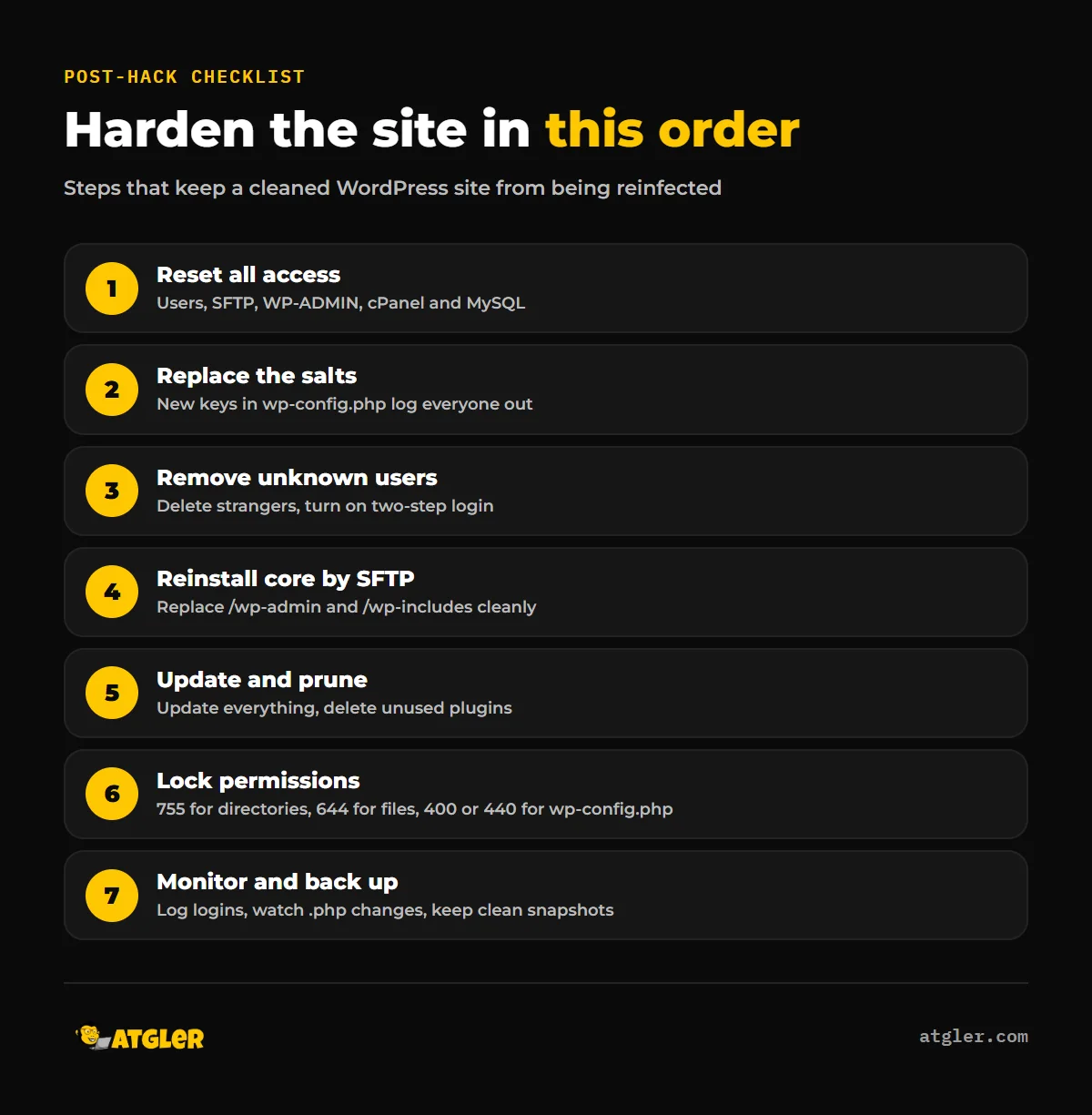
- Change every password and replace the secret keys (salts) in wp-config.php.
- Delete unknown users, then turn on two-step login for everyone who stays.
- Reinstall /wp-admin and /wp-includes by SFTP, update everything, and delete unused plugins.
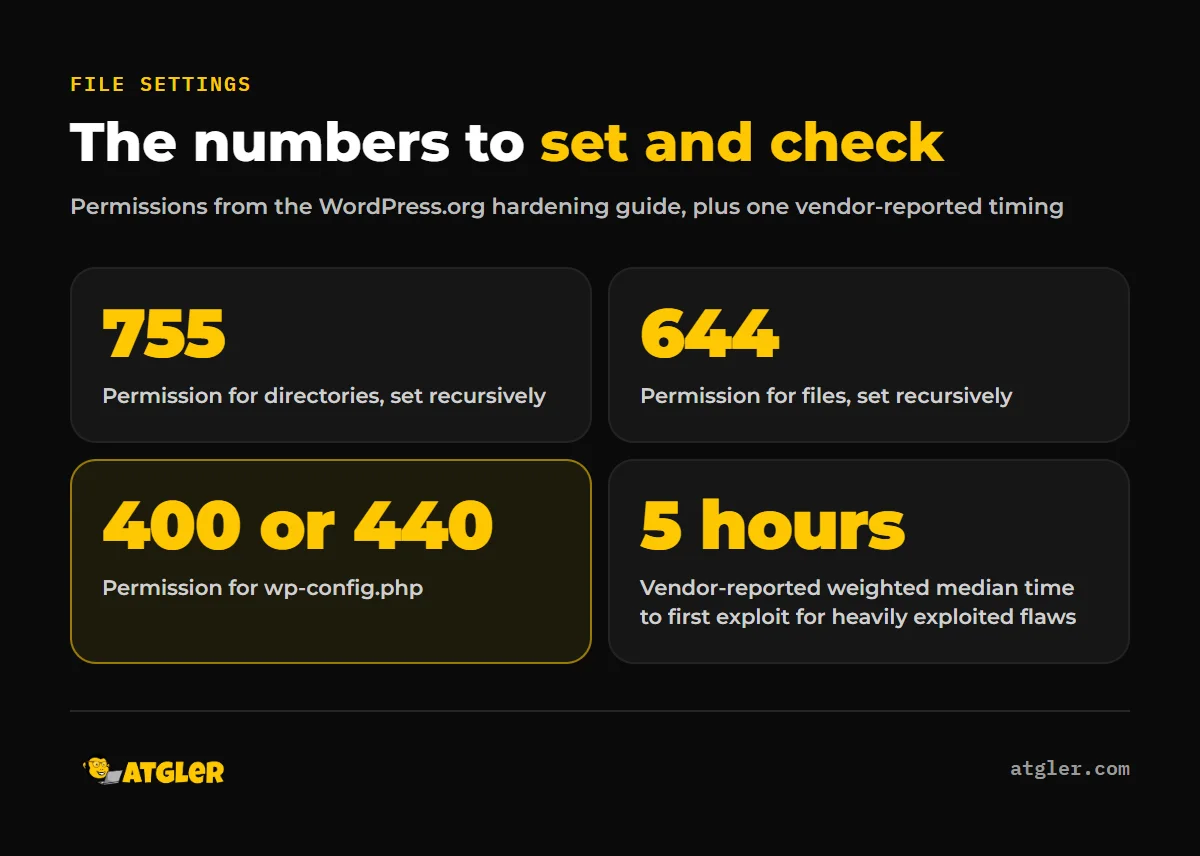
- Set file permissions (755 for directories, 644 for files, 400 or 440 for wp-config.php) and disable dashboard file editing.
- Keep clean off-site backups and watch logins and PHP file changes.
Why do WordPress sites get reinfected after a cleanup?
Usually because the original way in is still open. Monarx, a vendor that sells cleanups and a reinfection guarantee, so read its list with that interest in mind, names four causes in its support article (April 2026):
- Compromised admin, FTP or hosting-panel credentials
- Outdated plugins and themes
- Cross-site contamination between sites under one cPanel or Plesk account
- Novel malware that evades detection
Our experience points the same way. We have worked with WordPress for 7 years and have built, managed and maintained more than 600 sites. Weak passwords, outdated or deprecated plugins and themes, file manager plugins and weak SSH credentials are all common causes of hacks we see. Our cleanup removes malware, rebuilds core from clean files and patches the vulnerabilities we can identify. We do not promise to prove exactly how a site was hacked, so hardening has to cover every likely route, not just one guess.
How do you reset credentials and sessions after a hack?
Reset everything that grants access, not just the WordPress login. The WordPress.org “My site was hacked” FAQ (last modified July 2026) lists users, especially administrators, plus FTP/SFTP, WP-ADMIN, cPanel and MySQL. It also suggests considering a new database user and password.
To force every logged-in session off, the same FAQ says to replace the secret keys and salts in wp-config.php with a freshly generated set from the WordPress key generator. The separate hardening guide gives no salt instructions, so the two pages can look inconsistent. The better reading is that the FAQ is written for a post-hack situation and the hardening guide is not.
On password strength, WordPress.org only advises avoiding short, dictionary or name-based passwords. OWASP’s Authentication Cheat Sheet is more specific: passwords under 15 characters are weak when MFA is not enabled, and under 8 are weak when it is. It also says the maximum allowed length should be at least 64 characters so people can use passphrases.
Two details are easy to miss. The FAQ says to scan your own computer too, because trojans can capture FTP and wp-admin logins. If your machine is the leak, new passwords typed on it are exposed again. The FAQ also says to change passwords a second time after the cleanup, so plan to change passwords again once the site is confirmed clean.
Which users, logins and updates need attention?
Start with the Users screen and delete every account you do not recognize, especially administrators. Then look at the accounts you keep. The WordPress.org hardening guide advises against usernames like “admin” or “webmaster”, and it says to use two-step authentication and SFTP instead of FTP if your host supports it.
OWASP calls MFA “by far the best defense against the majority of password-related attacks” and cites a Microsoft analysis suggesting it would have stopped 99.9% of account compromises. That figure is OWASP quoting another party’s analysis, so treat it as a strong signal rather than a guarantee.
For updates, the hardening guide says to keep WordPress and plugins current and delete unused plugins. Automatic updates have been available since WordPress 3.7. Timing matters. Patchstack’s State of WordPress Security in 2026 (updated February 2026, vendor-reported) puts the weighted median time to first exploit for heavily exploited vulnerabilities at 5 hours. It also reports that 46% of vulnerabilities had no developer patch at the time of disclosure. When no patch exists, removing or replacing the plugin is the realistic option. For wider context, see our WordPress security statistics post, and use our safe update checklist so updates do not break the site.
File permissions and wp-config.php: WordPress security after hack settings
Replace core from clean files first. The WordPress.org FAQ says to reinstall /wp-admin and /wp-includes using FTP/SFTP rather than the dashboard reinstall option. Its reason is that dashboard installers often only overwrite existing files, while hacks often add new ones. Many plugins and hosts offer a one-click reinstall, so advice elsewhere may differ. The FAQ also says to check .htaccess and watch index.php, header.php, footer.php and the theme functions file (it spells that one function.php). If you suspect a hidden backdoor, our guide on how to find and remove a WordPress backdoor covers it.
Then lock the permissions. This is what the WordPress.org hardening guide (updated October 2026) recommends:
| Item | Recommended setting |
|---|---|
| Directories | 755, set recursively |
| Files | 644, set recursively |
| wp-config.php | 400 or 440 |
| Root directory, /wp-admin/, /wp-includes/ | Writable only by your user account (the root .htaccess is the exception if WordPress should generate rewrite rules) |
| /plugins/ | Writable only by your account |
| /themes/ | Web-server-writable only if you use the built-in theme editor |
The guide also says to add define( ‘DISALLOW_FILE_EDIT’, true ); to wp-config.php to remove dashboard file editing. It states plainly that this will not stop attackers from uploading malicious files. It recommends moving wp-config.php one directory above the install but notes some people dispute the benefit, so the setting is worth adding only after you have confirmed the core files are clean.
How should you monitor and back up a cleaned site?
Monitor for the events that matter and keep backups you can trust. OWASP’s Logging Cheat Sheet says to always log authentication successes and failures, authorization failures and higher-risk actions such as user administration, admin access and file uploads. It says to alert on serious events, to detect when logging has stopped or been tampered with, and to avoid “alarm fog” from checklist-style alerting. For files, the hardening guide suggests tracking changes with tools such as inotify, Git, diff or OSSEC, possibly watching only executable types such as .php.
On backups, the same guide recommends regular copies that include the MySQL database. Keep periodic snapshots of the full installation in a trusted location so you hold both pre- and post-compromise copies, encrypt them, and keep independent MD5 hashes of each file. The FAQ adds that you should snapshot the site before cleaning, even if the copy is infected. Our backup plugin comparison covers storage and restore options.
Watch the monitor itself. We have seen a backup plugin silently disconnect, which stopped both the backups and the downtime alerts, and the site was found hacked later. Check on a schedule that backups are arriving. Our website care plans include weekly updates of plugins, themes and core, uptime monitoring and a short monthly report that covers backup data and vulnerabilities, and our scanning compares file checksums against clean WordPress files.
What does the evidence not tell you?
Less than most checklists imply. We found no peer-reviewed study of WordPress reinfection rates and no verified independent figure for how often cleaned sites are reinfected. The reinfection causes above come from a vendor with a commercial interest, and Patchstack is also a vendor, so both may lean toward presenting threats as common.
The OWASP pages show no publication date, so how recent they are is unverified. Sources also differ on some steps, such as salts and moving wp-config.php. No checklist can tell you how your particular site was entered. That is why the steps above cover credentials, software, files and monitoring together instead of betting on one.
Where can you get help with WordPress security after hack cleanup?
If you would rather not work through the list alone, our hacked site repair service is a flat fee of $149 Standard (48 hours) or $249 Priority (24 hours), with a 30-day re-hack guarantee. We follow one standard procedure on every infected site, whatever the symptom. A thorough cleanup takes at least 8 hours of work, and hard cases such as old deprecated themes can take up to 50. Restoring a site exactly as it was is not always possible, for example when data or a database is lost, and premium plugin or theme files must come from the original developer.
Frequently asked questions
Do I need to change my passwords again after the cleanup?
Yes. The WordPress.org FAQ says to reset all access when the hack is found and to change passwords again once the site is confirmed clean.
Should I change the salts and keys?
The WordPress.org FAQ says to replace them with a newly generated set in wp-config.php after a hack, which logs out everyone who is currently signed in.
Is the dashboard reinstall enough to replace core files?
The WordPress.org FAQ says to use FTP/SFTP for /wp-admin and /wp-includes instead. Dashboard installers often only overwrite existing files, while hacks often add new ones.
What file permissions should WordPress use?
The WordPress.org hardening guide says 755 for directories, 644 for files and 400 or 440 for wp-config.php.
Could my own computer cause a reinfection?
It can. The WordPress.org FAQ says to scan your local computer because attackers may use trojans to capture FTP and wp-admin logins.
Sources
- WordPress.org: Hardening WordPress (Advanced Administration Handbook) (last updated 2026-10-14)
- WordPress.org: FAQ My site was hacked (last modified 2026-07-26)
- OWASP: Authentication Cheat Sheet (undated page)
- OWASP: Logging Cheat Sheet (undated page)
- Patchstack: State of WordPress Security in 2026 (updated 2026-02-25, vendor-reported)
- Monarx: Why was my website reinfected after a cleanup? (2026-04-20, vendor-reported)