
On this page
- What is a WordPress backdoor?
- Signs your WordPress site has a backdoor
- A real example: the campaign that hides its own admin account
- Before you start: back up and get the right access
- Step 1: Verify WordPress core files against official checksums
- Step 2: Check mu-plugins, a favorite WordPress backdoor hiding spot
- Step 3: Find PHP files where they don’t belong
- Step 4: Search for suspicious PHP code
- Step 5: Hunt for hidden administrator accounts
- Step 6: Check wp_options and scheduled tasks
- Step 7: Check server configuration files
- Step 8: Remove the WordPress backdoor and close the way in
- Step 9: Confirm the WordPress backdoor is really gone
- Can a WordPress backdoor scanner find everything?
- When to get professional help
- Frequently asked questions
A WordPress backdoor is the reason a hacked site gets hacked again a few days after it was “cleaned.” The visible malware gets deleted, the passwords get changed, and then the spam pages, redirects or rogue admin accounts come back. That’s because the attacker left a hidden way back in, and nobody found it.
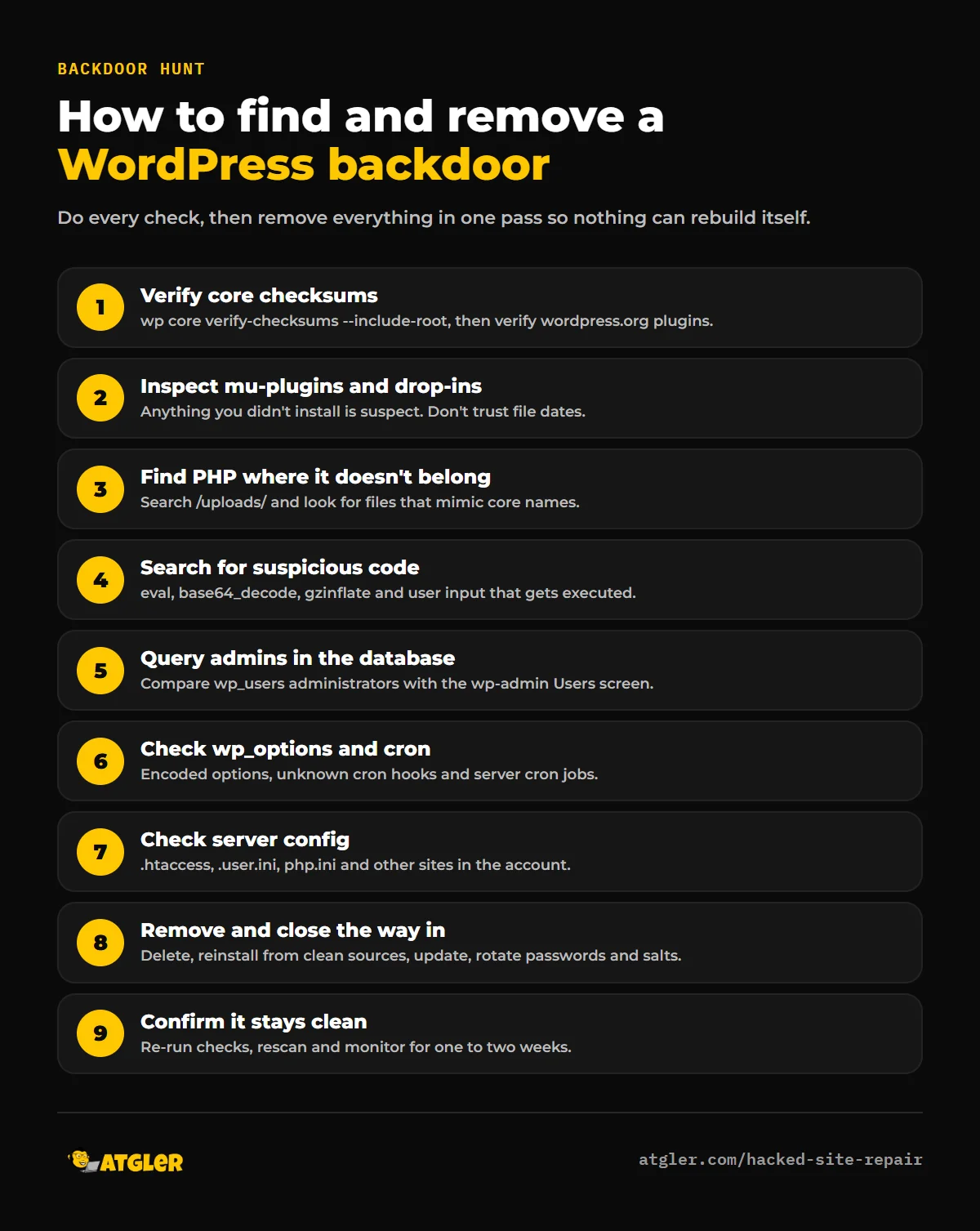
This guide explains what a WordPress backdoor actually looks like in 2026, where attackers hide them, and how to find and remove one step by step using free tools such as WP-CLI and your hosting file manager. If you’re still in the first hours after a hack, start with our step-by-step guide to what to do when your WordPress site is hacked, then come back here for the deep clean.
What is a WordPress backdoor?
A backdoor is anything an attacker leaves on your site that lets them regain access without using the original vulnerability. Once they have it, patching the plugin that let them in doesn’t lock them out. Backdoors come in a few forms:
- Web shells and file managers: small PHP scripts that let the attacker upload, edit or run files from a browser.
- Hidden administrator accounts: admin users that are filtered out of your Users screen, so they don’t show up even when you look.
- Magic login links: code that logs anyone with a secret URL in as an administrator, no password needed.
- Must-use plugins: files in
wp-content/mu-plugins/that load automatically and don’t appear in the normal plugin list. - Database payloads: malicious code stored in
wp_optionsor in posts, which a small loader file pulls out and runs. - Scheduled re-infectors: WordPress cron events or server cron jobs that recreate deleted files on a timer.
- Server-level hooks: settings in
.htaccess,.user.iniorphp.ini(such asauto_prepend_file) that load malicious code before WordPress even starts.
Most real infections use more than one of these at once, which is exactly why a single scan or a single deleted file rarely fixes the problem.
Signs your WordPress site has a backdoor
You probably have a backdoor if, after a cleanup:
- The same malicious files reappear, sometimes with slightly different names.
- A deleted admin user comes back, or you find admins you can’t see in wp-admin but can see in the database.
- Spam pages, redirects or injected scripts return within hours or days.
- Some files can’t be deleted or edited, even with the right permissions.
- Your security plugin keeps flagging the same file after you “fix” it.
- Your hacked WordPress site was restored from backup and got reinfected anyway.
A real example: the campaign that hides its own admin account
In October 2026, Patchstack published an analysis of an active campaign it called “four ways back in.” Attackers exploited stored XSS flaws in two popular plugins, WPC Product Bundles for WooCommerce (up to 8.6.6, fixed in 8.6.7) and Ninja Forms (up to 3.15.3, fixed in 3.15.4). When a logged-in administrator viewed the injected content, the payload used that admin’s session to plant four separate backdoors:
- A normal-looking administrator account.
- A second administrator hidden from the Users screen by a must-use plugin that filters it out of user lists and role counts.
- A magic login URL that signs the holder in as the site’s oldest administrator.
- A fake plugin called “WP Smart Thumbnails” containing a file manager that works without logging in.
Two details make this campaign a good lesson. First, deleting the vulnerable plugins doesn’t remove any of the four backdoors. Second, the dropped files were backdated to look old, so sorting files by “last modified” wouldn’t reveal them. Patchstack’s advice was to compare the administrator list in the database against what wp-admin shows, inspect the mu-plugins folder by content rather than by date, delete the campaign’s database options, and rotate every privileged password and the authentication salts.
It isn’t an isolated case. Check Point Research’s StopAndProtect report from August 2026 found close to 2,000 compromised WordPress domains, many with a hidden must-use plugin (wp-sec.php) that exposed a remote upload endpoint.
Before you start: back up and get the right access
Backdoor hunting means deleting files and database rows, so prepare first:
- Take a full backup of files and database as they are now, even though they’re infected. If you delete the wrong thing, you can recover it.
- Get file access through SFTP or your host’s file manager, and database access through phpMyAdmin.
- Get SSH and WP-CLI if your host offers it. Most of the checks below take seconds with WP-CLI and much longer by hand.
- Put the site in maintenance mode so visitors aren’t exposed while you work.
Step 1: Verify WordPress core files against official checksums
The fastest way to find modified core files is to compare them against WordPress.org’s published checksums. With WP-CLI, run:
wp core verify-checksums --include-rootAccording to the WP-CLI documentation, this checks every core file against the official checksums for your version, and --include-root also warns about unexpected files in your site’s root folder. Any file reported as not verifying has been changed or added. For plugins downloaded from WordPress.org, you can do the same with:
wp plugin verify-checksums --allPremium plugins and custom themes aren’t in the WordPress.org repository, so they can’t be verified this way. Reinstall those from a fresh copy downloaded from the vendor.
Step 2: Check mu-plugins, a favorite WordPress backdoor hiding spot
Open wp-content/mu-plugins/. On many sites this folder doesn’t exist or contains one or two files from your host. Anything you didn’t install, or can’t explain, needs a close look. Then check the “drop-in” files that live directly in wp-content/, such as advanced-cache.php, object-cache.php and db.php. These are legitimate when a caching or database plugin creates them, but attackers also use those names because they load automatically.
Don’t trust file dates here. As the Patchstack example shows, attackers backdate files so they blend in.
Step 3: Find PHP files where they don’t belong
Your uploads folder should contain images, PDFs and other media, never PHP. Over SSH, list any PHP files in it:
find wp-content/uploads -type f -name "*.php"Any result is almost certainly malicious. Also look for PHP files with odd names in your theme and plugin folders, such as random strings, names that mimic core files (for example wp-configs.php or class-wp-query-a1b2c3d4.php), and files hidden in folders that normally only hold CSS or images.
Step 4: Search for suspicious PHP code
Backdoors usually rely on a small set of PHP functions to decode and run hidden code. This search lists files that use them:
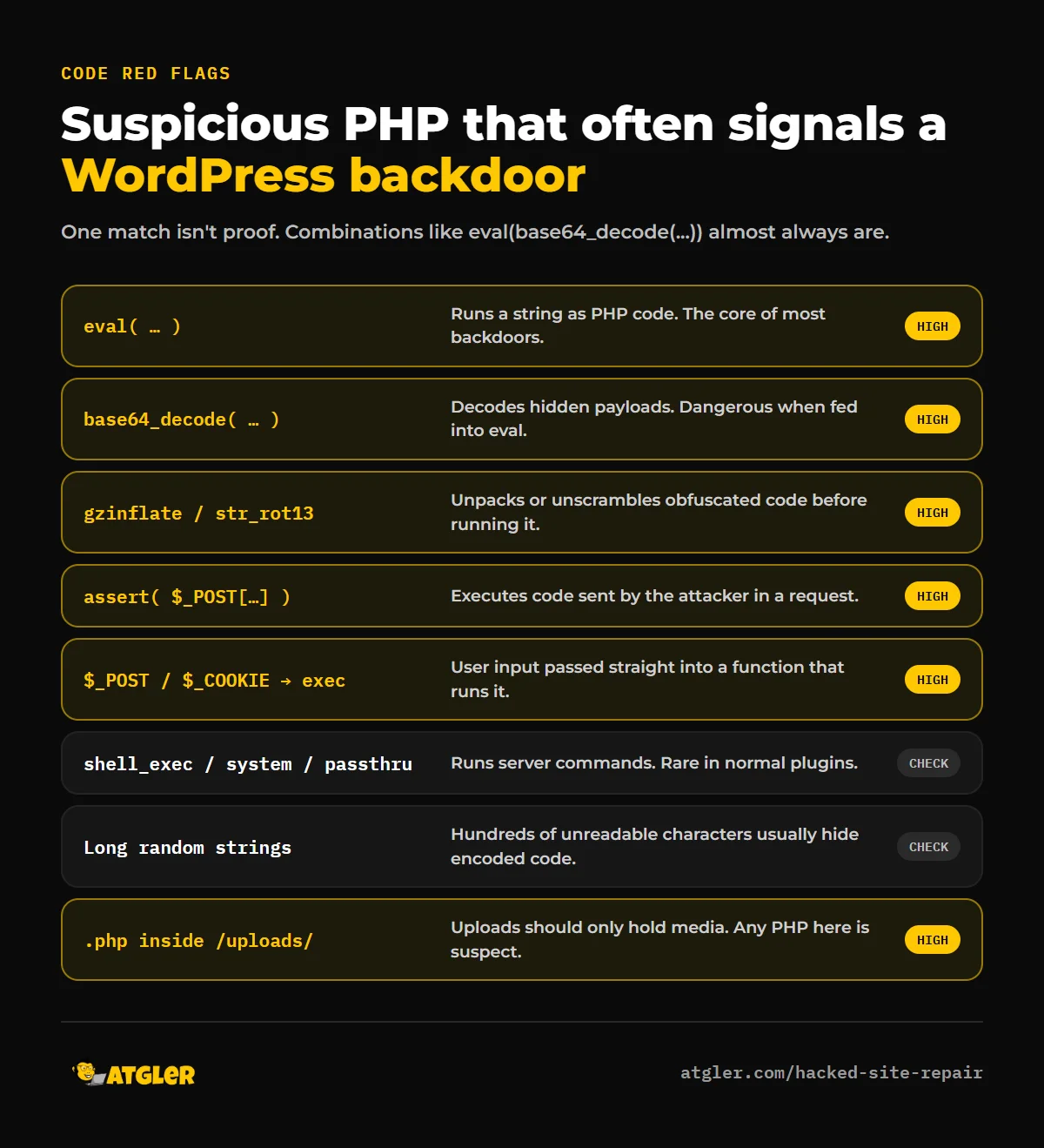
grep -rlE "eval\(|base64_decode\(|gzinflate\(|str_rot13\(|assert\(|shell_exec\(|passthru\(|system\(" wp-content --include=*.phpExpect some false positives: legitimate plugins use a few of these functions too. What to look for is the combination, for example eval(base64_decode(...)), long unreadable strings of letters and numbers, code that reads from $_POST, $_GET or $_COOKIE and then executes it, or functions built from string fragments so a scanner can’t recognize them. If you aren’t sure whether a match is legitimate, compare the file with a fresh copy of the same plugin version.
Step 5: Hunt for hidden administrator accounts
Because a backdoor can hide users from the Users screen, check the database directly. In phpMyAdmin, run this query (replace wp_ if your table prefix is different):
SELECT u.ID, u.user_login, u.user_email, u.user_registered
FROM wp_users u
JOIN wp_usermeta m ON m.user_id = u.ID
WHERE m.meta_key = 'wp_capabilities'
  AND m.meta_value LIKE '%administrator%';
Compare the result with the administrators listed in wp-admin. Any account that appears in the database but not on the Users screen is being hidden on purpose, and the code doing the hiding is a backdoor too. Watch for generic usernames like support, updater, maintenance or backup, which Patchstack saw in the October 2026 campaign.
Step 6: Check wp_options and scheduled tasks
Some backdoors store their real payload in the database and keep only a tiny loader on disk. In wp_options, look for unfamiliar option names, especially autoloaded ones containing long encoded strings or PHP code. Confirm siteurl and home point to your own domain.
Then check scheduled tasks. With WP-CLI:
wp cron event listLook for hooks you don’t recognize, then check the server’s own cron jobs in your hosting control panel. A malicious cron job is one of the most common reasons deleted malware “comes back by itself.”
Step 7: Check server configuration files
Backdoors don’t have to live inside WordPress at all. Check:
.htaccessin the site root and in subfolders, for unexpected redirects,auto_prepend_filedirectives or rules that make PHP run in the uploads folder..user.iniandphp.inifor anauto_prepend_filesetting pointing to a file you didn’t create.- Other websites in the same hosting account. On shared hosting, one infected site can reinfect every other site under the same user.
When files can’t be deleted
If a malicious file returns “permission denied” even though you own it, it may have been made immutable at the server level. That’s exactly what one site owner described on the WordPress.org support forums in 2026: after four days of cleanup, the site was reinfected and three files, including a regenerated must-use plugin, couldn’t be removed. In their case, the host’s “Fix Permissions” tool cleared the flag, and they then rebuilt the site from fresh WordPress core, a pre-infection database backup and newly installed plugins. If you hit this, ask your host to remove the immutable attribute. On a server where you have root access, lsattr shows it and chattr -i removes it.
Step 8: Remove the WordPress backdoor and close the way in
Once you’ve mapped everything, remove it all in one pass, so one backdoor can’t recreate another while you work:
- Delete malicious files, the fake plugins and the unauthorized mu-plugins.
- Replace
/wp-adminand/wp-includeswith clean copies of your WordPress version, and reinstall every plugin and theme from official sources. - Delete hidden or unauthorized administrator accounts, malicious options and cron events.
- Update the plugin or theme that let the attacker in. If you don’t know which one it was, update everything and remove anything abandoned or nulled.
- Rotate every password: WordPress users, hosting, SFTP, SSH and the database. Then replace the authentication salts in
wp-config.phpto log out every session, including the attacker’s.
Step 9: Confirm the WordPress backdoor is really gone
“Clean” means it stays clean. After removal:
- Run
wp core verify-checksumsagain and rescan with both a plugin scanner and a remote scanner such as Sucuri SiteCheck. - Re-run the hidden-admin query and the uploads search.
- Watch the site closely for at least one to two weeks. File-change monitoring will tell you immediately if something reappears.
- Check your server access logs for requests to the files you removed. Repeated hits show the attacker trying to use the old door, which confirms what the entry point was.
If anything comes back, there’s still a backdoor you haven’t found, or the original vulnerability is still open.
Can a WordPress backdoor scanner find everything?
No, and it’s worth knowing why. Security plugins such as Wordfence, Sucuri Security and Quttera are very good at catching known malware signatures and modified core files, and you should run one. Their weakness is custom or freshly obfuscated code that doesn’t match any known pattern, and payloads stored in the database rather than in files. In the forum case above, the scanner flagged only the files that couldn’t be deleted, while the hidden admin, the cron jobs and the database options had to be found by hand. Use a scanner to find the obvious problems fast, then do the manual checks in Steps 2 to 7.
When to get professional help
Backdoor removal is the part of a hack cleanup that takes the most time and experience. It’s worth bringing in help if the site has been reinfected more than once, you can’t access SSH or the database, the site is an online store or handles customer data, or Google has already flagged it.
Our hacked site repair service covers exactly this: we clean every file and database table, rebuild WordPress core from verified files, remove hidden users and scheduled re-infectors, and patch the way in. Standard Repair is $149 (48-hour turnaround) and Priority Repair is $249 (24-hour turnaround). Both include a written report and a 30-day re-hack guarantee. To keep the site monitored and updated afterwards, see our WordPress care plans.
Frequently asked questions
What is a backdoor in WordPress?
It’s hidden code, a hidden user account or a server setting that lets an attacker get back into your site without using the original vulnerability. It’s the main reason cleaned sites get reinfected.
Why does malware keep coming back on my WordPress site?
Usually because a backdoor was missed: a must-use plugin, a hidden admin account, a malicious cron job or code stored in the database. Less often, the original vulnerable plugin is still installed, or another infected site on the same hosting account keeps reinfecting yours.
Can a security plugin remove a WordPress backdoor?
It can find and remove many known ones, but it often misses custom code, hidden admin accounts and database payloads. Treat a scan as the first step and follow it with manual checks of mu-plugins, uploads, users, options and cron jobs.
Can a backdoor be hidden in the WordPress database?
Yes. Attackers store payloads in the wp_options table or in post content, and create administrator accounts in wp_users. That’s why restoring files alone doesn’t always clean a site.
Will reinstalling WordPress remove a backdoor?
Only partly. Reinstalling core replaces wp-admin and wp-includes, but it doesn’t touch your plugins, themes, uploads, mu-plugins, database or server configuration, which is where most backdoors live.
How do I know the backdoor is gone?
Core and plugin checksums verify, scans come back clean, the database shows only administrators you recognize, no PHP files exist in uploads, and nothing reappears during one to two weeks of monitoring.
Sources
- Patchstack: Four ways back in: the WordPress XSS campaign that hides its own admin account (October 2026)
- Check Point Research: Thousands of Hacked WordPress Sites, One Operation (August 2026)
- WP-CLI: wp core verify-checksums
- WordPress.org: FAQ: My site was hacked and Hardening WordPress
- WordPress.org support forums: Reinfection after cleanup: backdoor and immutable files