
On this page
- Key takeaways
- Why a WordPress update checklist matters
- What does WordPress update automatically, and what doesn’t it?
- Before you update: the WordPress update checklist
- The safe order for your WordPress update checklist
- WordPress update checklist: what to test afterwards
- What to do if a WordPress update breaks your site
- How often to run your WordPress update checklist
- Automatic updates and your WordPress update checklist
- WordPress update checklist mistakes to avoid
- When you’d rather not do WordPress updates yourself
- Frequently asked questions
A WordPress update checklist is a routine for updating safely: take a backup first, update in a sensible order, test quickly afterwards, and have a plan if something breaks. It matters because most hacked WordPress sites were running software that already had a fix available.
This guide gives you a copy-and-use checklist for updating WordPress core, plugins and themes yourself, plus what to do when an update goes wrong. It’s based on the official WordPress.org update documentation. If you’d rather not handle updates at all, skip to the section on care plans.
Key takeaways
- Patchstack’s State of WordPress Security in 2026 found 91% of new WordPress vulnerabilities in 2025 were in plugins, with a median time to mass exploitation of about 5 hours.
- WordPress.org documentation says that since version 3.7 most sites automatically apply minor and security core releases, while major releases and many plugin or theme updates need manual action.
- Before updating, take a full off-site backup of files and database, confirm you can restore it, and use a staging site for stores and custom code.
- The safe order is security releases first, then core, then plugins one at a time with checks between each, then the theme, then database updates.
- After updating, test key pages, forms, checkout, login and menus, then clear the cache; if something breaks, deactivate the last updated plugin or restore your backup.
Why a WordPress update checklist matters
Updates fix security holes, but they can also break things, which is why people delay them. Delay is the bigger risk. Patchstack’s State of WordPress Security in 2026 found that 91% of new WordPress vulnerabilities in 2025 were in plugins, and that the median time to mass exploitation of heavily exploited vulnerabilities was about 5 hours. That doesn’t mean you must update within five hours of every release, but it does mean “I’ll get to it next quarter” isn’t safe for security fixes. A checklist makes updating fast and low-risk, so you actually do it.
What does WordPress update automatically, and what doesn’t it?
According to the WordPress.org documentation, since WordPress 3.7 most sites automatically apply minor and security releases of WordPress core in the background. Major releases still need you to click “Update Now.” Plugins and themes are separate: you can switch on automatic updates for each one under Plugins and Appearance in your dashboard, but they aren’t automatic by default for every site. Know which of your components update themselves, and manage the rest on a schedule.
Before you update: the WordPress update checklist
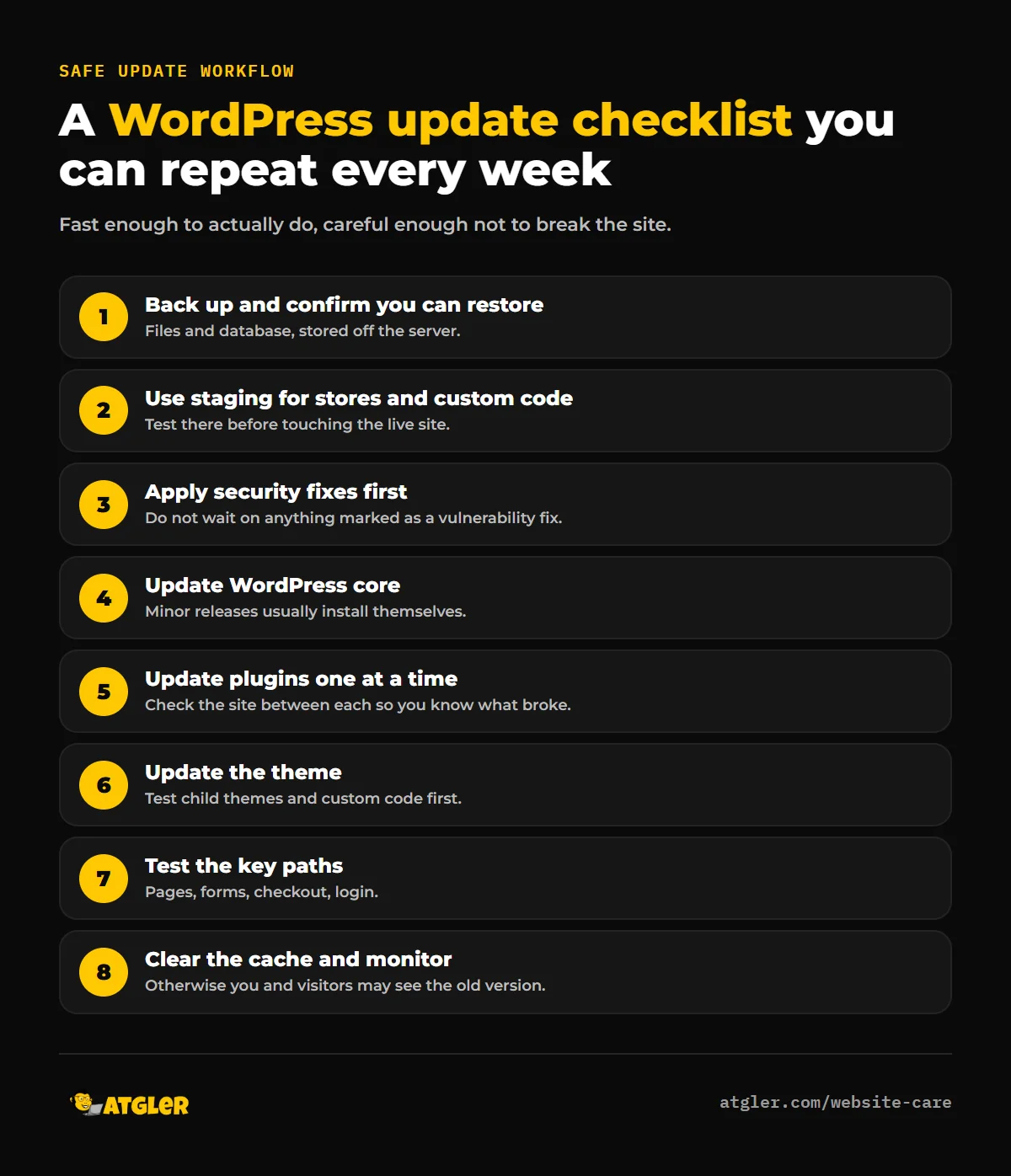
- Take a full backup. Files and database, stored off the server. The official guide’s first recommendation is to back up before you start, so you can restore if anything goes wrong.
- Check that you can restore it. A backup you’ve never restored is a guess. Test with your host’s restore tool or a staging site.
- Use a staging site if you have one. Many hosts offer one-click staging. Test updates there first on stores, membership sites and anything with custom code.
- Note what’s installed. Write down your current WordPress, PHP, theme and plugin versions, so you know what you’re rolling back to.
- Read the changelogs for big updates. Look for “breaking changes” or minimum PHP and WordPress requirements.
- Check your PHP version. WordPress recommends hosting that supports PHP 8.3 or greater, and according to php.net, PHP 8.2’s security support ends December 31, 2026. Old PHP and new plugin versions can clash.
- Pick a quiet time. Not Monday morning or the middle of a sale.
The safe order for your WordPress update checklist
There’s no single rule everyone agrees on, but this is the order we use:
- Security releases first. If a plugin or core update is marked as fixing a vulnerability, do it as soon as your backup is ready.
- WordPress core. Minor releases usually install automatically. For major ones, wait a few days after release for early bugs to be reported, unless it’s a security fix.
- Plugins, one at a time. Update each separately and check the site between updates. If something breaks, you know exactly which update did it. Updating everything at once makes troubleshooting much harder.
- Theme. If you have a child theme or custom code, test on staging first.
- Translations and database updates. Run any “Update database” prompts that WordPress shows after a major update.
WordPress update checklist: what to test afterwards
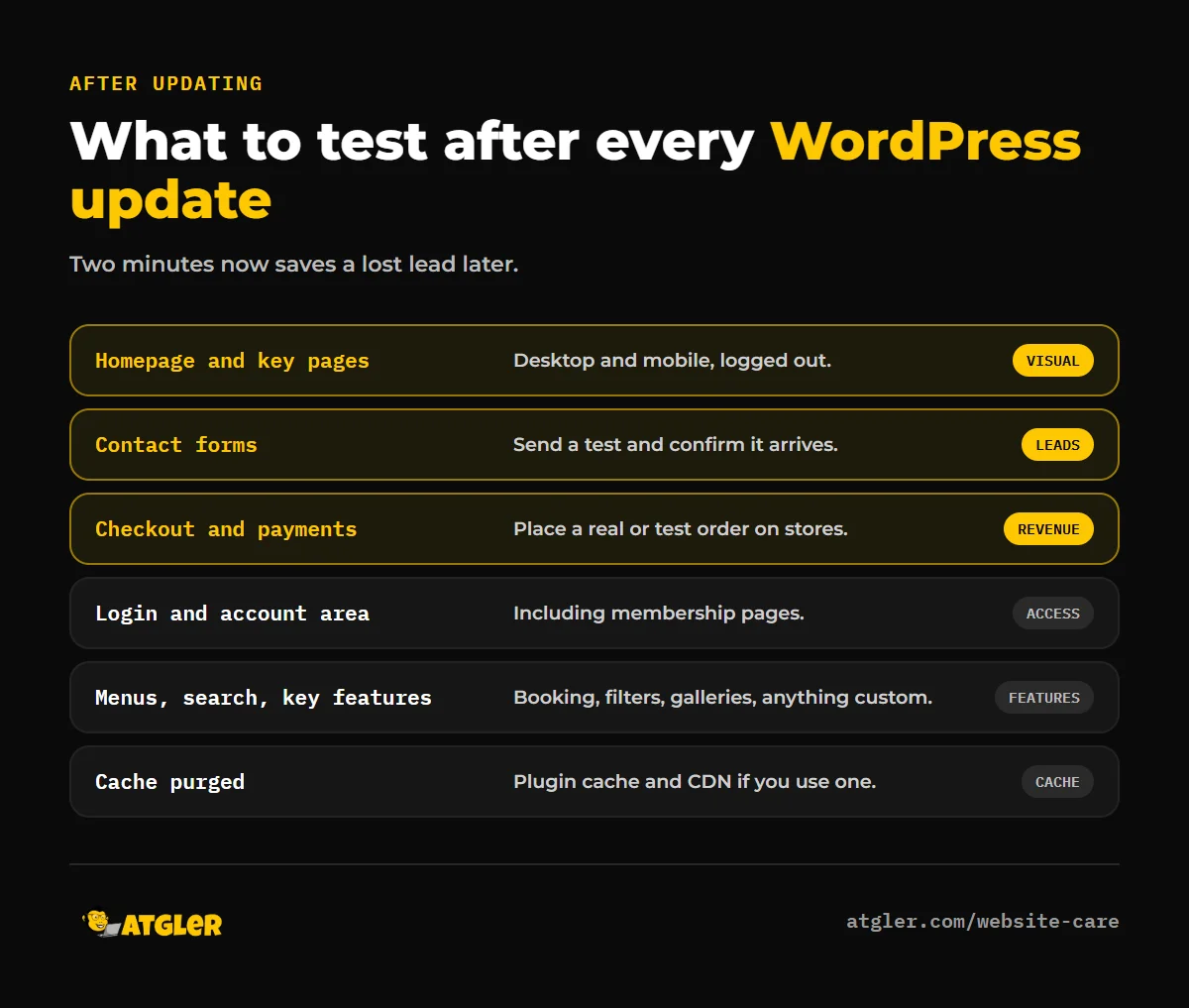
- Homepage and a few key pages on desktop and mobile.
- Forms. Submit a test message and confirm it arrives.
- Checkout and payments on a store, with a real or test order.
- Login and your account area, including any membership pages.
- Navigation menus, search and any key plugin features such as booking or filters.
- The browser console and error messages, if you’re comfortable checking them.
- Clear your cache. The WordPress.org guide says to clear any caching after an update so the changes go live immediately. Otherwise, visitors and you may keep seeing the old version.
What to do if a WordPress update breaks your site
- Don’t panic, and don’t keep clicking. Note the exact error message.
- Stuck on “briefly unavailable for scheduled maintenance”? A failed update can leave a file called
.maintenancein your WordPress folder. The official guide says to delete it using FTP, which removes the message. - Deactivate the last updated plugin. If you can’t reach the dashboard, rename that plugin’s folder inside
wp-content/pluginsusing FTP or your host’s file manager. - Roll back that one plugin to the previous version if the developer offers it, or restore your backup.
- Restore the backup if the site is badly broken. WordPress.org also notes you can replace core files with ones from the release archive if a core update caused the problem.
- Report the issue to the plugin developer, and hold off updating that plugin until a fix is released.
How often to run your WordPress update checklist
| Task | How often |
|---|---|
| Security updates (core, plugins, themes) | As soon as practical, ideally within days |
| Other plugin and theme updates | Weekly |
| Major WordPress releases | Within a week or two, after checking compatibility |
| Backups | Daily for active sites, with off-site copies |
| Cleanup of unused plugins and themes | Monthly |
| Restore test | Every few months |
Automatic updates and your WordPress update checklist
For most small sites, a mix works well: leave minor core updates automatic, and enable automatic updates for plugins you trust and that rarely cause problems, such as well-maintained, widely used ones. Update complex or business-critical plugins (checkout, booking, page builders) manually, with a backup and a test. Whatever you choose, you still need working backups, because an automatic update can fail like any other.
WordPress update checklist mistakes to avoid
- Updating without a backup, or with a backup you’ve never tested.
- Updating everything at once, then not knowing what broke.
- Ignoring security updates because the site “works fine.”
- Using pirated (“nulled”) plugins that can’t be updated safely. They’re a known source of backdoors.
- Leaving abandoned plugins installed. Delete anything that hasn’t been updated in a long time and has a maintained replacement.
- Forgetting to clear the cache and thinking the update failed.
When you’d rather not do WordPress updates yourself
Doing this well means a backup, staging, testing and a weekly habit. If that’s more than you want to manage, our WordPress care plans handle updates, backups and monitoring for you. And if an update has gone wrong or you suspect something worse, see our guides on what to do when your site is hacked and the real cost of never maintaining your site. For the plugins that protect you between updates, see our security plugin comparison.
Frequently asked questions
How do I safely update WordPress?
Back up your files and database, ideally test on a staging copy, update core and then plugins one at a time, and test the key parts of your site after each step. Clear your cache at the end, and keep your backup until you’re sure everything works.
What order should I update WordPress, plugins and themes?
Apply security fixes first. Then update WordPress core, plugins one at a time, and finally your theme. Updating plugins individually makes it easy to identify the one that causes a problem.
Should I update WordPress as soon as a new version comes out?
For security releases, yes. For major feature releases, many site owners wait a few days to a couple of weeks so early bugs get reported, as long as the release isn’t fixing a known vulnerability.
Does WordPress update automatically?
Minor and security releases of core usually do, on most sites. Major releases need you to click “Update Now,” and plugin and theme auto-updates are settings you choose individually.
What if a WordPress update breaks my website?
Deactivate or roll back the last updated plugin, restore your backup if needed, and delete the .maintenance file if you’re stuck on a maintenance message. Test updates on staging next time.
Do I need a backup before every update?
Yes. It’s the only reliable way to undo a bad update, and the official WordPress guide recommends it as the first step.
Sources
- WordPress.org: Updating WordPress and requirements
- Patchstack: State of WordPress Security in 2026
- PHP: Supported versions