
On this page
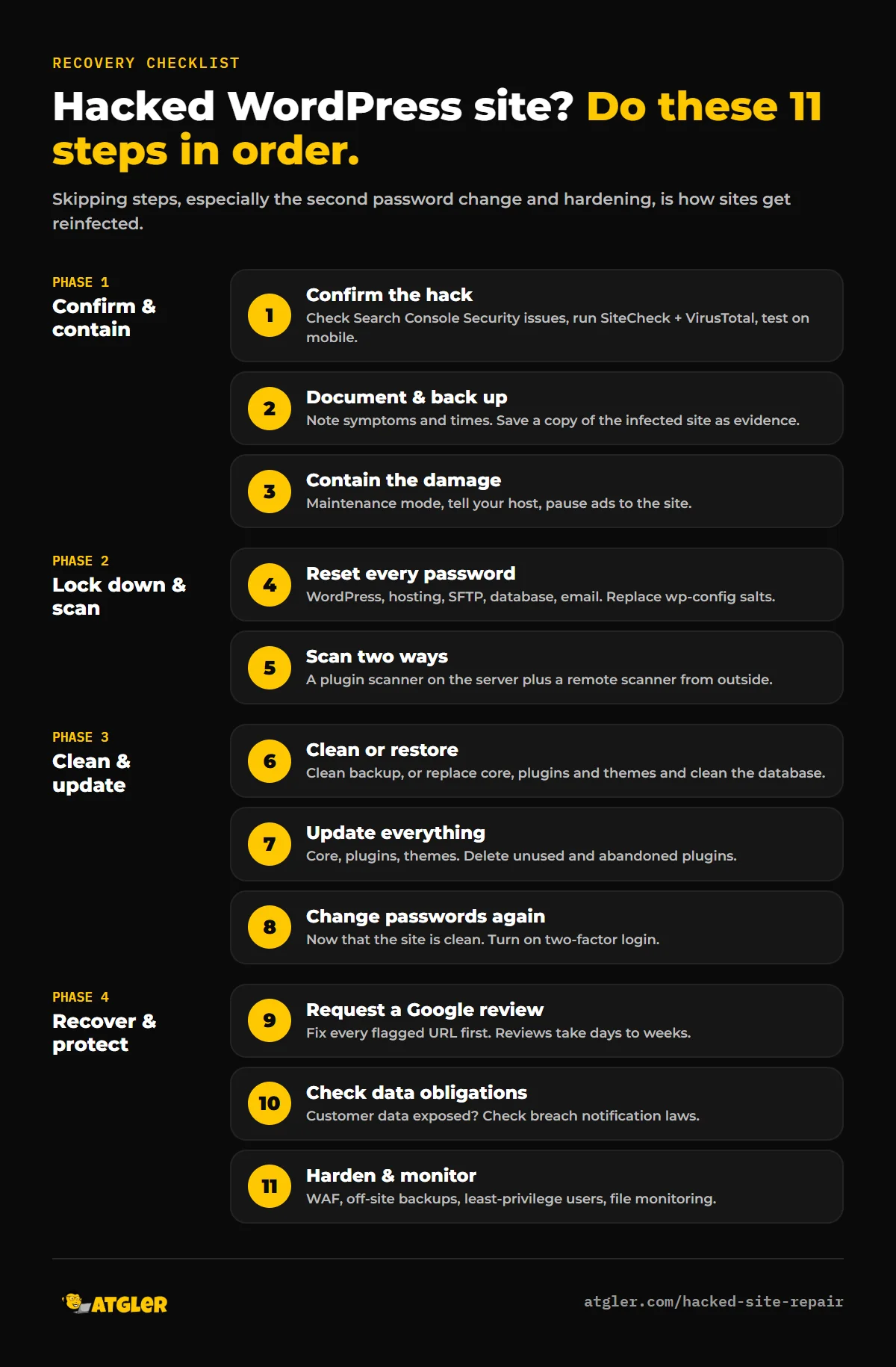
- The short version: what to do if your WordPress site is hacked
- Why so many WordPress sites are getting hacked in 2026
- Step 1: Confirm your WordPress site has actually been hacked
- Step 2: Document everything and back up the infected site
- Step 3: Contain the damage
- Step 4: Lock down every account
- Step 5: Scan the site to find what was changed
- Step 6: Clean the hacked WordPress site
- Step 7: Update everything and remove what you don’t need
- Step 8: Change all passwords again
- Step 9: Remove the Google warning from your hacked WordPress site
- Step 10: Check whether customer data was exposed
- Step 11: Harden your site so it doesn’t happen again
- Why hacked WordPress sites get reinfected
- Should you fix a hacked WordPress site yourself or hire help?
- Frequently asked questions
You open your site and something is wrong. Maybe visitors are being redirected to a scam page, Google is showing a red “Deceptive site ahead” warning, your host suspended the account, or there is an admin user you’ve never seen before. If you’re dealing with a hacked WordPress site, the next few hours matter more than anything you did before the hack. Act in the wrong order and you can wipe out the evidence, lock yourself out, or clean the site only to watch it get reinfected a week later.
This guide shows you how to recover a hacked WordPress site step by step, whether you plan to fix it yourself or bring in help. It follows the official WordPress.org guidance for hacked sites and Google’s Security Issues documentation, plus the patterns that keep showing up in real support threads from site owners.
The short version: what to do if your WordPress site is hacked
- Confirm it’s really a hack, not a plugin conflict or hosting outage.
- Write down what you see and take a backup of the infected site before you change anything.
- Contain it: put the site in maintenance mode or ask your host to restrict access.
- Reset every password (WordPress, hosting, SFTP, database, email) and force all users to log out.
- Scan with both a plugin scanner and a remote scanner.
- Clean the site: restore a known-clean backup or replace core, plugins and themes manually, then clean the database.
- Update everything and remove plugins you don’t use.
- Change the passwords again once the site is clean.
- Ask Google to review the site if it’s flagged in Search Console.
- Check your legal obligations if customer data may have been exposed.
- Harden and monitor so it doesn’t happen again.
The rest of this article explains each step, what people usually get wrong, and when it makes sense to hand it to a professional.
Why so many WordPress sites are getting hacked in 2026
If it feels like hacks are more common lately, the data backs that up. Patchstack’s State of WordPress Security in 2026 report recorded 11,334 new WordPress vulnerabilities in 2025, a 42% jump over the year before. A few findings from that report explain most hacks:
- 91% of the vulnerabilities were in plugins and 9% in themes. WordPress core itself had only six reported issues.
- 46% had no patch available when they were publicly disclosed, so “just keep things updated” isn’t always enough.
- For heavily exploited vulnerabilities, the weighted median time to mass exploitation was 5 hours. Attackers move faster than most site owners check their dashboards.
Core isn’t immune either. In July 2026, a WordPress core vulnerability chain dubbed wp2shell allowed unauthenticated attackers to take over unpatched sites, and Malwarebytes reported that exploitation began within hours of the patch being released. A month later, Check Point Research documented a single operation, StopAndProtect, that had compromised close to 2,000 WordPress domains and used them to show visitors fake CAPTCHA prompts that tricked Windows users into running malware.
The takeaway: a hack usually isn’t a sign you did something unusually wrong. It’s mostly automated attacks scanning millions of sites for one outdated plugin. What matters now is cleaning it up properly.
Step 1: Confirm your WordPress site has actually been hacked
Before you start deleting files, make sure you’re dealing with a compromise and not a broken update or a hosting problem. WordPress.org calls these signs “Indicators of Compromise.” The clearest ones are:
- Google, Bing or your browser shows a warning such as “Deceptive site ahead” or “This site may be hacked.”
- Your host suspended the site or emailed you about malicious content.
- Visitors get redirected to spam, adult, pharmacy or fake-prize pages. This “redirect hack” often targets only mobile visitors or people arriving from Google.
- New admin users, posts or pages appear that nobody on your team created.
- Searching
site:yourdomain.comin Google shows pages in Japanese, casino or pharma spam you never published. - Customers say their antivirus is blocking your site.
- Your site is sending spam email, or your domain’s email lands on blocklists.
Two quick checks help here:
- Google Search Console: open Security & Manual Actions → Security issues. If Google has detected hacked content, malware or social engineering, it will be listed here with example URLs.
- Remote scanners: run your domain through Sucuri SiteCheck and VirusTotal. They look at your site the way a visitor or a search engine does.
Test from a private browser window and from your phone on mobile data. Many redirect hacks are “cloaked”: they hide from logged-in admins and only target first-time visitors or mobile users.
Step 2: Document everything and back up the infected site
It sounds backwards, but one of the first things WordPress.org recommends is documentation. Write down:
- What you’re seeing, and when you first noticed it (with time zone).
- Anything that changed recently: a new plugin, a theme update, a new user, a developer given access.
- Your hosting details: provider, PHP version, WordPress version and whether you’re on shared hosting.
Then take a full backup of the site as it is now, files and database. Yes, it’s infected. Keep it anyway, offline and clearly labeled. If a cleanup goes wrong, you can roll back, and if you later need to work out how the attacker got in (or show what data was exposed), this copy is the evidence.
Step 3: Contain the damage
Every hour a hacked site stays live, more visitors are exposed and search engines trust the site a little less. Limit the blast radius:
- Put the site into maintenance mode, or ask your host to restrict public access while you work.
- If you’re on shared hosting, tell your host. WordPress.org points out that the hack may have spread beyond your site, and your host may already be taking action.
- Pause any paid ads pointing to the site so you aren’t paying to send people to malware.
Don’t delete the site or start removing random files yet. Panic-deleting is how people lose content and still miss the backdoor.
Step 4: Lock down every account
If the attacker still has a working password, anything you clean can be undone in minutes. Reset access everywhere, not just in WordPress:
- WordPress: reset passwords for every user, especially administrators. Delete any admin or editor accounts you don’t recognize.
- Hosting control panel (cPanel, hPanel, Plesk) and your domain registrar.
- SFTP/FTP and SSH accounts.
- The database user password, then update it in
wp-config.php. - Email accounts tied to the admin user, since that’s where password reset links go.
Next, force everyone to log out by replacing the security keys (“salts”) in wp-config.php with a fresh set from the official WordPress key generator. This kills any session an attacker is still using.
Finally, scan your own computer. WordPress.org notes that some infections start on the site owner’s laptop, where malware steals saved FTP or admin logins.
Locked out of wp-admin?
If the attacker changed your password or email, you can usually get back in through your hosting panel. Open phpMyAdmin (or Adminer), find your user in the wp_users table, change the email address to one you control, then use “Lost your password?” on the login screen. If you can’t access hosting either, contact your host’s support first, since they can verify ownership and restore access.
Step 5: Scan the site to find what was changed
Use two types of scanner, because each one sees different things:
- Server-side plugin scanners such as Wordfence, Sucuri Security or Quttera compare your files against known-clean versions and look for malicious code.
- Remote scanners such as SiteCheck and VirusTotal show what visitors and search engines see.
Treat scanner results as a starting point, not a verdict. Scanners are good at known malware signatures and much weaker at custom or obfuscated backdoors. A “clean” result after a confirmed hack usually means something is hiding, not that the problem has gone away.
Step 6: Clean the hacked WordPress site
You have two main options: restore a backup or clean the site manually. Here’s how they compare:
| Restore from a clean backup | Manual cleanup | |
|---|---|---|
| Best when | You have a backup from before the infection and know roughly when it started | No clean backup exists, or the infection date is unknown |
| Speed | Fast, often under an hour | Hours to days, depending on the infection |
| Risk | You lose anything added since the backup, and the original vulnerability is still there | Easy to miss a hidden backdoor or database injection |
| Still required | Updates, password resets and hardening | Updates, password resets and hardening |
A backup taken after the infection started will simply restore the malware, so check the date carefully. If you restore, you still need to complete steps 7 to 11, because whatever let the attacker in is usually still there.
How to clean a hacked WordPress site manually
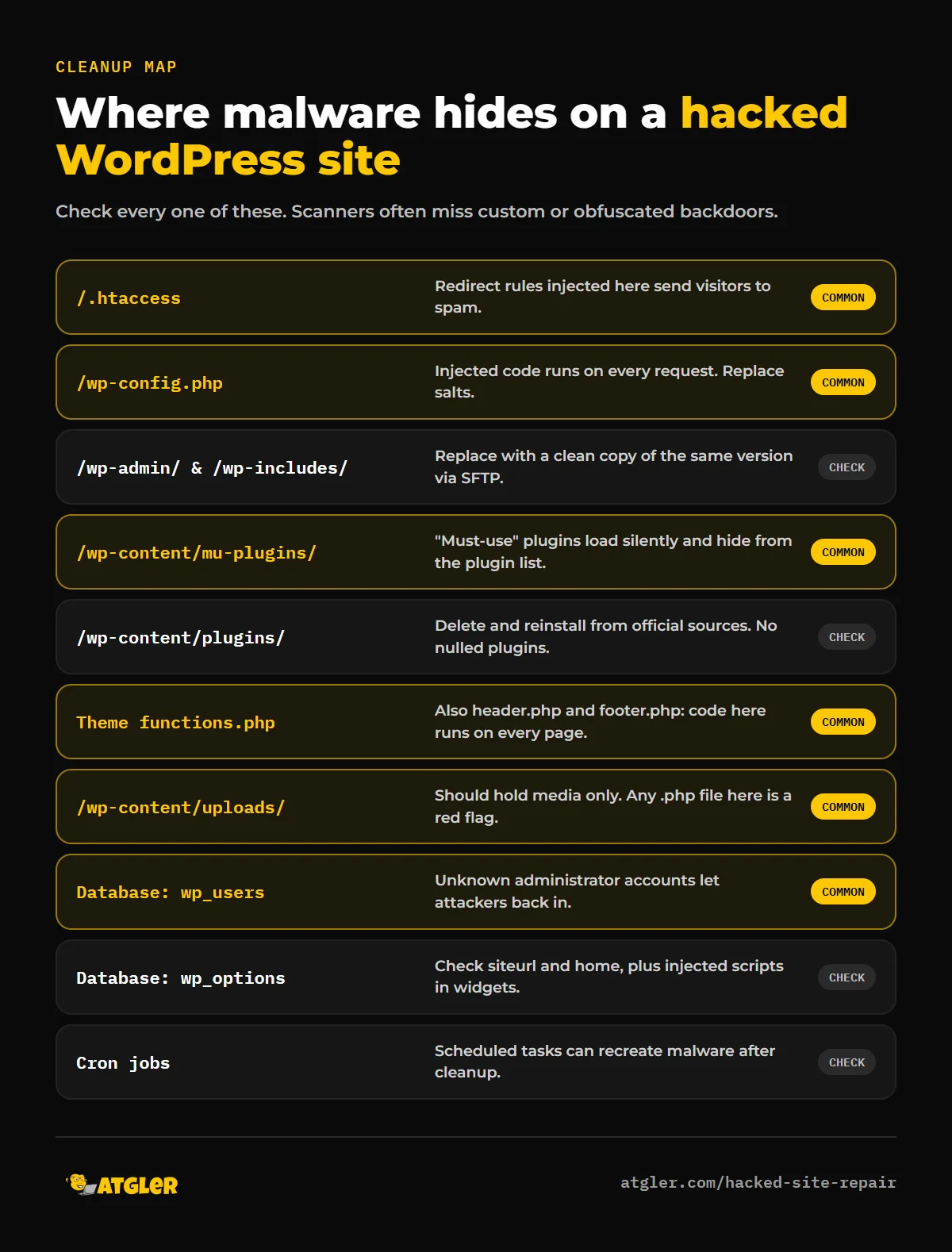
- Replace WordPress core. Download the same version you’re running from WordPress.org and replace the
/wp-adminand/wp-includesfolders over SFTP. WordPress.org specifically advises against using the dashboard’s reinstall button, because it only overwrites existing files and won’t remove new files the attacker added. - Reinstall plugins and themes from official sources. Delete each plugin folder and upload a fresh copy from WordPress.org or the vendor. Delete anything you don’t use. Never reinstall “nulled” (pirated) premium plugins, since they’re a common source of backdoors.
- Check the files attackers love to modify:
.htaccess(in the root and in subfolders),wp-config.php,index.php, and your theme’sheader.php,footer.phpandfunctions.php. Injected code in these files runs on every page load. - Look in
/wp-content/mu-plugins/. “Must-use” plugins load automatically and don’t appear in the normal plugin list, which makes this folder a favorite hiding spot. The StopAndProtect campaign, for example, planted a file calledwp-sec.phpthere to allow remote uploads. - Search
/wp-content/uploads/for PHP files. Uploads should contain images and documents. A.phpfile in there is almost always malicious. - Clean the database. Check the
siteurlandhomevalues inwp_options, search posts and widgets for injected<script>tags or iframes, and remove spam posts and unknown users. - Check scheduled tasks. Look at WordPress cron events and your server’s cron jobs for anything you didn’t set up. Some malware recreates itself on a schedule.
Step 7: Update everything and remove what you don’t need
Once the site is clean, update WordPress core, every plugin and every theme to the latest version. Then go through your plugin list with a critical eye. Remove anything inactive, anything abandoned (no updates in a year or more), and anything you can’t explain. Every plugin you keep is code that could have the next vulnerability.
Step 8: Change all passwords again
This is the step almost everyone skips. WordPress.org is explicit about it: change passwords again after the site is clean. If the attacker had a keylogger or a backdoor running while you did your first reset, those new passwords may already be compromised. Use long, unique passwords from a password manager, and turn on two-factor authentication for every admin account.
Step 9: Remove the Google warning from your hacked WordPress site
If Google flagged your site, the warning won’t disappear on its own after you clean up. You need to ask for a review:
- Open Security issues in Google Search Console and confirm every listed issue is fixed on every affected URL. Google says fixing only some pages won’t earn a partial return to search results.
- Click Request Review and explain the exact problem, the steps you took to fix it, and the result.
- Wait. Google says security reviews typically take a few days to a few weeks. You’ll get an email when the review is received and another when it’s done.
Don’t submit a review before the site is genuinely clean, and don’t resubmit while one is pending. Google warns that premature requests can slow down future reviews and may get you treated as a repeat offender.
If spam pages were indexed, they’ll drop out as Google recrawls and finds them gone (returning a 404 or 410). For urgent cases you can use the Removals tool in Search Console to hide specific URLs temporarily. Also check Bing Webmaster Tools if you get traffic from Bing.
Step 10: Check whether customer data was exposed
If your site handles customer accounts, orders, form submissions or payment details, a hack may also be a data breach. The FTC’s Data Breach Response guide for businesses notes that every state, plus D.C., Puerto Rico and the U.S. Virgin Islands, has breach notification laws, and some industries have federal rules on top of that. If personal data may have been accessed, preserve your evidence (that infected backup from Step 2 matters here) and talk to a lawyer about whether you need to notify customers. This article isn’t legal advice.
Step 11: Harden your site so it doesn’t happen again
A cleanup without hardening is how sites end up hacked twice. Use the official Hardening WordPress guide as your checklist, and at a minimum:
- Turn on two-factor authentication for every admin and editor.
- Give each person their own account with the lowest role they need. No shared admin logins.
- Keep automatic, off-site backups with several restore points, and test a restore at least once.
- Use a web application firewall (WAF), either through a security plugin or at the host or CDN level.
- Apply security updates quickly. Remember that median of 5 hours to exploitation.
- Set up file-change and uptime monitoring so you hear about the next problem before your customers do.
If you’d rather not track all of this yourself, a WordPress care plan covers updates, backups and monitoring every month.
Why hacked WordPress sites get reinfected
“I cleaned it and it came back” is one of the most common complaints in the WordPress.org hacked support forum, with recent threads describing reinfection after a full cleanup and credential rotation, malicious files that keep reappearing in wp-includes, and files set so they can’t be deleted. When a site gets reinfected, it’s almost always one of these:
- A missed backdoor, often a small obfuscated file hidden in uploads, mu-plugins or a theme folder. See our guide on how to find and remove a WordPress backdoor.
- The original entry point is still open: the vulnerable plugin was reinstalled at the same version, or a nulled plugin is still in use.
- A rogue admin account or stolen password that was never removed or changed.
- A malicious cron job that rebuilds the infection on a schedule.
- Another infected site on the same hosting account that reinfects yours. On shared hosting, clean every site in the account, not just the one showing symptoms.
Should you fix a hacked WordPress site yourself or hire help?
You can realistically handle it yourself if you have a clean backup from before the infection, the hack is simple (a defacement or a single injected file), you’re comfortable with SFTP and phpMyAdmin, and nobody’s personal data is involved.
It’s worth getting professional help when:
- The site keeps getting reinfected after you’ve cleaned it.
- Google has blacklisted the site and you’re losing traffic or sales every day.
- It’s an online store or handles customer data or payments.
- Your host has suspended the account.
- You don’t have a clean backup, or you can’t get into wp-admin.
That’s the work our hacked WordPress site repair service handles: complete WordPress malware removal and repair. We strip malicious code from every file and database table, rebuild WordPress core from clean files, patch the vulnerability that let the attacker in, and submit the blocklist review request for you. Standard Repair is $149 with a 48-hour turnaround, and Priority Repair is $249 with a 24-hour turnaround. Both are one-time fees, include a written report of what we found and fixed, and come with a 30-day re-hack guarantee: if the same infection comes back within 30 days, we clean it again for free. If the site is completely down or it’s a store with payment data involved, contact us for urgent handling.
Frequently asked questions
Can I fix a hacked WordPress site myself?
Yes, if the infection is simple and you have a clean backup from before it started. Follow the steps above in order, and don’t skip changing passwords a second time or hardening the site. If the hack comes back after cleanup, a backdoor or the original vulnerability is still there, and that’s usually the point where professional help saves time.
How long does it take Google to remove the hacked site warning?
Google says security reviews typically take a few days to a few weeks after you request a review in Search Console. Make sure every flagged URL is clean before requesting, and don’t resubmit while a review is pending.
Will restoring a backup remove the hack?
Only if the backup was taken before the infection started, and even then it won’t fix the vulnerability that let the attacker in. After restoring, update everything, reset all passwords and salts, and harden the site, or you’re likely to be hacked again the same way.
How did my WordPress site get hacked?
Most often through a vulnerable plugin or theme. Patchstack found that 91% of new WordPress vulnerabilities in 2025 were in plugins. Other common causes are weak or reused passwords, nulled premium plugins, an infected computer that leaked logins, and other compromised sites on the same shared hosting account.
What should I do if I can’t log in to my hacked WordPress site?
Use phpMyAdmin in your hosting panel to change your user’s email address in the wp_users table, then request a password reset from the login page. If you can’t access hosting either, contact your host to verify ownership. Once you’re back in, remove any admin accounts you don’t recognize.
Should I delete my WordPress site and start over?
Usually not. Deleting the site throws away content, SEO history and evidence, and if you rebuild on the same hosting with the same plugins and passwords, it can get hacked again. A proper cleanup keeps your content and closes the hole the attacker used.
Sources
- WordPress.org: FAQ: My site was hacked and Hardening WordPress
- Google Search Central: Security issues report
- Patchstack: State of WordPress Security in 2026
- Check Point Research: Thousands of Hacked WordPress Sites, One Operation (August 2026)
- Malwarebytes: What happens if you visit a WordPress site hacked through wp2shell (July 2026)
- FTC: Data Breach Response: A Guide for Business