

On this page
- Which steps migrate email to new host safely, in order?
- Why lower the TTL before you move email to new hosting?
- How do you copy mailboxes before you switch MX?
- How long does an MX records migration take to work?
- Should you delete the old MX records or lower their priority?
- What causes lost mail when you move email to new hosting?
- How do you verify an email move before canceling the old host?
- What the evidence does not tell you
- Need help to migrate email to new host without the guesswork?
- Frequently asked questions
To migrate email to new host safely, lower the MX record’s TTL first, create and copy every mailbox at the new provider, then switch the MX record, and only after testing cancel the old service. Mail sent after the switch goes to the new host, while older mail stays behind unless you copy it. This article covers the order, the timing, and what causes lost mail.
If your website and email live together and you are changing web hosts, the email is the part people forget until messages stop arriving. Our Site & Email Migration service handles both together, and the steps below show what a careful move looks like either way.
Which steps migrate email to new host safely, in order?
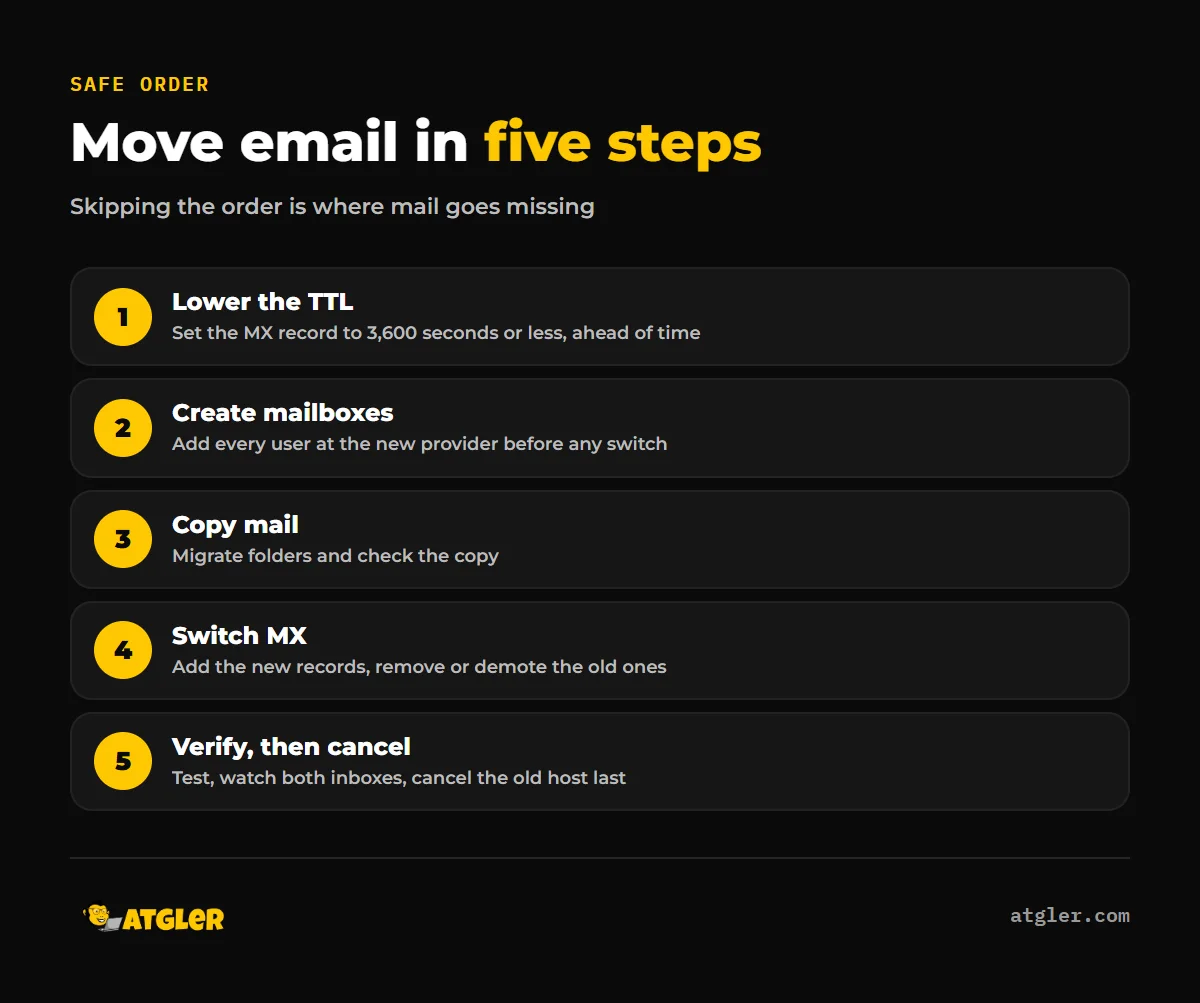
Five actions cover most moves, and the order matters more than any single step.
- Lower the TTL on the MX record to 3,600 seconds or less, well before the switch.
- Create every user and mailbox at the new provider.
- Copy existing mail across and check that it arrived.
- Switch the MX record, and remove or demote the old MX records.
- Send test messages, watch both inboxes, update email clients, and cancel the old service last.
Each step is explained below, along with what goes wrong when one is skipped.
Why lower the TTL before you move email to new hosting?
Because outside mail servers remember where your mail server is, and they keep using the old answer until the record’s TTL (time to live) runs out. Microsoft’s cutover guide says senders may keep delivering to the old location if you change the record before the TTL expires, which can delay delivery.
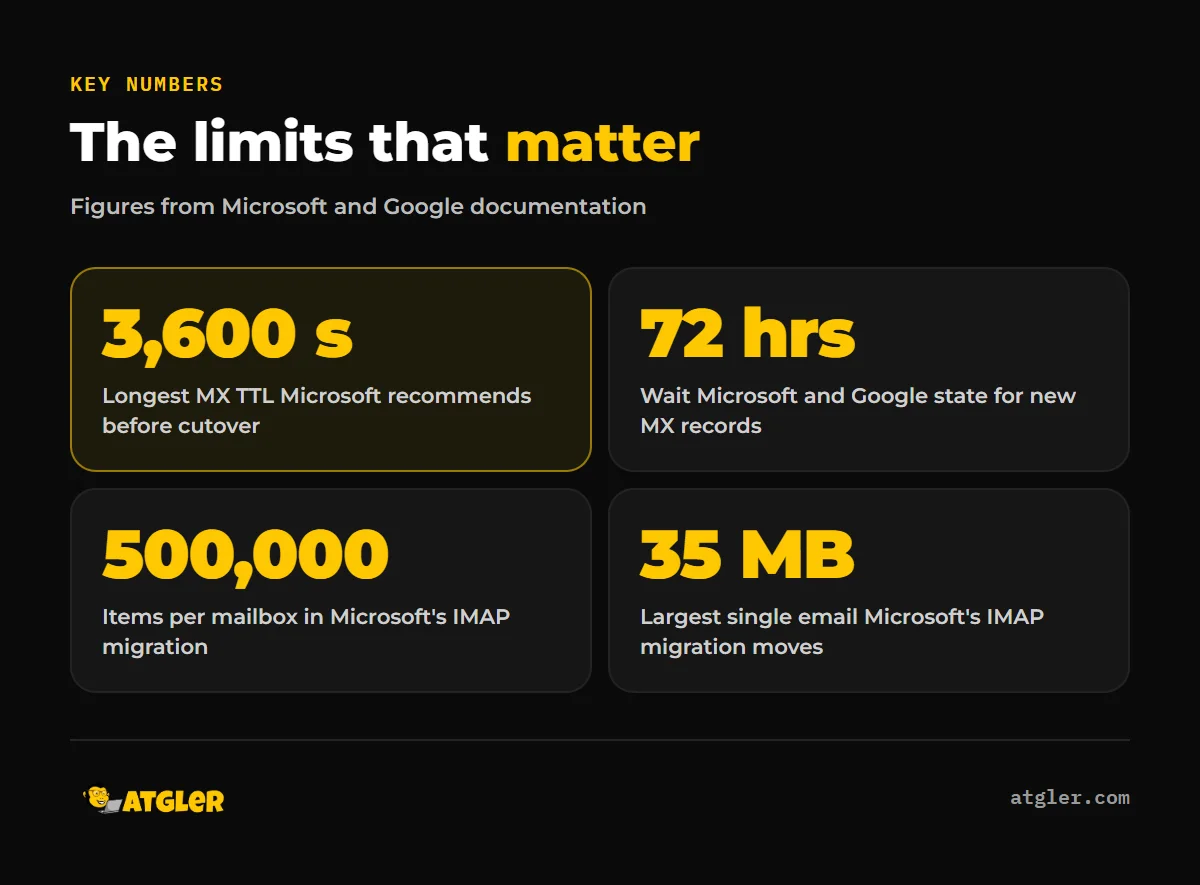
Microsoft says most email systems ask for an update each hour if the interval is as short as 3,600 seconds, and recommends setting it at least that low before you begin. If you have more than one MX record, each one must be 3,600 seconds or less.
Google’s DNS documentation makes the same point from the other side. A change takes effect only after the record’s current TTL expires, so a record set to 86400 seconds can take up to 24 hours to change. Google suggests 3600 during setup and 86400 once everything is configured, and a shorter value such as 300 seconds if you may need to revert quickly.
The practical rule: lower the TTL at least one full old-TTL period before the switch, so the short value has reached everyone. After the final switch you can set it back to a longer interval.
How do you copy mailboxes before you switch MX?
Create the accounts first, copy the mail second, and change MX only when both are done. Microsoft’s domain documentation says to add users and set up mailboxes for all email users before updating the MX record so email keeps working without interruption. Its IMAP migration guide lists the same order: create users and mailboxes, migrate and verify, change MX, then verify routing and stop synchronization.
Know what a copy does not carry. In Microsoft’s IMAP migration:
- Only mail folders move. Contacts, calendar and tasks do not.
- A mailbox is capped at 500,000 items, migrated newest to oldest.
- The biggest message that can be migrated is 35 MB.
- Mail sent to the source mailbox after the migration is done is not migrated.
Those are Microsoft’s limits for its own tool, so check the limits of whatever tool you use. Microsoft also warns that archive or retention policies can make deleted or archived items look missing, which it calls perceived data loss rather than actual data loss. Look in the archive folders before assuming something is gone.
How long does an MX records migration take to work?
Sources give three different answers, because they frame the delay differently.
| Source | Stated delay |
|---|---|
| Microsoft cutover guide | Up to 72 hours for other systems to recognize a changed MX record |
| Google Workspace MX page | Up to 72 hours for new MX records to be recognized |
| DNSimple (vendor) | Up to 48 hours, “typically much faster” |
| Google DNS basics | Set by the current TTL, for example up to 24 hours at 86400 seconds |
Plan for the longest figure, 72 hours, even if your lowered TTL means most senders switch within the hour.
That window affects when you stop copying. Microsoft says to wait at least 72 hours before deleting the cutover migration batch, and to confirm its Last Synced Time is more recent than when mail began routing to Microsoft 365. Once the batch is deleted, mail sent to the old mailboxes is not copied across.
The standards help here. RFC 5321, the SMTP specification, says a sending server keeps retrying and that the give-up time generally needs to be at least 4 to 5 days. That is why mail sent during a short gap is usually queued and retried, not dropped right away.
Should you delete the old MX records or lower their priority?
Delete them once the new records are verified. Google says to remove any other MX records and warns that email might not work correctly if old or incorrect ones stay. DNSimple also says to delete the old records. Microsoft allows either removing them or giving the old provider a lower priority, meaning a higher number than the new one.
Demoting is the weaker option. Keeping the old record at a lower priority can still let some senders deliver to the old server. For reference, Google’s setup uses smtp.google.com at priority 1, and Microsoft’s manual table lists a TTL of 3600 and a priority typically 0.
Also note that when MX records exist, SMTP systems must use them rather than the domain’s address records, per RFC 5321. Pointing your website at a new host does not move email by itself.
One related trap is SPF. If an SPF record already exists, Microsoft says to add its include value to the existing record instead of creating a second one.
What causes lost mail when you move email to new hosting?
In practice, “lost” mail is usually delayed or stranded, not destroyed. The common causes are:
- No mailbox at the new provider. Mail for an address that does not exist yet has nowhere to land once MX changes.
- Old MX records left in place. Some senders keep delivering to the old server.
- Mail arriving after the copy. New mail sent to the old mailbox after migration is not migrated.
- Cancelling too early. Stopping sync or closing the old host before late senders catch up strands their mail.
- The old server still delivering locally. This one is less obvious.
On that last point, a user on Microsoft’s Tech Community forum reported in November 2020 that nearly a month after changing MX records to Office 365, some mail still reached the old provider, with DNS propagation ruled out. A reply said some systems, including Exchange, look up the recipient internally and deliver locally before consulting the MX record. Suggested fixes were removing the already-migrated accounts at the old host, setting up forwarding, or changing the domain’s delivery type in Exchange.
A separate 2022 blog post describes a move from Google Workspace to Fastmail. A week after the MX change, some automated corporate mail still reached Google until the author turned off Gmail for all users in the admin panel. The author also forgot a trailing period on one DNS entry and is unsure whether the problem applies only to mail sent through Google’s own services.
Both are single anecdotes, not typical cases. The official documents describe delays and mail stranded on the old host, not mail being destroyed.
How do you verify an email move before canceling the old host?
Verify from outside, watch both sides, and cancel last. DNSimple’s order is to check the records with online tools or dig, send a test email, watch both inboxes, update email clients, and only afterward cancel the old service.
- Confirm the MX records show only the new provider’s servers.
- Send test messages from an outside account to every address, and reply from each.
- Check the old inboxes daily for stragglers. Anything there means a sender is still using the old route.
- Run a final copy if the old mailboxes received mail after the first one.
- Wait at least 72 hours, the longest figure above, before ending sync or closing the old service.
If stray mail keeps arriving after that, look at how the old host is configured, as in the anecdotes above, before you cancel.
What the evidence does not tell you
The evidence has real gaps, and it is worth being plain about them.
- Nobody publishes a measured rate of mail lost during MX changes. The warnings come from vendor documentation and individual reports.
- Microsoft and Google document moves into their own products, and DNSimple is a DNS vendor, so each has a commercial angle.
- No single standard fixes the right pre-migration TTL. Microsoft says 3,600 seconds or less, Google mentions 3600 and 300, and Google’s MX page says to use your registrar’s default.
- The sources we relied on do not cover shared-hosting webmail tools such as cPanel, or DKIM and DMARC records. Check your new provider’s setup instructions for any extra DNS records it asks for.
- The two stray-mail stories are older single accounts and may depend on how the old host was set up.
Need help to migrate email to new host without the guesswork?
Atgler has worked with WordPress for 7 years and has built, managed and maintained more than 600 sites, and web host moves are a regular part of that. If you would rather not manage DNS timing, mailbox copies and old-host cleanup yourself, our Site & Email Migration service is built for exactly that. If the website is moving too, see how to migrate a WordPress site without losing rankings and whether migration plugins or a manual migration is safer. You can also contact us with your setup.
Frequently asked questions
Is it normal for mail to still arrive at the old server after I change MX?
For the first day or three, yes, because senders cache the old record until its TTL expires. Beyond 72 hours it points to a leftover MX record or an old server that still delivers locally for your domain, so check that host’s configuration.
Why do some sources say 24, 48 or 72 hours?
Microsoft and Google’s MX page say up to 72 hours, DNSimple says up to 48, and Google’s DNS page ties the delay to the record’s current TTL, such as 24 hours at 86400 seconds. Plan for 72 hours to be safe.
Will I lose contacts and calendars when I move?
With an IMAP copy, yes unless you move them separately. Microsoft says its IMAP migration moves mail folders only, not contacts, calendar or tasks.
Do I have to delete the old MX records?
Google and DNSimple say to delete them. Microsoft allows lowering their priority instead, but that can still let some senders reach the old server, so deleting is the safer choice.
When can I cancel the old host?
After the new MX records are verified, tests pass, both inboxes are quiet, and at least 72 hours have passed since the switch. Cancel the old service last.
Sources
- Microsoft: Migrate email to Exchange Online using the Exchange cutover method (updated 2026-07-28, vendor documentation)
- Microsoft: What you need to know about migrating your IMAP mailboxes (updated 2026-07-28, vendor documentation)
- Microsoft: Connect your domain by adding DNS records (updated 2026-10-30, vendor documentation)
- Google: Set up MX records for Google Workspace (updated 2026-11-10, vendor documentation)
- Google: DNS basics (updated 2026-11-10, vendor documentation)
- IETF/RFC Editor: RFC 5321, Simple Mail Transfer Protocol (October 2008)
- DNSimple: Manage MX Records When Changing Email Providers (updated October 27, 2026, vendor-reported)
- Microsoft Tech Community: Some emails being routed to old mailboxes one month after changing MX records (November 24, 2020, anecdotal user report)
- nuclearmonster.com: Avoiding lost mail after migrating from Google Workspace (March 21, 2022, anecdotal personal blog)