
On this page
- Key takeaways
- Two types of move: what it means when you migrate a WordPress site
- Before you migrate a WordPress site: the pre-move checklist
- How to migrate a WordPress site to a new host without changing URLs
- How to migrate a WordPress site when URLs or the domain change
- After you migrate a WordPress site: the post-move checklist
- Common mistakes when you migrate a WordPress site
- When should you get help migrating a WordPress site?
- Frequently asked questions
You can migrate a WordPress site to a new host, a new domain or a new server without losing your Google rankings, but only if you plan the move around search, not just around files and databases. Most ranking losses after a migration come from avoidable mistakes: a staging site left set to “noindex,” redirects that point everything at the homepage, or a rushed DNS change with no monitoring.
This guide follows Google’s own documentation for site moves, plus the official WordPress migration instructions, and turns them into a checklist you can follow. It covers both kinds of move: a new host with the same URLs (the simpler one), and a move that changes your URLs or domain. If you’re choosing between a plugin and a manual move, our comparison of WordPress migration plugins vs. manual migration will help.
Key takeaways
- Google’s site-move guidance and the official WordPress instructions both say rankings can survive a migration if the move is planned around search, not just files and databases.
- Before moving, record a Search Console baseline, take a full backup, lower the DNS TTL to a few hours at least a week ahead, and avoid migrating an infected site.
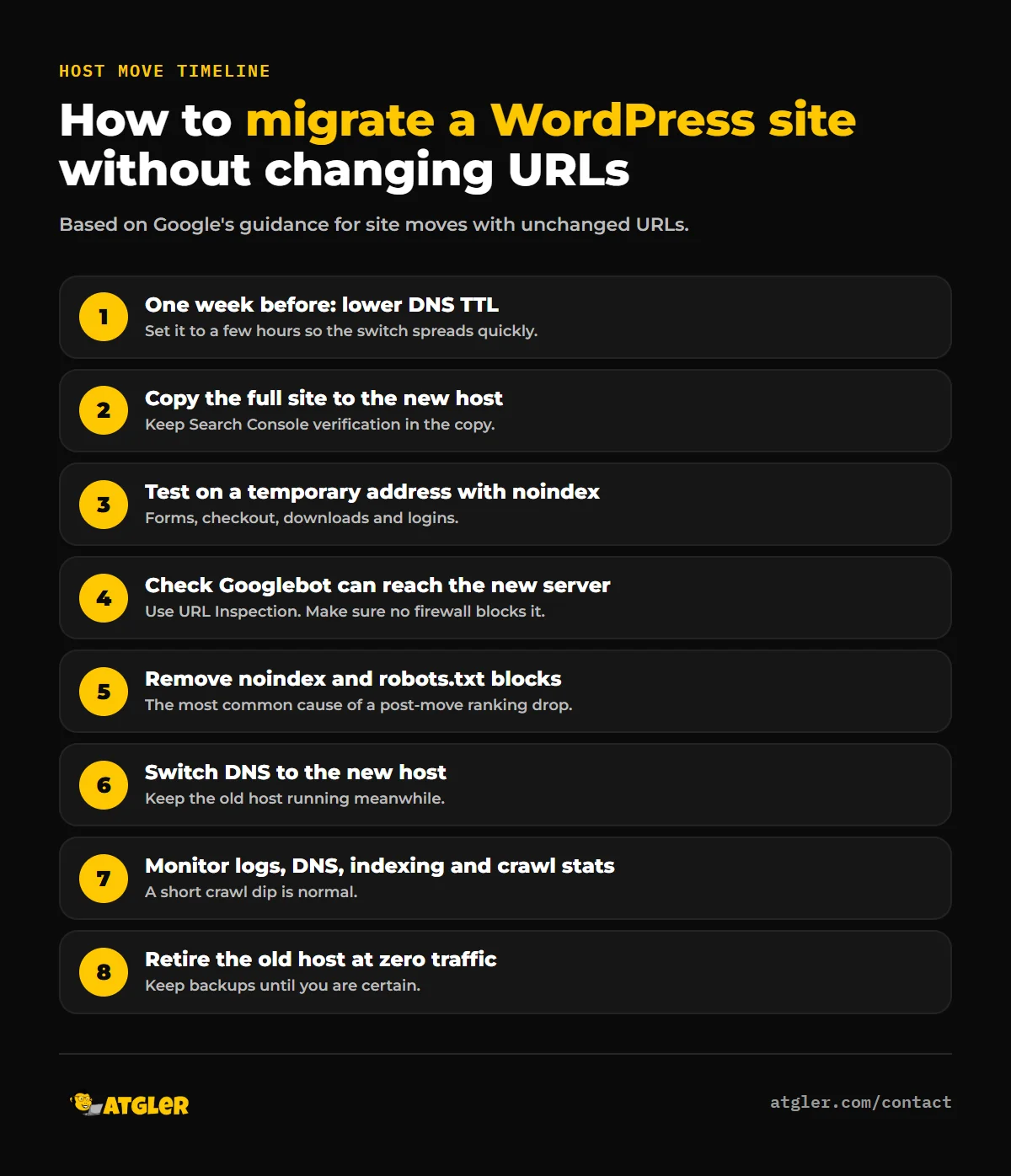
- For a same-URL host move, test on a temporary address with noindex, confirm Googlebot can reach the new server, then switch DNS and keep the old hosting running.
- When URLs or the domain change, Google says to use one-to-one permanent 301 or 308 redirects, keep them for at least a year, and submit a new sitemap.
- After the move, check that Discourage search engines is off, since the article calls it the most common cause of a post-move ranking collapse.
Two types of move: what it means when you migrate a WordPress site
- Same URLs, new host or server. Your addresses don’t change, only where the site lives. Google’s guidance for this case is mostly about DNS timing, testing and monitoring. Rankings should hold if the new site is the same and reachable.
- URLs change. A new domain, a switch from HTTP to HTTPS, a change of permalink structure or a restructured site. This needs redirects and extra care, because Google has to learn every new address.
Be honest about which one you’re doing. Many “host moves” quietly become URL changes when someone also switches domain, adds www, or changes permalinks at the same time. Change one thing at a time wherever you can.
Before you migrate a WordPress site: the pre-move checklist
- Record your SEO baseline. Export your top pages and queries from Google Search Console (Performance report, last 3 months) and save a list of all your URLs. After the move, this is how you’ll tell a normal fluctuation from a real loss.
- Take a full backup of files and database, and keep it until the move is confirmed stable. The official WordPress guide’s first step is to back up the WordPress directory, images, plugins and the database.
- Don’t migrate an infected site. Moving malware to a new host just moves the problem. If you suspect a hack, clean it first. See our hacked site recovery guide.
- Update everything first, and note your current PHP version. WordPress recommends hosting that supports PHP 8.3 or greater, so a move is a good time to upgrade, but do it as a separate step so you can tell what caused any problem.
- Lower your DNS TTL. Google recommends setting it to a low value, such as a few hours, at least a week before the move, so DNS changes spread quickly when you switch.
- Keep Search Console verification working on the new copy, whether you verify with an HTML file, a meta tag or Google Analytics.
- Choose a quiet time for the switch. Avoid your busiest sales period.
How to migrate a WordPress site to a new host without changing URLs
Step 1: Copy the site and test it on a temporary address
Upload a complete copy of your site to the new host and test everything: pages, forms, checkout, downloads and logins. Google recommends using a temporary hostname with a noindex rule while you test, so the copy doesn’t get indexed by accident. For WordPress, that means Settings → Reading → “Discourage search engines from indexing this site,” which you will need to turn off later.
If the database name, user or password differ on the new host, update wp-config.php with the correct values. To preview the site before the DNS switch, the official guide suggests temporarily changing the siteurl and home values in the wp_options table, then changing them back.
Step 2: Check that Googlebot can reach the new server
Use the URL Inspection tool in Search Console to confirm Google can fetch pages from the new infrastructure, and make sure a firewall or bot protection on the new host isn’t blocking it. A host that blocks Googlebot by accident is one of the quietest ways to lose rankings.
Step 3: Switch DNS
When testing is done, remove the noindex setting and any robots.txt block, then update your DNS records to point to the new host. Because you lowered the TTL earlier, the change should spread within hours. Keep the old hosting running during this period, since some visitors will still reach the old server until DNS fully updates.
Step 4: Monitor traffic, crawling and indexing
Watch the server logs on both old and new hosts as traffic moves across, and use a public DNS checker to confirm the change has propagated. In Search Console, keep an eye on indexing and crawl stats. Google notes that crawl rate may dip temporarily after a move and then climb, sometimes above its earlier level, so a short dip isn’t a sign of failure. Retire the old hosting only when its traffic has dropped to zero.
How to migrate a WordPress site when URLs or the domain change
This is where rankings are most at risk. Follow Google’s guidance for site moves with URL changes:
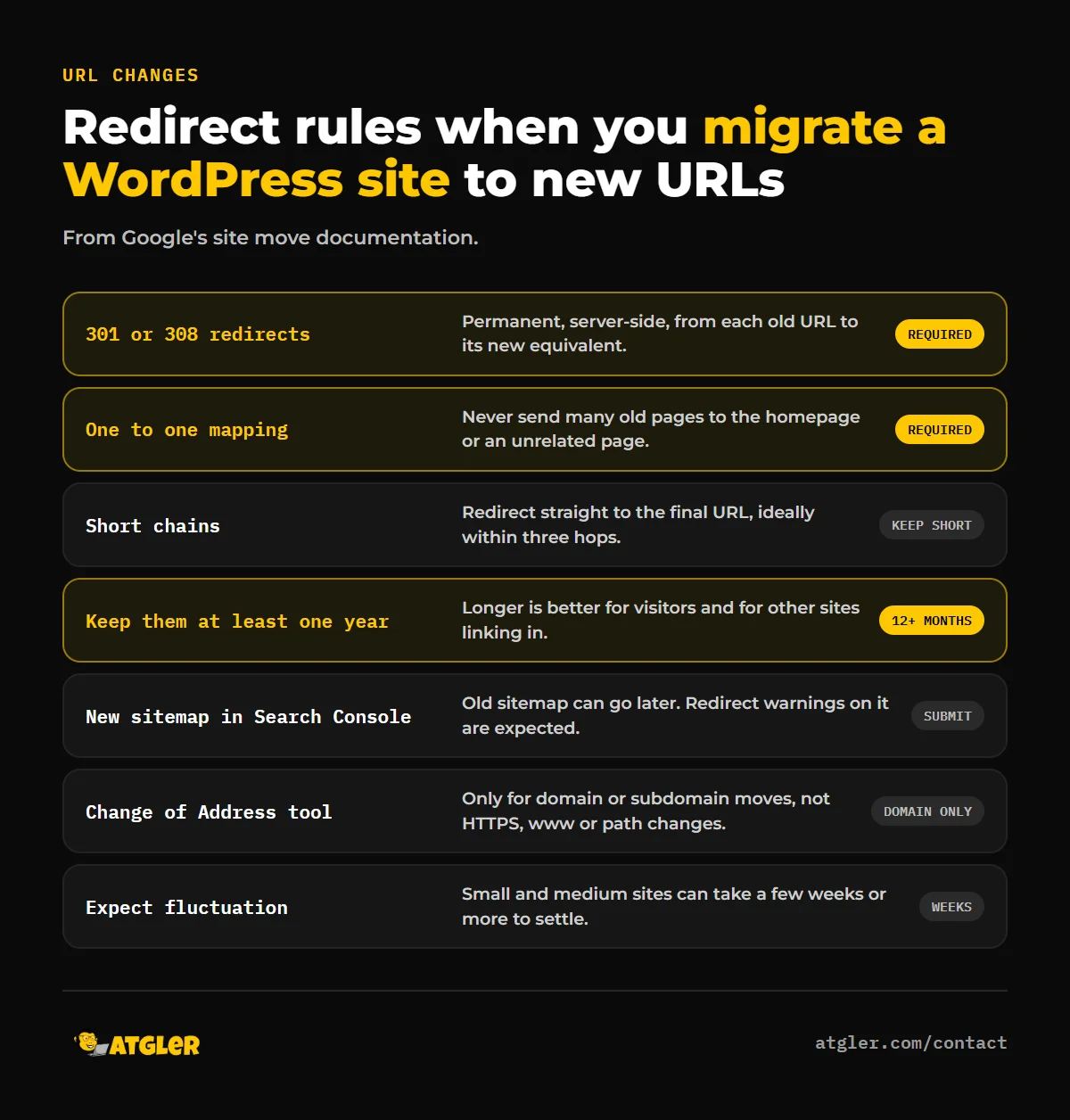
- Use permanent server-side redirects (301 or 308) from every old URL to its new equivalent. Google says permanent redirects don’t cause a loss of PageRank.
- Map pages one to one. Don’t redirect many old URLs to your new homepage or an unrelated page. Each old page should land on its closest new page.
- Keep redirect chains short. Redirect straight to the final destination, ideally within three hops at most.
- Keep the redirects for at least a year. Google recommends a minimum of one year and says keeping them longer is better for visitors.
- Submit a sitemap of the new URLs in Search Console. You can remove the old sitemap afterwards. Redirect warnings on it are expected.
- Use the Change of Address tool only for domain or subdomain moves, such as example.com to example.net. Google says you don’t need it for HTTP to HTTPS,
wwwchanges or path changes within the same domain. - Expect fluctuation. Google says small and medium sites can take a few weeks or more for most pages to move, and temporary ranking changes are normal.
WordPress-specific steps when URLs change
- Update the addresses in Settings → General and reconfigure your permalinks once the site is live.
- Replace old URLs in the database carefully. A plain find-and-replace can corrupt serialized data, which many plugins and themes store. The official guide recommends a tool built for this, such as Better Search Replace or WP-CLI’s
search-replace, and says never to change theguidcolumn. - Fix hard-coded old URLs in theme template files, and update
.htaccessand any custom redirects. - Clear transients and caches if plugins keep referencing the old address.
After you migrate a WordPress site: the post-move checklist
| Check | Why it matters |
|---|---|
| “Discourage search engines” is off | The most common cause of a post-move ranking collapse |
robots.txt doesn’t block the site | Staging rules sometimes get copied across |
| HTTPS works on every page, with no mixed content | Avoids warnings and broken resources |
| Redirects return 301 and land on the right page | Preserves rankings for changed URLs |
| Sitemap is submitted and URLs are being indexed | Tells Google about your pages |
| Forms, checkout, login and email deliverability work | You can lose leads without noticing |
| Analytics and tracking codes still fire | You need data to judge the move |
| Speed and Core Web Vitals haven’t dropped | See our slow site guide |
| Cache is cleared, backups are running on the new host | Avoids stale pages and unprotected data |
Common mistakes when you migrate a WordPress site
- Leaving the new site set to “noindex,” or leaving the old one live and indexable as a duplicate.
- Redirecting every old URL to the homepage.
- Changing the domain, theme, permalinks and content all at once.
- Shutting down the old host before DNS has fully moved.
- Forgetting email, which often lives with the old host or registrar, so mail stops arriving.
- Skipping the backup, or the test on a temporary address.
- Panicking at a small dip in the first week and reversing the move.
When should you get help migrating a WordPress site?
A simple brochure site on a similar host is a realistic DIY job. It’s worth getting help if the site is a store or membership site, if you’re changing domains or restructuring URLs, if you have a lot of pages or traffic, if email needs to move too, or if you can’t afford downtime. Contact us if you’d like us to handle the move, and consider a care plan afterwards so backups, updates and monitoring continue on the new host.
Frequently asked questions
Will migrating my WordPress site hurt my SEO?
Not if it’s done carefully. Google says a move with unchanged URLs shouldn’t cause ranking loss if the new site is reachable and equivalent, and that permanent redirects don’t lose PageRank on a URL change. Temporary fluctuation is normal for a few weeks.
How long does it take for rankings to settle after a migration?
Google says small and medium sites can take a few weeks or more for most pages to move after a URL change, and larger sites take longer. For a host-only move, crawl activity usually recovers faster.
Do I need the Change of Address tool?
Only if you’re moving to a different domain or subdomain. Google says it isn’t needed for HTTP to HTTPS, www and non-www changes, or path changes on the same domain.
How long should I keep 301 redirects?
At least one year, according to Google, and longer if you can, because visitors and other sites may still use the old links.
Can I migrate a WordPress site with no downtime?
Often yes, by building and testing the full copy on the new host first and switching DNS only when it’s ready. Keep the old host running until DNS has fully propagated and traffic to it has stopped.
Should I move my email too?
Check where your email is hosted before the move. If it’s tied to your old host, you’ll need to migrate it or set up email elsewhere first, or messages will stop arriving after the DNS switch.
Sources
- Google Search Central: Site moves without URL changes and Site moves with URL changes
- WordPress.org: Moving WordPress and requirements