
On this page
- What does a WordPress maintenance checklist need at minimum?
- What goes on a weekly WordPress maintenance checklist?
- What does monthly WordPress maintenance cover?
- What belongs on a yearly website maintenance checklist?
- When does a task need a professional?
- What the evidence does not tell you
- Getting help with your WordPress maintenance checklist
- Frequently asked questions
A WordPress maintenance checklist is a recurring list of tasks that keeps your core software, plugins, themes, backups and hosting current and working. Weekly, you apply updates and confirm backups ran. Monthly, you clean up and audit access. Yearly, you review PHP and hosting and test a full restore.
This guide splits the work by cadence, lists what to check after every update, and explains when a task is better handed to a professional. If you would rather not run the routine yourself, Atgler’s website care and maintenance plans cover it for you.
What does a WordPress maintenance checklist need at minimum?
Five habits cover most of the risk. Here is the short version, in order:
- Take a backup, then update WordPress core, plugins and themes every week.
- Visit the site after each update and test the pages that earn you money, such as forms and checkout.
- Open Tools > Site Health and fix anything marked critical.
- Keep at least three backup copies, each with both the database and the files, and test them.
- Once a year, review your PHP version and run a full restore test.
The sections below explain each step and where the official guidance leaves gaps.
What goes on a weekly WordPress maintenance checklist?
A weekly list is short: back up, update, check Site Health, and confirm the site is up. Weekly is stricter than the official housekeeping page, which says to check for WordPress updates “at least every three months, six months at the most.” The WordPress hardening guide says you should always keep up to date with the latest version, and that older versions are not maintained with security updates. Those two pages disagree, and the weekly habit follows the security guidance. It is also what Atgler does for maintenance clients: weekly updates of plugins, themes and core.
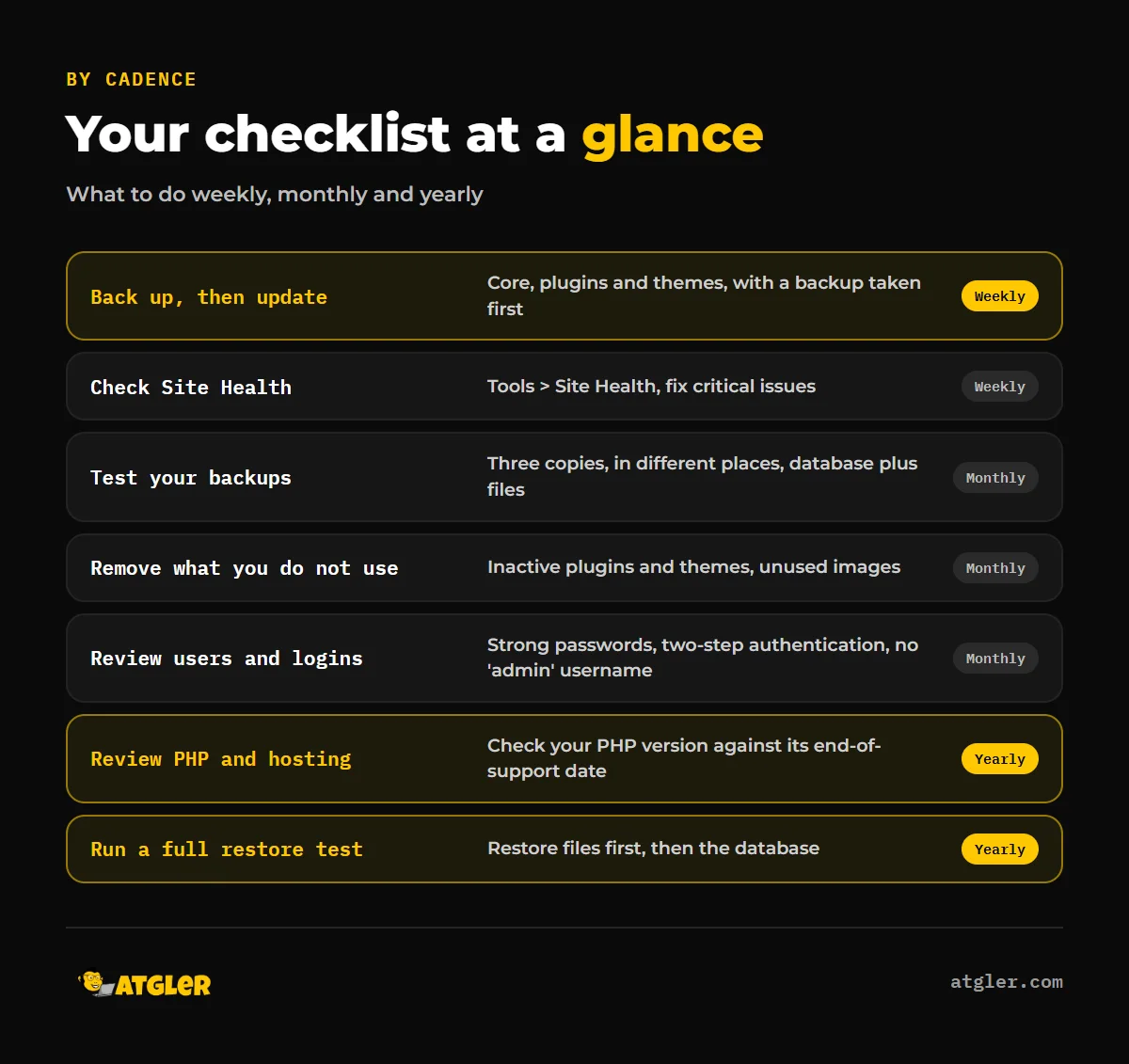
- Back up first. According to WordPress developer documentation, back up regularly and always before an upgrade. A usable backup has two parts, the database and the files, and you need both to fully restore a typical site.
- Check Dashboard > Updates. WordPress documentation says there is no single update order that works for every site. Check that your plugins and themes are compatible before a core update. Some plugins need updating before WordPress, and others need a newer WordPress.
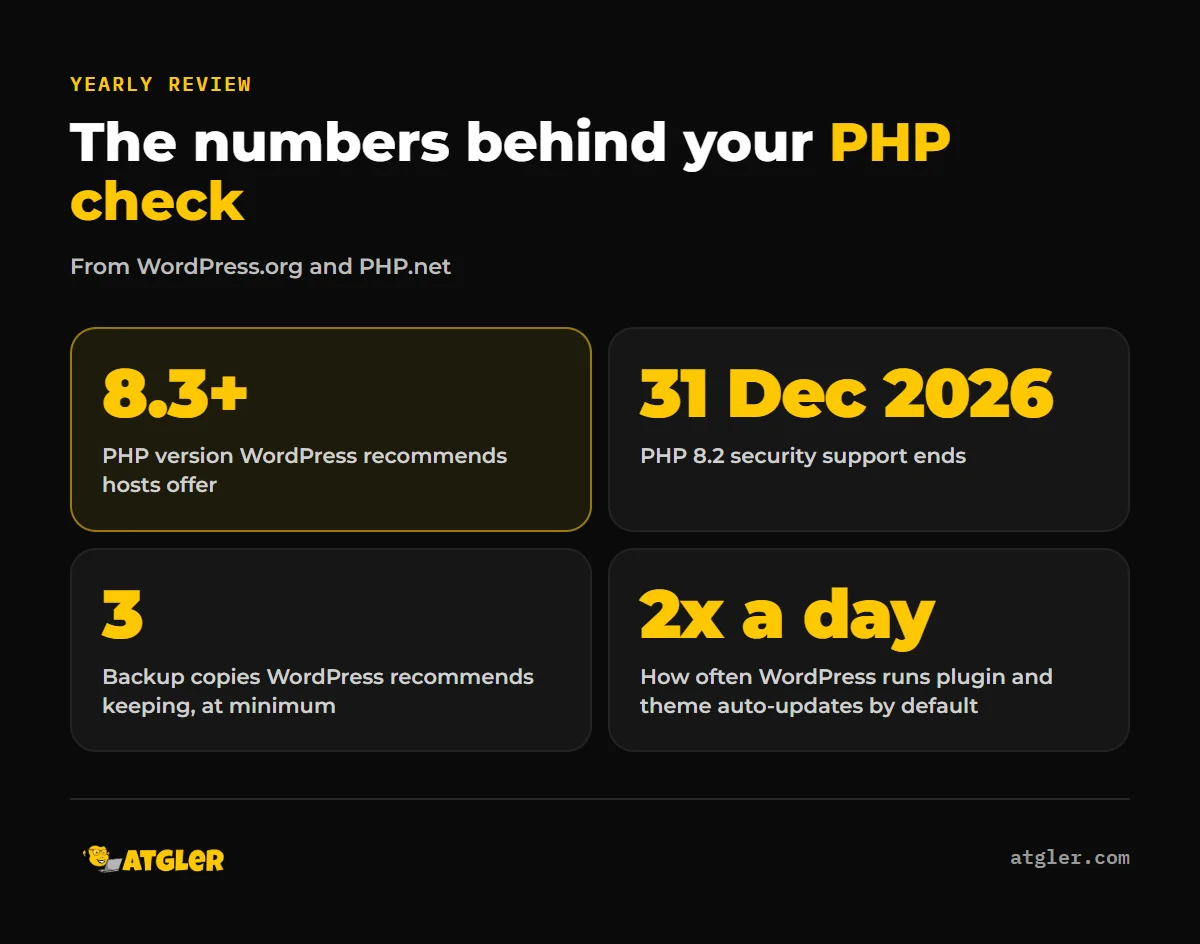
- Read your auto-update emails. Since WordPress 5.5 you can opt in to auto-updates per plugin and theme. By default WordPress runs them twice a day and emails you about successes and failures. The documentation advises having automatic backups in place first. That page was last updated in January 2023, so confirm the options on your own Plugins screen.
- Open Tools > Site Health. Results are grouped as critical issues, recommended improvements and passed tests. Critical items include an outdated PHP version, plugins waiting to be updated, background updates not working and debug errors shown publicly.
- Confirm your backup really ran. At Atgler we saw a backup plugin silently disconnect. It stopped both the backups and the downtime alerts, and the site was found hacked later. A tool that fails quietly looks the same as one that works until you check.
For a fuller walkthrough of the update step, see our safe WordPress update checklist.
What should you check right after an update?
Visit the site as a visitor and confirm everything works as expected, which is what WordPress documentation tells you to do. Then check for any remaining plugin and theme updates, and clear the cache if caching is enabled. Do this after every update, not just core updates.
A practical post-update pass:
- Load the home page, a blog post and a service or product page.
- Submit your contact form and check that the message arrives.
- If you sell online, add a product to the cart and reach the checkout.
- Look at the layout on a phone, not just your desktop.
- Re-open Site Health and confirm no new critical issues appeared.
- Clear your caching plugin’s cache after a manual update so you are not looking at old pages.
Atgler runs this kind of check after each update on the sites it maintains, because the visible breakage is usually caught there rather than by an error message.
What if the site breaks or stays in maintenance mode?
If the site stays in maintenance mode after a failed update, look for a leftover .maintenance file in the WordPress root. WordPress puts the site into maintenance mode briefly during updates. Once the update is no longer running, you can remove that file through FTP or your host’s file manager. If problems appear after an upgrade, WordPress documentation says you can restore your backup. It also says problems with one-click updates are probably related to permissions issues on the filesystem.
In Atgler’s experience, a plugin or theme that does not support the latest PHP or WordPress version is the most common cause of layout or function problems after an update. For a blank page, see WordPress white screen of death: causes and fixes. To roll back, follow how to restore WordPress backup files and database.
What does monthly WordPress maintenance cover?
Monthly WordPress maintenance is the housekeeping and checking layer on top of the weekly updates: test backups, remove unused code and media, and audit who can log in. None of it is urgent on any single day, which is why a calendar reminder helps. The WordPress housekeeping page itself says to add these chores to a calendar.
- Check your backups. WordPress documentation says to keep at least three backups on file, in different places and on different mediums. It also says to compare automated backups against a manual backup once in a while. It suggests weekly backups for smaller sites and daily for high-activity sites. That is a suggestion, so a store taking orders daily has a different need than a brochure site.
- Delete unused plugins and themes. Both the housekeeping and hardening pages say to remove what you do not use. The Site Health Info tab lists inactive themes and plugins, which makes this quick.
- Delete unused images. The housekeeping page lists this as a chore.
- Optimize the database if needed. The same page says database overhead can be reduced with optimization plugins such as WP-Sweep. Take a backup first.
- Audit logins. The hardening guide recommends strong passwords with two-step authentication and avoiding easily guessed admin usernames such as “admin.” Remove accounts nobody uses.
- Review where plugins come from. The hardening guide says not to get plugins or themes from untrusted sources.
Atgler’s maintenance clients get a short monthly report covering what was done, backup data and vulnerabilities. Even if you do this yourself, keeping a simple log of dates and changes makes problems much easier to trace. Our guide to WordPress backup plugins can help you choose where backups go.
What belongs on a yearly website maintenance checklist?
A yearly website maintenance checklist covers the slow-moving risks: your PHP version, your hosting stack, a full restore test and a user audit. The PHP review matters most this year, because the dates below are the ones to plan around.
| PHP version | Active support ends | Security support ends |
|---|---|---|
| 8.2 | 31 Dec 2024 | 31 Dec 2026 |
| 8.3 | 31 Dec 2025 | 31 Dec 2027 |
| 8.4 | 31 Dec 2026 | 31 Dec 2028 |
| 8.5 (released 20 Nov 2025) | 31 Dec 2027 | 31 Dec 2029 |
Source: PHP Group, as shown on 18 Nov 2026. PHP 8.2 reaches the end of security support in about six weeks, so a site still on it should have a plan for moving up.
WordPress.org recommends that hosts offer PHP 8.3 or greater, MariaDB 10.11 or greater or MySQL 8.4 or greater, and HTTPS support. It says PHP 7.4 and MySQL 5.5.5 still function but are past official end of life and may expose your site to security vulnerabilities. Site Health will also flag an outdated PHP version as a critical issue.
The rest of the yearly list:
- Run a full restore test. A backup you have never restored is an assumption. WordPress documentation says to restore the files first.
- Review users and permissions. Remove old accounts and check that everyone who still has access needs it.
- Review hosting. Check that your host offers the PHP and database versions above.
- Check domain and SSL renewal dates. This is our editorial advice. Expired registrations and certificates cause outages that no plugin update will fix.
When does a task need a professional?
Call a professional when a problem repeats, a fix fails, or the cause sits somewhere you cannot see or change. This is Atgler’s editorial judgment, not an official WordPress rule. WordPress does not publish a line between DIY and expert work. Signs it is time:
- An update fails more than once, or the site stays in maintenance mode after you remove the .maintenance file.
- Critical Site Health issues stay unresolved after you have tried the obvious fixes.
- A restore fails or the restored site is missing data.
- You suspect a hack, such as spam pages, unexpected redirects or browser warnings. See hacked site repair.
- The fix needs a host-level setting you cannot change, such as the PHP version.
- A plugin or theme breaks on every update. Atgler’s advice in that case is to rebuild rather than patch a broken theme again and again.
Restoring a site exactly as it was is not always possible, for example when data was deleted or a database is lost. That is one more reason to test backups before you need them.
What the evidence does not tell you
Several parts of this checklist rest on judgment rather than hard data. WordPress.org does not publish a figure for how often updates break sites, and we did not find a verified independent study. It also gives no official yearly task list, so the yearly items other than PHP are our recommendations.
The official pages disagree on update frequency, as noted above. They also say there is no single update order that suits every site, so you will find agency blogs that insist on “plugins first” or “core first.” Treat those as preferences. Plugin and theme compatibility with PHP 8.4 and 8.5 varies by product, so check each vendor before you upgrade. WordPress recommends 8.3 or greater, while PHP.net shows 8.2 still gets security fixes until 31 December 2026, so the two sources point to different “safe” versions.
Getting help with your WordPress maintenance checklist
If the weekly routine does not fit your schedule, that is what Atgler’s website care plans are for. They start at $99 a month, month to month. Atgler has worked with WordPress for 7 years and has built, managed and maintained more than 600 sites. Maintenance includes weekly updates, uptime monitoring with prompt investigation of downtime, a check that the site works after each update, and a short monthly report. For a sense of what plans include and what they cost, read WordPress maintenance cost and plans.
Frequently asked questions
How often should I update WordPress?
Weekly is a safe rhythm, because the WordPress hardening guide says to always keep core and plugins up to date. The housekeeping page suggests every three to six months, which is much looser and looks outdated for security purposes.
Should I turn on automatic updates?
You can opt in per plugin and theme. WordPress runs them twice a day by default and emails you the results, but it advises having automatic backups in place first.
Which should I update first, core or plugins?
WordPress documentation says no single order works for every site. Check compatibility of your plugins and themes before a core update, and back up first.
How often should I back up my site?
WordPress documentation suggests weekly for smaller sites and daily for high-activity sites, and always before an upgrade. Keep at least three copies in different places, each with the database and the files.
Do I need to delete inactive plugins and themes?
Yes. WordPress guidance says to delete the ones you do not use, since each one is more code to keep updated.
Sources
- PHP Group: PHP: Supported Versions (shows “Today: 18 Nov 2026”)
- WordPress.org: Requirements (published January 23, 2023; last modified May 7, 2026)
- WordPress Developer Resources: Backups (published March 28, 2023; last modified October 28, 2026)
- WordPress.org Documentation: Updating WordPress (published October 30, 2018; last modified November 7, 2026)
- WordPress.org Documentation: Site Health screen (published June 18, 2021; last updated July 12, 2026)
- WordPress.org Documentation: Plugin and themes auto-updates (published July 24, 2020; last updated January 13, 2023)
- WordPress.org Documentation: WordPress Housekeeping (published March 15, 2019; last modified May 17, 2026)
- WordPress Developer Resources: Hardening WordPress (published March 28, 2023; last modified October 14, 2026)