

On this page
A WordPress mixed content error happens when your page loads over HTTPS but still pulls some images, scripts or stylesheets over plain HTTP. The browser blocks those files or flags the page. The “Not secure” label is a related but separate problem: there, the page itself arrived over HTTP. Fix them in this order: certificate, site URL, hard-coded links, then plugins and caches.
If you’d rather hand it off, Atgler’s Emergency Dev Hours cover quick fixes like this at $99 per hour with no retainer.
The fix, in order
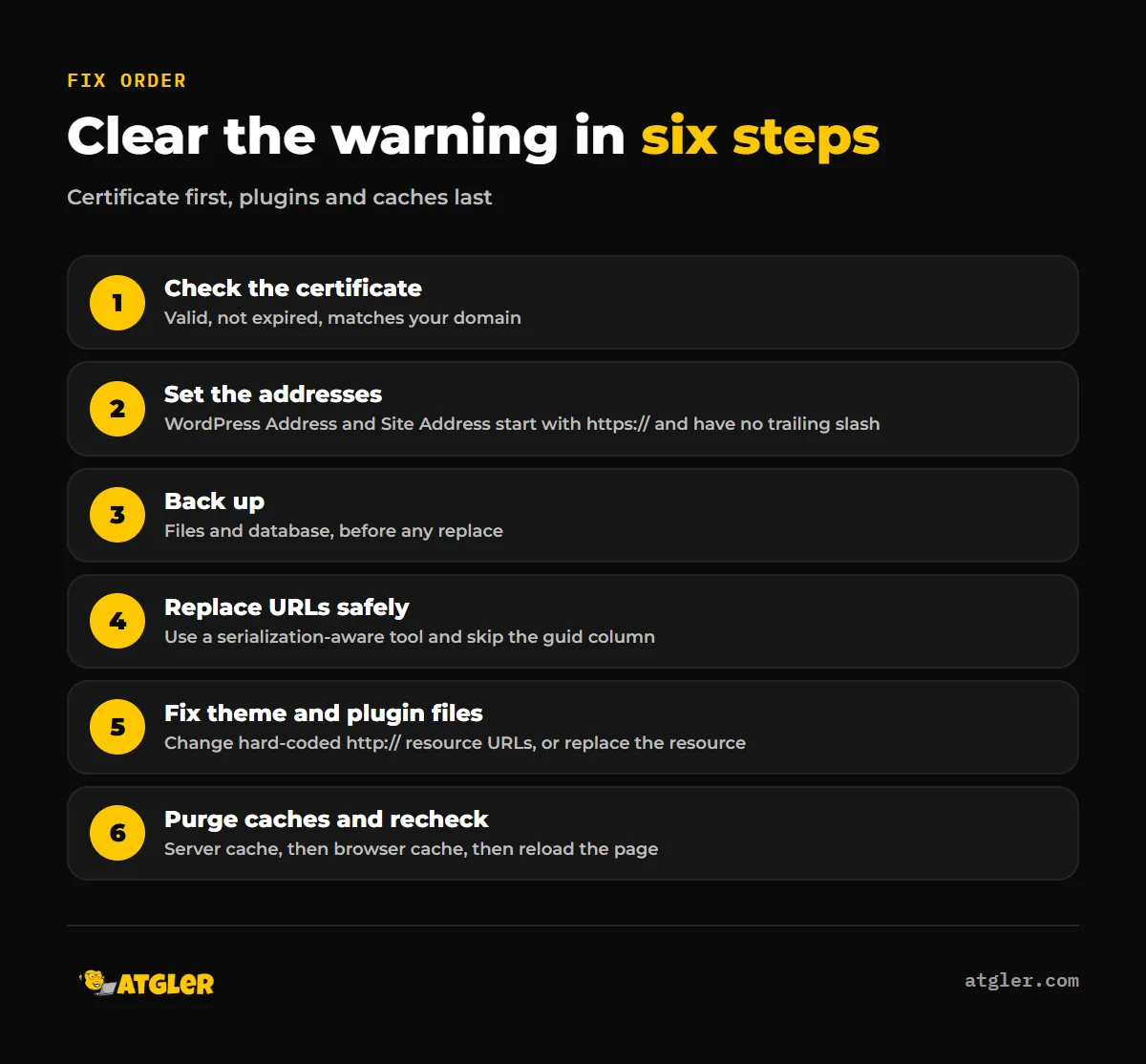
Four checks, and the order matters because each one depends on the one before it:
- Confirm the SSL certificate is installed, unexpired and matches your domain.
- Set the WordPress Address and Site Address to https://, with no trailing slash.
- Back up, then find and change hard-coded http:// URLs in your content, theme and plugin files, using a tool that handles serialized data.
- Purge server and browser caches, reload, and check the browser’s console or Issues tab for anything still loading over HTTP.
Skip ahead and you’ll end up chasing warnings that a bad certificate or a stale setting is causing. The sections below cover where each step tends to go wrong.
Not secure versus mixed content
People lump these together, but they’re different. “Not secure” means the page was delivered over HTTP. Mixed content means the page came over HTTPS and something on it didn’t.
Google announced that Chrome 68, released in July 2018, would show a “not secure” notice on HTTP pages. Its reasoning: on a plain HTTP page, someone on the network can view what passes between you and the site, or alter the content before it arrives. Chrome 154’s release notes list a stable release date of September 22, 2026, and include an “Ask before HTTP on by default” section. Chrome now prompts users by default when they connect to a site over an insecure (http) connection, and administrators can change that with the HttpsOnlyMode policy. Some pre-release news coverage gave a different month, so go by Chrome’s own notes for timing.
Google’s web.dev defines mixed content as a page whose initial HTML loads over HTTPS while other resources load over HTTP. It splits those into two groups. Passive content (images, video, audio) “doesn’t interact with the rest of the page.” Active content (scripts, stylesheets, iframes) “interacts with the page as a whole” and can hand an attacker control of everything. Most browsers now block mixed content, and Chrome sometimes auto-upgrades passive content to HTTPS. If no secure version exists, the asset simply doesn’t load.
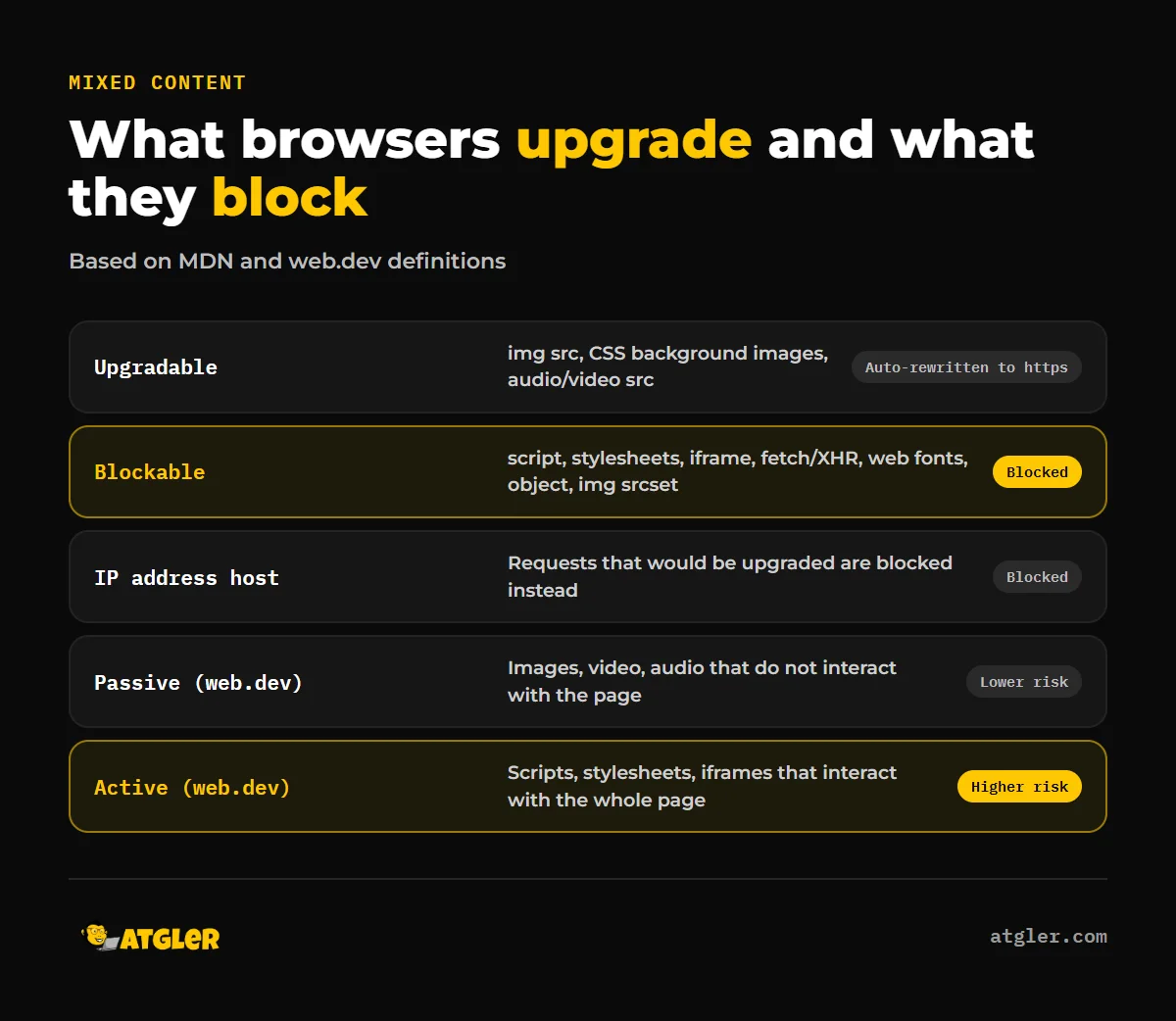
MDN draws the line more precisely, as upgradable versus blockable:
| Type | What it includes (per MDN) | What the browser does |
|---|---|---|
| Upgradable | img via src, CSS background and border images, audio and video via src | Rewrites http to https automatically |
| Blockable | script src, link href including stylesheets, iframe src, fetch() and XMLHttpRequest, web fonts, object data, img via srcset or picture | Blocks the request |
| Upgradable, but host is an IP address | Same as upgradable | Blocks the request instead |
So a broken stylesheet or script is far more likely to show up as something visibly missing than a stray image is. Either way the cure is the same: every resource has to be reachable over HTTPS. Browsers also differ by vendor and version, so what you see in Chrome may not match Firefox or Safari.
Start with the certificate
Check this first, because nothing else works without it. The WordPress developer documentation says WordPress is fully compatible with HTTPS once a TLS/SSL certificate is installed and available for the web server to use. SSL has to be configured on the server, including a virtual host for the secure site, before any WordPress setting does anything useful.
WP Engine’s troubleshooting guide starts the same way: confirm the certificate hasn’t expired and that it matches your domain. It adds two cautions. Force HTTPS in one place only, because a host-level “Secure All URLs” option combined with a plugin that also forces HTTPS can cause a redirect loop. And if the site sits behind an SSL-terminating reverse proxy or CDN, the WordPress docs say it can fall into an infinite redirect loop unless it recognizes the HTTP_X_FORWARDED_PROTO header.
For the admin area, the WordPress docs say to add define( ‘FORCE_SSL_ADMIN’, true ); to wp-config.php. The older FORCE_SSL_LOGIN setting was deprecated in WordPress 4.0, so ignore any advice that still leans on it.
Switching the addresses to HTTPS
Go to Settings > General and change both the WordPress Address (URL) and the Site Address (URL) to the https:// version. The WordPress docs say both should include the https:// part and neither should end with a slash.
The values live in the siteurl and home rows of the wp_options table. You can also set them with WP_HOME and WP_SITEURL in wp-config.php. Those constants override the database values without changing them, and once they’re defined, the fields on the General settings screen can’t be edited. That’s handy when you can’t reach the dashboard. It’s also easy to forget about, and then a change on the screen seems to do nothing.
Take a backup before touching either one. If you need a refresher on rolling back, see our guide to restoring WordPress backup files and database. If the change is part of a bigger move, our post on migrating a WordPress site without losing rankings covers the wider risks.
Hunting down hard-coded HTTP links
Find them with the browser first, then fix them at the source. In Chromium browsers, blocked items appear in the DevTools Issues tab. Firefox and Safari log messages to the console. web.dev’s workflow is to search the source for http:// in tags that carry URL attributes, keeping in mind that an http:// in an anchor href is often not a mixed content problem. Change the resource URL to https://. If no HTTPS version exists, host the resource yourself (if you’re legally allowed to), use another host, or drop it. Then reload and confirm the error is gone.
In the database
Old URLs inside posts and settings usually need a search and replace. The WordPress docs warn that a full-database replace can break serialized data, because some themes and widgets store values with the URL length recorded. They also say “Never, ever, change the contents of the GUID column.” Their WP-CLI example is wp search-replace ‘example.dev’ ‘example.com’ –skip-columns=guid, and you’d swap in the http and https versions of your own domain. They name Better Search Replace and Velvet Blues Update URLs as plugin options.
The advice isn’t fully consistent here. WP Engine treats a database replace as a routine step, while the WordPress docs call a plain replace risky. The WordPress migration page even contradicts itself on scope, saying in one place to replace only in wp_posts and in another to search the full database. Our take: use a serialization-aware tool, skip the guid column, and keep the backup close.
In theme and plugin files
WP Engine notes that hard-coded URLs can sit in files as well as the database, so a database replace won’t catch them. The Really Simple Security plugin’s FAQ says most mixed content issues come from URLs in CSS or JS files. Look at stylesheets, scripts, fonts and any theme options that embed absolute URLs. If a theme or plugin keeps writing http:// links, check for an update or a replacement. Change one layer at a time so you can see which change cleared the warning.
Plugins, caches and the CSP header
You can do all of this by hand, but a plugin or a header makes a decent safety net. The Really Simple Security plugin (formerly Really Simple SSL) lists 3+ million active installs and version 9.8.4 dated October 26, 2026, and needs WordPress 6.6+ and PHP 7.4+. Its free tier includes the HTTPS migration with a 301 redirect via PHP or .htaccess. The Mixed Content Scan and Fixer is a Pro feature. WP Engine suggests the Insecure Content Fixer plugin. Both vendors recommend their own tools, so keep that in mind.
If a plugin hasn’t cleared the warnings, the usual culprits are hard-coded URLs it can’t see, or a stale cache. WP Engine puts cache purging after the address change: purge the server cache and your browser cache, then retest. If you run a caching plugin, our comparison of WordPress cache plugins explains where each one stores its files.
MDN also lists a server-side option: the Content Security Policy directive upgrade-insecure-requests, which upgrades blockable mixed content too. web.dev says it can be sent as a header or a meta tag. To collect reports before enforcing anything, use the Content-Security-Policy-Report-Only response header, which can’t be set with a meta tag. Treat it as a backstop. MDN’s main advice still stands: make your own references relative or HTTPS, and use HTTPS versions of third-party resources.
One gap worth knowing about: WordPress.org has no documentation page on mixed content. The plugin and hard-coded link advice comes from a host and a plugin vendor.
When to call for help
Call someone if you’ve followed the order and warnings persist, if you can’t log in after changing the addresses, or if you’re stuck in a redirect loop. Atgler has worked with WordPress for 7 years and has built, managed and maintained more than 600 sites. Our Emergency Dev Hours are billed at $99 per hour with no retainer, which suits a focused job like finding hard-coded HTTP URLs or untangling a redirect loop.
To avoid surprises later, our website care plans include weekly updates of plugins, themes and core, plus a check that the site works after each update.
Frequently asked questions
Why does my WordPress site say Not secure even though I installed an SSL certificate?
The page is probably still loading over HTTP, which means the certificate is installed but not being used. Check that the site addresses start with https:// and that the server redirects HTTP to HTTPS.
Is it safe to run a search and replace on my database to change http to https?
Only with a serialization-aware tool and a backup. The WordPress docs warn that a plain replace can break serialized data and say never to change the GUID column.
Why do mixed content warnings continue after I purge caches?
The HTTP URLs are likely still in the database, a theme file or a plugin file. Caches only store what the site generates, so fix the source and then purge again.
Why do I get an infinite redirect loop after forcing HTTPS?
Two layers may be forcing HTTPS at once, such as a host setting and a plugin. Behind a reverse proxy or CDN, WordPress can also loop unless it recognizes the HTTP_X_FORWARDED_PROTO header.
Do I need a plugin to fix mixed content?
No. You can change the addresses and replace hard-coded URLs manually. Plugins can handle the HTTPS redirect, and some offer mixed content fixing, but the Really Simple Security fixer is a Pro feature.
Sources
- web.dev (Google): What is mixed content? (no date shown on page)
- web.dev (Google): Fixing mixed content (no date shown on page)
- MDN Web Docs: Mixed content (last modified August 15, 2026)
- WordPress Developer Resources: Using HTTPS (published March 28, 2023; last modified October 14, 2026)
- WordPress Developer Resources: Moving WordPress (published March 28, 2023; last modified October 14, 2026)
- WordPress Developer Resources: Editing wp-config.php (WP_HOME and WP_SITEURL)
- Google Blog: A milestone for Chrome security: marking HTTP as “not secure” (July 24, 2018)
- Chrome for Developers: Chrome 154 release notes (stable release September 22, 2026)
- WP Engine Support: Insecure and Mixed Content Warnings (updated August 21, 2025, vendor-reported)
- WordPress.org Plugin Directory: Really Simple Security (Really Simple SSL) (last modified October 26, 2026, vendor-reported)