
On this page
- Key takeaways
- What belongs on a WordPress security checklist, in order?
- Why do updates come first?
- How do you lock down WordPress accounts?
- How often should you back up a WordPress site?
- Do you need a firewall, and is it enough?
- Which WordPress hardening checklist items and monitoring come last?
- What this checklist cannot tell you
- Where can you get help with a WordPress security checklist?
- Frequently asked questions
A WordPress security checklist is a ranked list of protections for your site. For most small businesses the order of impact is: keep core, plugins and themes updated, lock down logins with strong passwords and two-step authentication, keep tested off-site backups, then add a firewall and monitoring. This article ranks each step and explains what it protects against.
If you would rather not do this by hand every week, website care and maintenance covers most of these steps on a schedule. Otherwise, the list below is written so you can work through it yourself, starting at the top.
Key takeaways
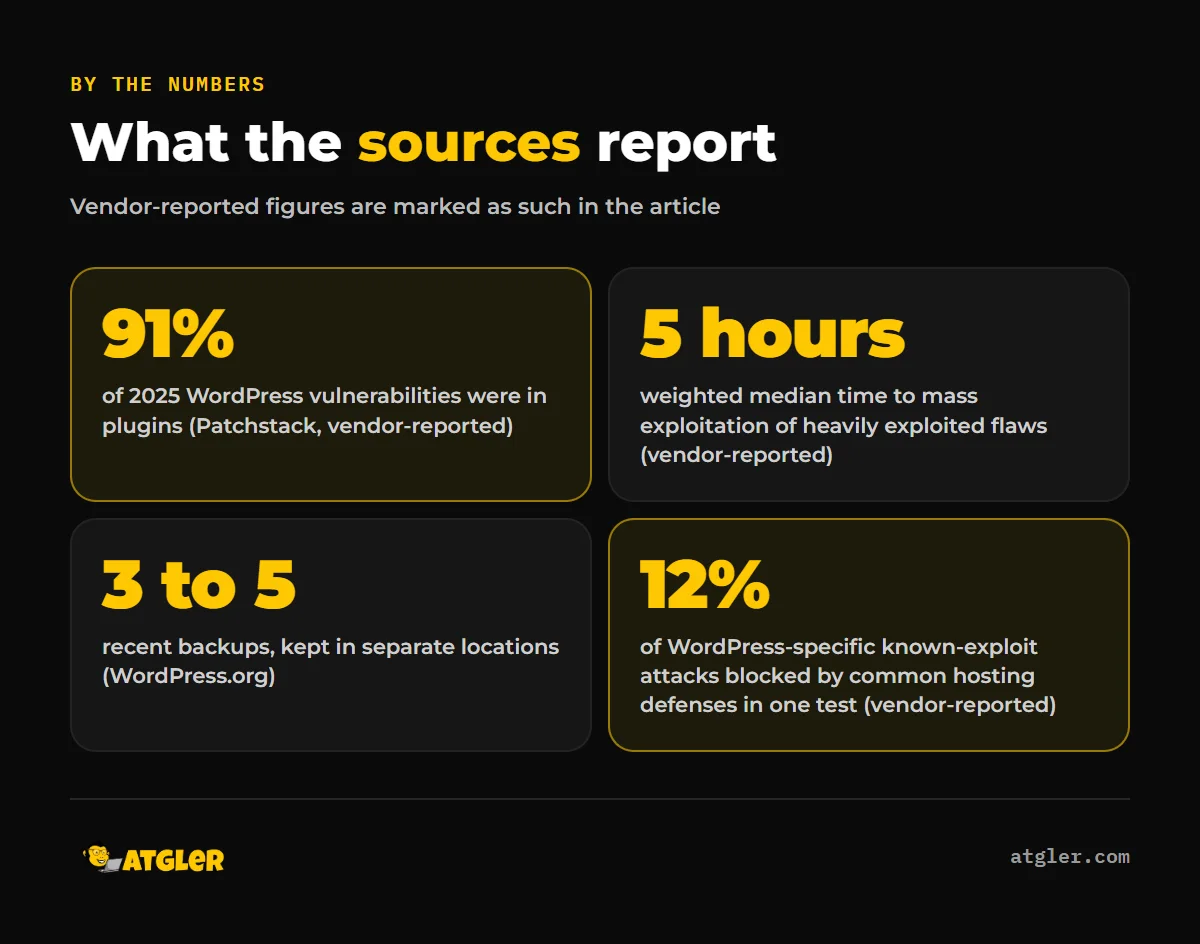
- Updates come first. In Patchstack’s vendor-reported data, 91% of 2025 WordPress vulnerabilities were in plugins, so plugins matter as much as core.
- Two-step authentication is the strongest single login defense, according to OWASP.
- A backup only counts if it holds the database and files, sits in separate locations, and can be restored.
- A firewall helps but is not enough alone. In Patchstack’s tests, common hosting defenses blocked a minority of WordPress-specific attacks.
What belongs on a WordPress security checklist, in order?
The order below is our judgment, based on the sources cited in this article and on what we see when we maintain sites. The sources do not publish a single official ranking, so treat it as a sensible default for small business sites.
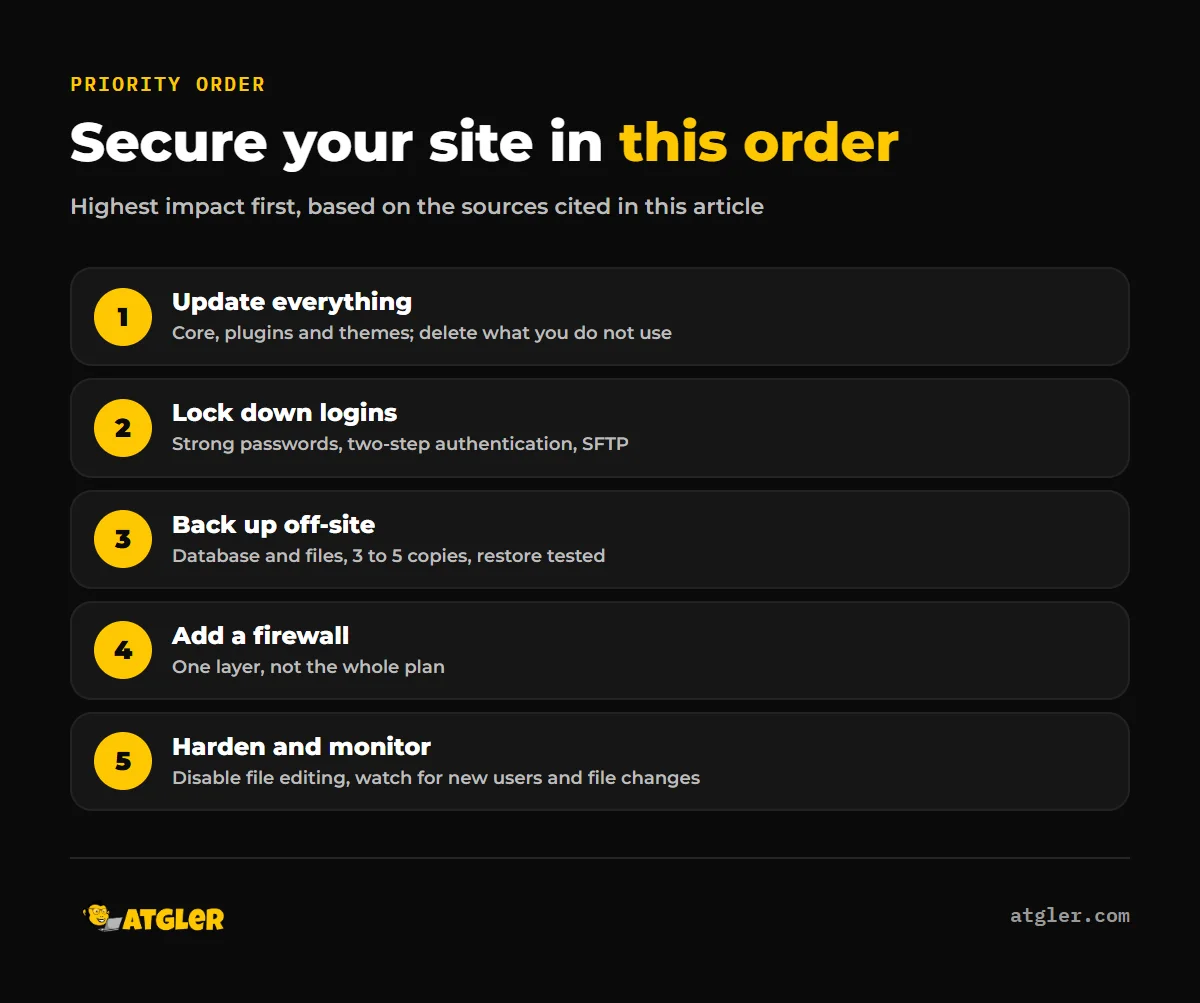
| Priority | Step | What it protects against |
|---|---|---|
| 1 | Update core, plugins and themes; delete unused ones | Attacks on known vulnerabilities |
| 2 | Strong passwords, two-step authentication, SFTP | Stolen or guessed credentials |
| 3 | Tested backups in separate locations | Data loss and a slow recovery after a hack |
| 4 | Firewall | Some malicious traffic before it reaches the site |
| 5 | Hardening settings and monitoring | Damage after a break-in, and unnoticed changes |
Why do updates come first?
Updates come first because attackers target known flaws, and an update is how those flaws get fixed. The WordPress.org hardening guide says you should always keep up to date with the latest version of WordPress, and notes that automatic updates have been available since WordPress 3.7.
Plugins carry most of the risk. According to Patchstack’s State of WordPress Security in 2026 (vendor-reported, updated February 25, 2026), 91% of the vulnerabilities found in 2025 were in plugins, 9% in themes, and only 6 in WordPress core. The same report says 46% had no developer fix at the time of public disclosure.
Speed matters too. Patchstack reports a weighted median of 5 hours to mass exploitation for heavily exploited vulnerabilities, and says roughly half of high-impact ones were exploited within 24 hours. Those figures come from a vendor that sells protection and have not been independently validated, but the direction is clear: waiting a month to update is a real gamble. Plugin updates deserve at least the same priority as WordPress core.
Two habits follow from this:
- Delete plugins and themes you do not use. WordPress.org says to remove them from the system, not just deactivate them.
- Update on a routine and check the site afterward. Our safe update checklist walks through it. For the wider data, see our WordPress security statistics post.
In our maintenance work, we update plugins, themes and core weekly and check the site still works after each update. The most common cause of layout or function problems after an update is a dependent plugin or theme that does not support the latest PHP or WordPress version.
How do you lock down WordPress accounts?
Use long unique passwords, turn on two-step authentication, and stop using plain FTP. This is the second-biggest lever because a stolen password gives an attacker the same access you have.
OWASP’s Authentication Cheat Sheet calls multi-factor authentication “by far the best defense against the majority of password-related attacks.” It cites a Microsoft analysis, undated on the page, suggesting MFA would have stopped 99.9% of account compromises. Treat that number as a general estimate for accounts, not a WordPress figure.
OWASP also gives length guidance. With MFA, passwords shorter than 8 characters are weak. Without MFA, passwords shorter than 15 characters are weak. Systems should allow at least 64 characters, so a password manager and a long passphrase are fine.
WordPress.org also recommends SFTP instead of FTP when your host supports it. Give each person their own account with only the access they need, and remove accounts for people who have left.
Login attempt limits are common advice, but neither source gives a fixed number. OWASP offers only examples, such as a ten-minute lockout or an exponential lockout starting at one second. Pick a sensible setting rather than a magic number.
How often should you back up a WordPress site?
WordPress.org says smaller sites with fewer posts should back up once a week and high-activity sites daily. If your site takes orders or form submissions every day, daily is the safer reading, because a weekly backup could lose a week of that data.
The same guidance sets out the rules that make a backup useful:
- A full restore needs both the database and the files.
- Back up the database before every upgrade.
- Keep at least 3 to 5 recent backups in separate locations, such as the host server, cloud storage and a local computer.
- Back up the database first, then files. When restoring, restore files first, then import the database.
Backups can fail quietly. We have seen a backup plugin silently disconnect, which stopped both the backups and the downtime alerts, and the site was found hacked later. Check that a recent backup actually exists, and practice a restore. Our guide to restoring a WordPress backup covers the steps.
Do you need a firewall, and is it enough?
A firewall is worth having, but it should not be your only defense. In Patchstack’s two penetration tests (vendor-reported), common hosting defenses such as internal WAFs and Cloudflare blocked 12% of WordPress-specific known-exploited-vulnerability attacks in the first test. In the second test, which included more generic vulnerabilities, they blocked 26% of total attacks.
Patchstack sells vulnerability protection, so weigh those numbers accordingly. We could not find an independent, non-vendor figure for firewall effectiveness. WordPress.org’s hardening guide itself treats firewalls and similar measures as supplementary to updates and good access control. In short, treat a firewall as one layer, not the whole plan.
For a closer look, read whether a security plugin alone stops attacks.
Which WordPress hardening checklist items and monitoring come last?
Hardening settings reduce the damage if someone gets in, and monitoring tells you when something has changed. They rank last because they do little if your updates and logins are weak. The WordPress.org hardening guide suggests these steps:
- Add
define( 'DISALLOW_FILE_EDIT', true );to wp-config.php to disable file editing in the dashboard. - Restrict file permissions and protect wp-config.php.
- Limit database privileges to SELECT, INSERT, UPDATE and DELETE for day-to-day operation, but only with a tested backup plan.
- Use logs and file integrity monitoring to detect unexpected changes.
The guide treats avoiding the “admin” username and using a non-default table prefix as supplementary, not primary defenses. They are fine to do, but do not let them replace the steps above.
Know the warning signs. WordPress.org’s “My site was hacked” FAQ lists indicators of compromise: being blacklisted by Google or Bing, a host disabling the site, being flagged for distributing malware, unauthorized behavior such as new users being created, and the site being used to attack other sites. If you see them, follow our hacked site checklist. The FAQ also notes that an infection often begins on the owner’s local computer, so scan your own machine too.
What this checklist cannot tell you
Some useful numbers are not available from the sources we trust, and we would rather say so than guess.
- We could not verify how many small business WordPress sites are hacked each year, or the average cost of a hack.
- The exploitation-speed and firewall figures come from one vendor and have no independent validation.
- The OWASP password guidance is general application guidance, not WordPress-specific, and its page is undated.
- We could not confirm recovery-time or downtime statistics.
Even a perfect checklist cannot guarantee a site will never be hacked. In our cleanup work we do not promise to prove how a site was compromised. Weak passwords, outdated or deprecated plugins and themes, file manager plugins and weak SSH credentials are all common causes.
Where can you get help with a WordPress security checklist?
If you do not have the time or comfort to run this list weekly, a maintenance plan is the practical route. Atgler has worked with WordPress for 7 years and has built, managed and maintained more than 600 sites. Our website care plans start at $99 a month, month to month, and include weekly updates, uptime monitoring, a check after each update, and a short monthly report covering what was done, backup data and vulnerabilities.
If you already suspect a problem, start with the hacked site checklist linked above. Either way, the first step is the same: update, secure your logins, and confirm you can restore a backup.
Frequently asked questions
What is the most important WordPress security step?
Keeping WordPress core, plugins and themes updated, since attackers target known flaws. Two-step authentication on every account is a close second.
Is a free security plugin enough?
Not on its own. A plugin can add a firewall and scanning, but updates, strong logins and tested backups do more work. The WordPress.org guidance treats a firewall as supplementary.
Should I turn on automatic updates?
WordPress.org notes automatic updates have been available since WordPress 3.7. We did not verify the default behavior for plugin and theme auto-updates, so check your settings and confirm the site still works after updates run.
How often should a small business back up its WordPress site?
WordPress.org says weekly for smaller sites and daily for high-activity ones. If you take orders or form submissions daily, back up daily and keep 3 to 5 copies in separate locations.
How do I know if my site has been hacked?
Warning signs include a Google or Bing blacklist, your host disabling the site, malware flags, and new user accounts you did not create. A scan can confirm it.
Sources
- WordPress.org: Hardening WordPress (Advanced Administration Handbook) (last updated October 14, 2026)
- WordPress.org: Backups (Advanced Administration Handbook) (last modified October 28, 2026)
- WordPress.org: FAQ My site was hacked (last modified July 26, 2026)
- OWASP: Authentication Cheat Sheet (undated page)
- Patchstack with Monarx: State of WordPress Security in 2026 (updated February 25, 2026, vendor-reported)