
On this page
- What is the fastest way to restore WordPress from a backup?
- What should you check before you restore a WordPress backup?
- How do you restore WordPress from a backup with a plugin?
- How do you restore WordPress from a host panel like cPanel?
- How do you restore WordPress files and database manually?
- When is restoring a WordPress backup the wrong move?
- What does the evidence not tell you?
- Where can you get help restoring a WordPress site?
- Frequently asked questions
To restore WordPress backup data, you put back both halves of the backup, the files and the database, using a backup plugin, your host’s control panel, or a manual upload plus database import. The official WordPress handbook says to restore the files first, then the database. If the site was hacked, a restore can bring the infection back, so check that before you start.
This article walks through the three restore paths, what to check first, and when a restore is the wrong move. If your site is compromised and you are not sure a backup is safe to use, our hacked site repair service handles that decision for you.
What is the fastest way to restore WordPress from a backup?
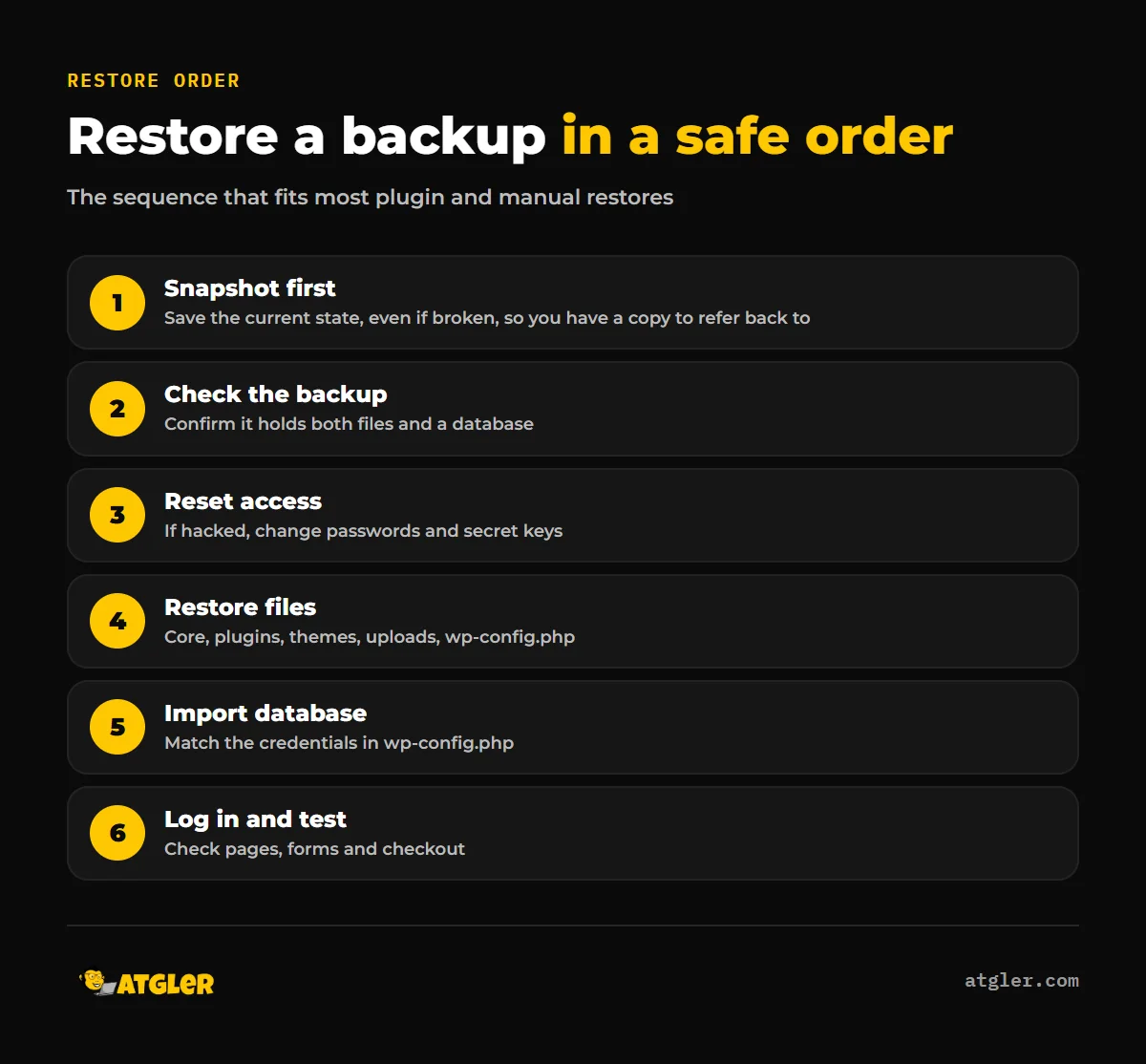
For most working sites, these five actions cover it:
- Take a fresh copy of the current site, even if it is broken, so you can refer back to it.
- Confirm the backup contains both files and a database.
- Restore through your backup plugin if you can still log in to wp-admin. Otherwise use your host’s panel.
- If neither works, restore the files manually, then import the database.
- Log in, test key pages and forms, and reset passwords if the site was hacked.
What should you check before you restore a WordPress backup?
Check that you have both parts of the backup. The WordPress Developer Resources backup page says a full backup has a database and files, and “You need both to be able to fully restore a typical WordPress site.” Files include core, plugins, themes, uploads, wp-config.php and .htaccess. Downloading the WordPress directory alone does not back up the database.
Next, snapshot what you have now. WordPress.org’s hacked-site documentation says to take one more snapshot of the environment even if it is infected, so you have “that bad copy to reference” if something fails.
If the site was hacked, reset access before and after. WordPress.org says to force password resets, change FTP/SFTP, wp-admin, cPanel and MySQL credentials, and replace the secret keys in wp-config.php to log out active sessions. It also says to scan your local computer, because attacks often start with malware there.
Finally, know your backup inventory. The handbook recommends at least three backups in different locations and on different media, and advises you to check automatic backups against an occasional manual one.
How do you restore WordPress from a backup with a plugin?
If you can still reach wp-admin and the site keeps the same location and URL, a plugin restore is the simplest route. The steps below follow the UpdraftPlus documentation from its vendor, TeamUpdraft (vendor-reported; the page carries no publication date).
- Go to Settings > UpdraftPlus Backups > Restore.
- Find your backup set under Existing Backups.
- Choose the components to restore and click Restore.
Restoring wp-config is usually unnecessary, and the Search/Replace option is not needed for a same-site database restore. A successful run shows “Restore successful!” and you may have to log in again. If the restore times out, a notice offers to resume it.
What if the backup set is not listed?
TeamUpdraft says to use “Rescan remote storage” or “Upload backup files.” You can also FTP the files into wp-content/updraft and then use “Rescan local folder.”
Can you restore with the free version of BackWPup?
Only partly. According to the BackWPup listing on WordPress.org (vendor-authored), the free version restores backups you upload manually. Pro restores directly from any storage destination, including the cloud, and adds a standalone restore application to recover “even when WordPress itself is unavailable.” Free-version restore arrived in version 4.1.0 on June 4, 2024, and the page lists 5.7.8 (October 14, 2026) as current.
How do you restore WordPress from a host panel like cPanel?
In cPanel, the Backup Wizard handles partial backups, but full backups need extra care. According to cPanel documentation (last modified July 8, 2026), a home directory backup is a .tar.gz file, a MySQL database backup is a .sql file, and a full backup is a .tar.gz tarball. Full backups cannot be restored automatically in cPanel, because that function is “only available in WHM.” To restore public_html manually, extract the full backup and upload the contents through File Manager.
WHM restores whole accounts. Its documentation says the interface “restores cPanel accounts from local backups or backups on a remote FTP destination” through a Restoration Queue, and the Restore MySQL option applies at the account level.
Namecheap’s cPanel guide, which is host documentation, adds two warnings. Use only backups made with “Download a Home Directory Backup” for the Restore a Home Directory Backup option, since a full backup has a different structure and may “create unnecessary files/folders that will take up disk space.” And on VPS or dedicated plans, WHM’s Transfer or Restore a cPanel Account “will overwrite all the existing files.” The guide also says the method “does not guarantee the correct work of the websites afterward.”
Comparing the three restore paths
| Path | Best when | Watch out for |
|---|---|---|
| Backup plugin | wp-admin works and the URL is unchanged | Missing backup sets, timeouts, free-version limits |
| Host panel (cPanel/WHM) | The host made the backup, or you cannot log in | Full backups need WHM; account-level restores overwrite files |
| Manual files plus database | Everything else failed | Order, wp-config.php credentials, split upload archives |
How do you restore WordPress files and database manually?
Restore WordPress files first, then import the database, as the WordPress handbook says. Backups run the other way, database first and then files. The handbook gives only export steps for phpMyAdmin, with no import or file-restore walkthrough, so the steps below combine its guidance with the UpdraftPlus manual documentation.
- Upload the backed-up files to the site folder over FTP/SFTP or File Manager.
- Make sure wp-config.php has the right database name, user and password. The handbook says to update it if credentials changed during a migration.
- Import the database in phpMyAdmin.
- Load the site and test.
When you restore a WordPress database over an existing one, the handbook suggests the “Add DROP TABLE” export option, and “IF NOT EXISTS” to avoid errors when tables already exist.
The order is not universal. TeamUpdraft’s manual Method 1 installs fresh WordPress, sets database details in wp-config.php, imports the database and then runs Restore. Its Method 2 copies the unzipped folders into wp-content and then imports the database. Pick one workflow and follow it end to end.
A few details from the TeamUpdraft manual page (vendor-reported):
- Backups are standard zip and SQL files.
- If phpMyAdmin rejects the db.gz file, rename it to db.sql.gz. A .gz.crypt file must be decrypted first.
- Large sites may split uploads into uploads.zip, uploads2.zip and so on. Merge them all into wp-content/uploads.
- A 500 error during restore means asking your host to check the PHP error logs.
When is restoring a WordPress backup the wrong move?
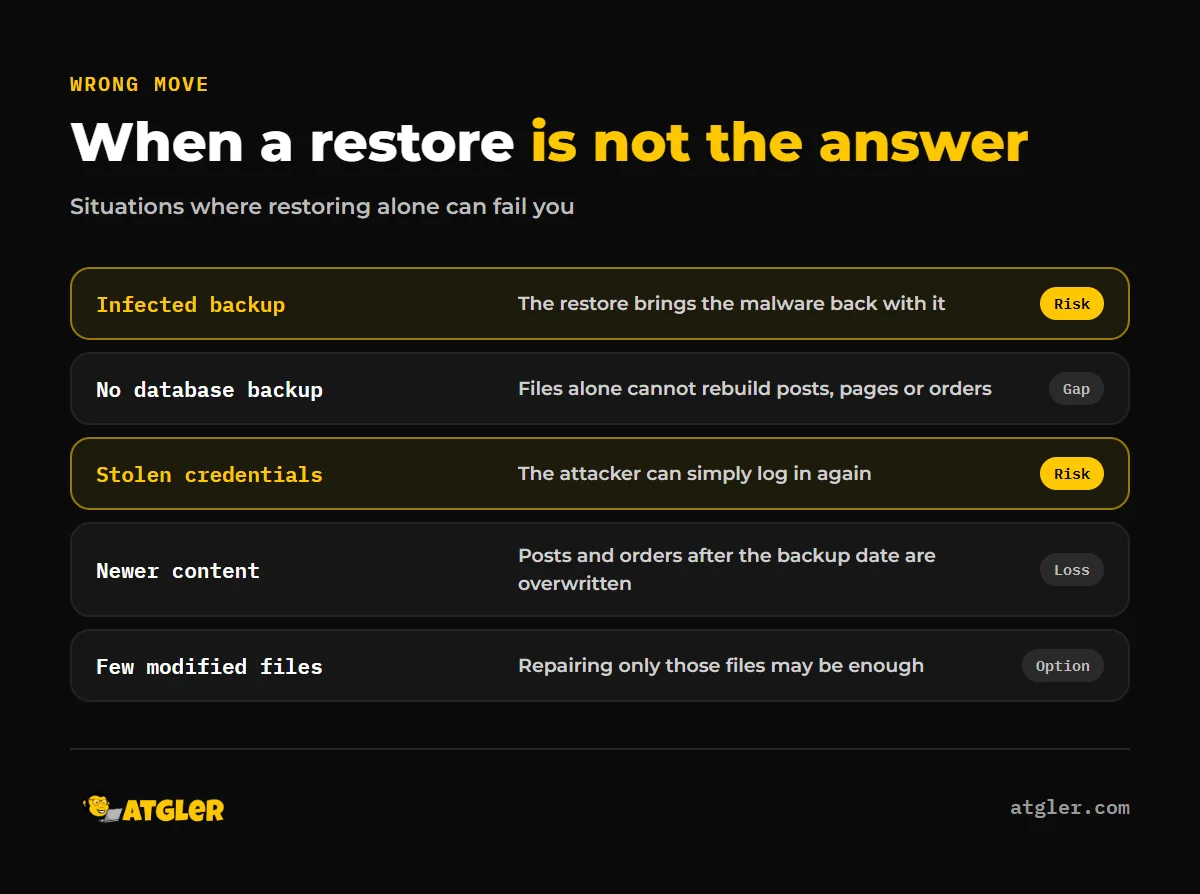
A restore is the wrong move when the backup itself may be infected, when the database is missing, or when the real problem is stolen access. No official source in this area says when to prefer a restore over a cleanup.
The backup may be infected
A backup made after the compromise carries the malware with it. WordPress.org’s FAQ says that if you have a backup you can restore and move on to forensics, but it does not explain how to check whether the backup is itself infected. Atgler scans by comparing file checksums against clean WordPress files, which gives accurate, current results, so comparing a restored site against clean core is one way to spot what does not belong.
There is no database backup
Files alone cannot bring back your posts, pages or orders. Restoring a site exactly as it was is not always possible when data is deleted or the database is lost. Premium plugin and theme files must come from the original developer.
The problem is a credential or a few files
A 2016 WordPress.org forum thread (anecdotal, and old) shows one alternative. A user whose Wordfence flagged modified plugin files asked about restoring a pre-incident backup. A moderator advised checking the PHP file diffs rather than a full restore, and the user repaired the specific files. The thread does not say whether the backup was malware-checked.
If you clean manually, WordPress.org says to reinstall core files over FTP/SFTP rather than the wp-admin reinstall option, because installers “often only overwrite existing files, and hacks often introduce new files.” The version must match what the site uses, as an older or newer one is “likely to kill your website.” Credentials matter too, because WordPress.org notes that attacks often start with local malware that sniffs logins, so a restore alone does not fix a stolen credential.
For more on cleanup, see our guides on what to do when a WordPress site is hacked and how to find and remove a WordPress backdoor.
What does the evidence not tell you?
Several answers are missing from the official documentation. We could not find an official source that explains how to verify a backup is clean before restoring or how far back to go. The WordPress handbook has no import or file-restore steps. The UpdraftPlus pages carry no publication date.
We also found no study data on how often backups contain malware or how often restores fail. Managed-host one-click restores, Jetpack VaultPress Backup and table prefix mismatches in wp-config.php are not covered here.
From Atgler’s own experience, a backup plugin that silently disconnected stopped both backups and downtime alerts, and the site was found hacked later. Check that your backups are still running, not just that they exist.
Where can you get help restoring a WordPress site?
If the restore fails, or you suspect the backup is infected, stop overwriting things and get a second opinion. Atgler has worked with WordPress for 7 years and has built, managed and maintained more than 600 sites. Our hacked site repair removes malware, rebuilds core from clean files and patches the vulnerabilities it can identify. It is $149 Standard (48 hr) or $249 Priority (24 hr), a flat fee with a 30-day re-hack guarantee. We do not promise to prove how a site was hacked.
For prevention, our website care plans include weekly updates, uptime monitoring and a short monthly report with backup data. Plans start from $99 a month, month to month. For a one-off job, emergency dev hours are $99 per hour with no retainer.
Frequently asked questions
Is a files-only or database-only backup enough?
No. The WordPress handbook says you need both the files and the database to fully restore a typical WordPress site. Downloading the WordPress directory does not back up the database.
What happens to posts and orders made after the backup date?
They are overwritten if you restore the database over the live one. The documentation does not describe recovering them, so export or snapshot the current site before restoring.
Do I need to change passwords after restoring a hacked site?
Yes. WordPress.org says to reset FTP/SFTP, wp-admin, cPanel and MySQL credentials, replace the secret keys in wp-config.php, and change passwords again once the site is clean.
Why can’t I restore a full cPanel backup in cPanel?
cPanel’s documentation says full backup restoration is only available in WHM. In cPanel itself you can restore partial backups, or extract a full backup and upload public_html manually.
What if the restore times out?
With UpdraftPlus, a notice offers to resume the restore. If you get a 500 error, TeamUpdraft says to ask your host to check the PHP error logs.
Sources
- WordPress Developer Resources: Backups (last modified October 28, 2026)
- WordPress.org Documentation: FAQ My site was hacked (last updated July 26, 2026)
- TeamUpdraft: How to restore a WordPress site with UpdraftPlus (undated page, vendor-reported)
- TeamUpdraft: How to restore my UpdraftPlus backup manually (undated page, vendor-reported)
- WordPress.org Plugin Directory: BackWPup (version 5.7.8, October 14, 2026, vendor-reported)
- cPanel & WHM Documentation: Backup Wizard (last modified July 8, 2026)
- cPanel & WHM Documentation: Backup Restoration (WHM) (last modified July 8, 2026)
- Namecheap Knowledgebase: How to create and restore backups in cPanel (last updated September 25, 2024, host documentation)
- WordPress.org Support Forum: Should I restore my Website backup or not? (November 20, 2016, anecdotal)