
On this page
- Key takeaways
- What the red warning actually says
- Deceptive site ahead warning: what is flagging you
- How do you fix the deceptive site ahead warning, step by step?
- Clearing the “This site may be hacked” label
- How should you write the review request?
- If you think the flag is a mistake
- What the evidence does not tell you
- Getting help with a flagged WordPress site
- Frequently asked questions
A deceptive site ahead warning on WordPress means Google Safe Browsing has flagged your site and Chrome is putting a red page between visitors and your content. It does not always mean the site is hacked, because Google also flags phishing and deceptive content, including bad ads and embeds. The warning generally stays until you fix the cause and Google completes a review.
This article separates the red browser warning from the “This site may be hacked” label in search results, explains what to check for each, and gives an order of operations. If you would rather hand the cleanup to someone, our hacked site repair service covers it.
Key takeaways
- A deceptive site ahead warning means Google Safe Browsing has flagged the site, and it does not always mean the site is hacked, since phishing and bad ads or embeds also trigger it.
- Google’s documentation says both the red browser warning and the ‘This site may be hacked’ search label are handled through the Security Issues review in Search Console.
- The recommended order is to check the flag, name the category, clean the whole site, audit third-party content, then request one review and wait.
- Google warns that submitting before the fix is complete, or resubmitting early, can lengthen the next review and may mark the site as a repeat offender.
- Google says a review can take from a few days to a few weeks, and the review request should explain the exact issue, the fix steps and the outcome.
What the red warning actually says
Google’s Security Issues report documentation says affected sites can show either a warning label in search results or an interstitial warning page in the browser. It says Safe Browsing displays warnings based on the browsing context. It groups problems into three categories: hacked content, malware and unwanted software, and social engineering. Each issue is marked as an error or a warning.
The wording you see varies. Google’s Search Central page on social engineering says Chrome may show a “Deceptive site ahead” warning. Chrome Help titles its red page “Dangerous site” and says it covers phishing, malware, unwanted software or social engineering. So the title depends on the threat type and the Chrome version, and you should not read much into the exact phrase.
Google defines social engineering as content that tricks visitors into doing something dangerous. That includes phishing, deceptive content and insufficiently labeled third-party services. Embedded content such as ads can cause the flag too. This is why a site that looks fine to you can still be flagged.
Deceptive site ahead warning: what is flagging you
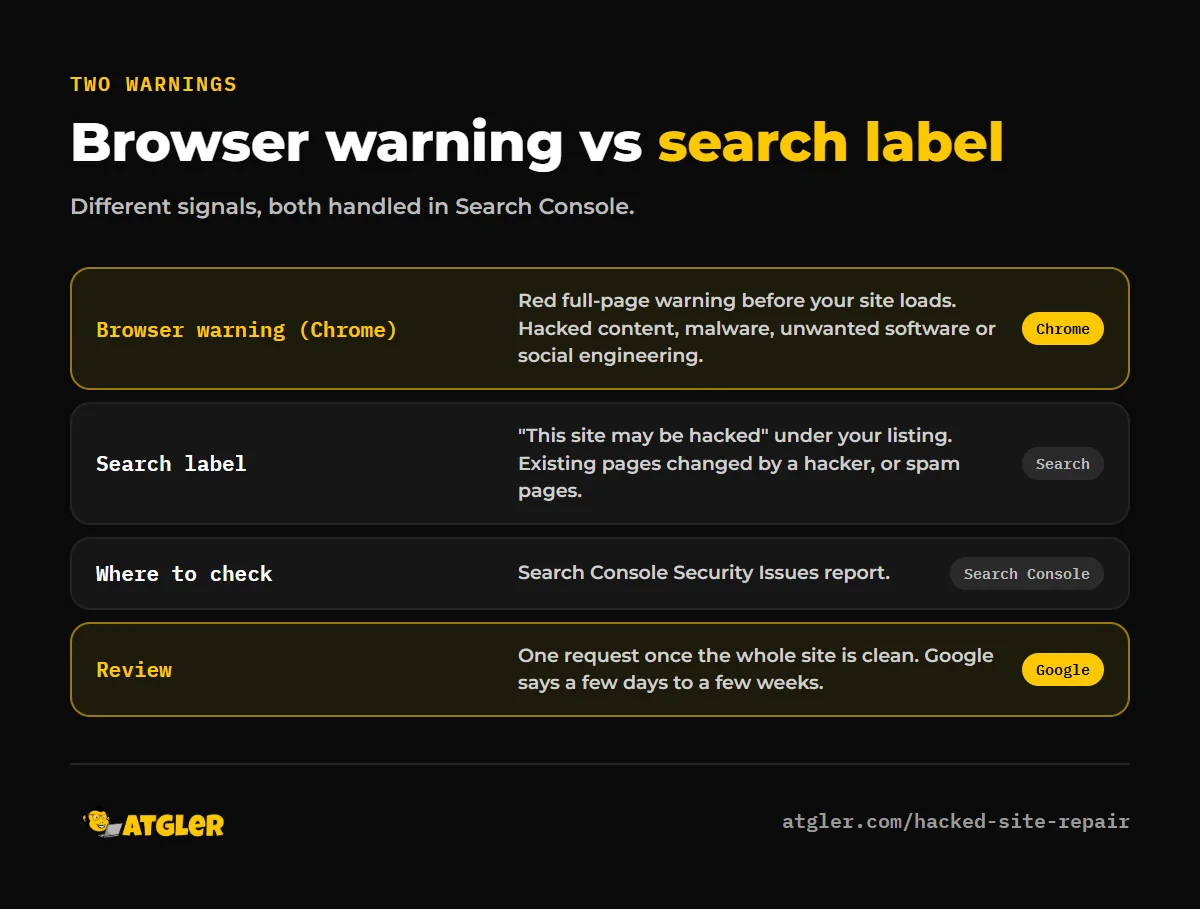
There are really two separate things to check, and they show up in different places. One is the browser warning. The other is the search-result label, “This site may be hacked.”
Google’s help page says that label appears when Google believes a hacker might have changed some of the existing pages on the site, and spam pages can trigger it as well. It says the message will not be removed until the site owner takes action.
| Signal | Where visitors see it | What Google says triggers it | Where you check |
|---|---|---|---|
| Browser warning (Chrome) | Red full-page interstitial before your site loads | Hacked content, malware, unwanted software, or social engineering | Search Console Security Issues; Safe Browsing status page |
| Search label | “This site may be hacked” under your listing | Existing pages changed by a hacker, or spam pages | Search Console Security Issues |
| Other blocklists | Edge, antivirus tools | Their own lists (host-reported, anecdotal) | Cleared separately from Google |
One honest caveat: according to Google’s documentation, both the browser warning and the search label are handled through the Security Issues review in Search Console. Google’s pages do not describe two separate review forms for hacked sites. The difference is which system is flagging you and what you verify, not a different door to knock on.
How do you fix the deceptive site ahead warning, step by step?
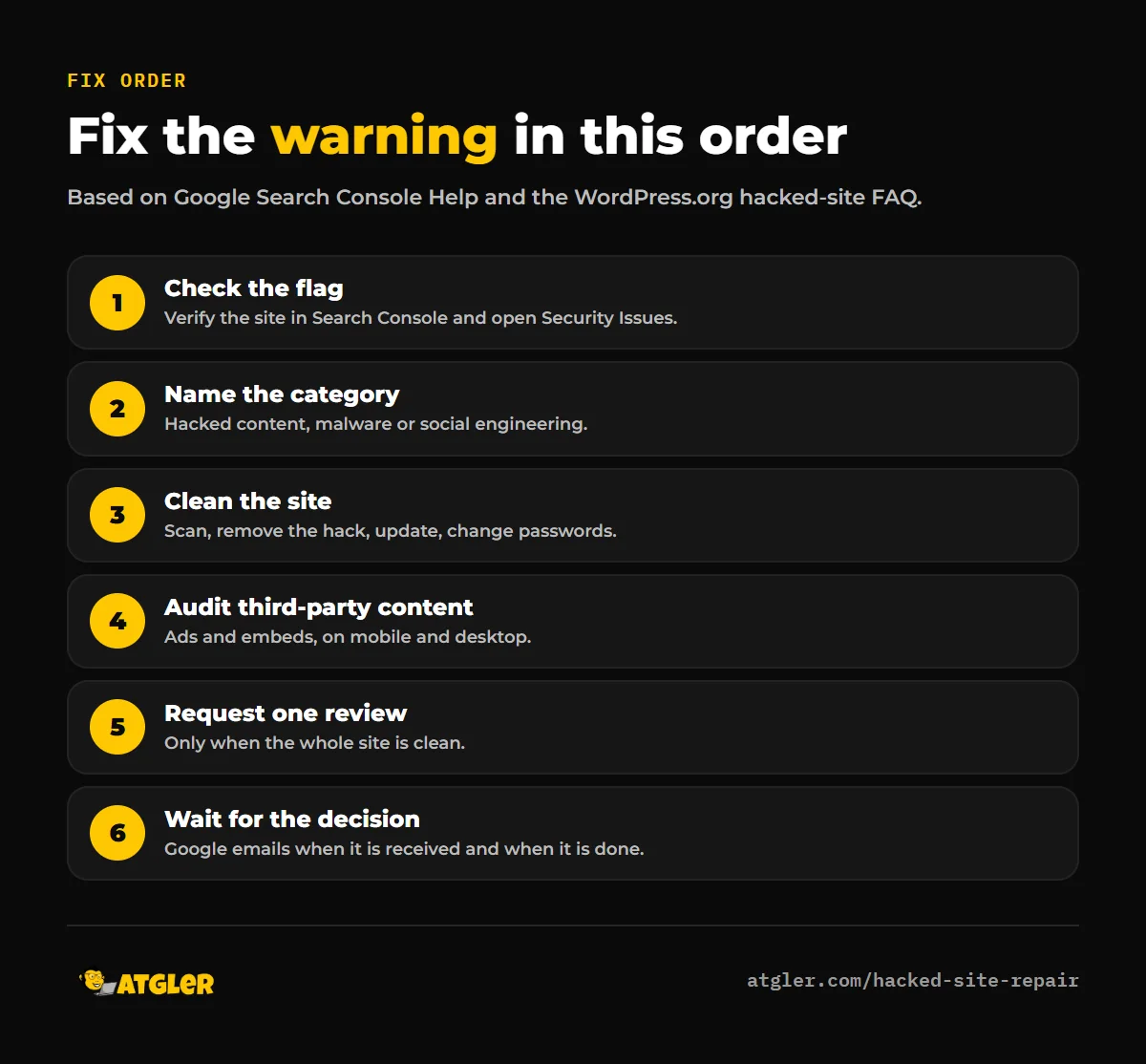
Work through these in order. Skipping ahead is the most common way to waste a review.
- Check the flag. Verify the site in Search Console and open the Security Issues report. A free host’s forum guide (InfinityFree, anecdotal, September 28, 2024) also suggests checking Google’s Safe Browsing status page first. We could not confirm that page’s wording or refresh rate, so treat it as a quick second look, not the final word.
- Name the category. Hacked content, malware, and social engineering are fixed differently.
- Clean the site. WordPress.org’s “My site was hacked” FAQ lists a Google or Bing blacklisting as an indicator of compromise. Its order is: document, scan the site and your local machine, check with the host, back up, find and remove the hack, update WordPress, change passwords again once it is clean, run forensics, then harden.
- Audit third-party content. For social engineering flags, Google says to remove deceptive content and audit ads and embeds, which can differ between mobile and desktop.
- Request one review. Do this only when the whole site is clean.
- Wait for the decision. Google says it emails when the request is received and again when the review is complete.
Timing matters. Google warns that submitting before the fix is complete, or resubmitting early, can cause a longer turnaround for the next request and may mark the site as a repeat offender.
If you are still hunting for the infection, our guides on finding and removing a WordPress backdoor and on whether malware scanner plugins catch everything are useful before you ask Google to look again.
Clearing the “This site may be hacked” label
The search label has a shorter sequence. According to Google Search Help, the owner verifies the site in Search Console, fixes the problem that allowed the infection, and requests a review in the Security Issues section once the whole site is clean. Google then removes the message after confirming the fix.
The key phrase is “fixes the problem that allowed the infection.” Deleting the visible spam is not enough if the entry point is still open. If you need a wider recovery plan, see what to do when your WordPress site gets hacked.
How should you write the review request?
Google says the request should explain the exact issue, the steps you took to fix it, and the outcome. Keep it factual. A good request covers three things:
- What you found, for example the type of injected content and where it was.
- What you did: removed files, updated software, changed credentials, closed the entry point.
- What you checked afterward to confirm the site is clean.
Hosting.com’s knowledge base (a vendor) describes the same flow: remove the threats, open Security issues, tick “I have fixed these issues,” click “Request a Review,” and describe the fixes. It also says the Chrome warning stays until the review completes.
If you think the flag is a mistake
Sometimes a legitimate site gets flagged. Google says that if you believe a page was flagged in error, you can report it to Safe Browsing. We did not review that form, so check Google’s current instructions.
The InfinityFree guide (anecdotal) says legitimate sites can be flagged when the first page is a login form, and suggests adding a public homepage, an about page and contact details. That is one host’s experience, not a Google rule.
Also note that Chrome Help describes lookalike-site warnings (“Did you mean…”, “Is this the right site”, “Fake site ahead”) as having a separate review process from the standard dangerous site flow.
What the evidence does not tell you
Several things are unclear from the sources we could verify:
- Exact timing. Google says a review can take from a few days to a few weeks depending on issue type, and “several days” for social engineering. Hosting.com says a few days. InfinityFree says phishing reviews usually take about a day, which is the host’s own experience and conflicts with Google’s wording. Plan for Google’s range.
- How long the warning lingers after approval. We found no official Google statement on this.
- SEO impact. We found no study with a stated method on how these warnings affect traffic or rankings, so we will not guess.
- How common this is. WordPress.org says Google blacklists roughly 9,500 to 10,000 sites a day, but gives no method or date and links to a security vendor. Treat it as unverified.
Also, none of Google’s pages show a last-updated date, only a 2026 footer, so check them directly for the latest procedure.
Getting help with a flagged WordPress site
If the cleanup is beyond what you can do safely, or you have been through one rejected review already, it makes sense to bring in help. Our hacked site repair is a flat fee of $149 Standard (48 hour) or $249 Priority (24 hour), with a 30-day re-hack guarantee. We clean the site and close the entry point so your review request is accurate. Google makes the final call on any review, and we cannot control its timing or decision. Once you are clean, a care plan can help keep updates current.
Frequently asked questions
Does “Deceptive site ahead” mean my WordPress site is hacked?
Not necessarily. Google says the flag can come from hacked content, malware, unwanted software or social engineering, including deceptive ads or embeds on an otherwise clean site.
How long does it take for the warning to disappear?
Google says a review can take from a few days to a few weeks depending on issue type, and several days for social engineering. Host guides quote shorter times, but those are anecdotal or vendor-reported.
What happens if I submit the review request too early?
Google says submitting before the fix is complete, or resubmitting before a final decision, can lengthen the turnaround for the next request and may mark the site as a repeat offender.
Can I clear the warning if I cannot find any malware?
Check whether the cause is social engineering, such as deceptive content or third-party ads and embeds, and compare mobile and desktop. If you believe the flag is a mistake, Google says you can report it to Safe Browsing.
Why does the warning still show in Edge or my antivirus after Google cleared it?
A host guide (anecdotal) says Edge uses SmartScreen and antivirus tools keep their own blocklists, so those are cleared separately from Google.
Does my host’s blacklist-removal service replace Search Console?
No. Google’s documentation routes the review through the Security Issues report in Search Console, and the host guides we read also tell you to request the review there.
Is the red page called “Deceptive site ahead” or “Dangerous site”?
Both appear. Google’s Search Central page uses “Deceptive site ahead,” while Chrome Help titles its red warning “Dangerous site,” so the wording varies by threat type and version.
Sources
- Google: Search Console Help, Security issues report (no last-updated date shown; footer ©2026 Google)
- Google: Google Search Help, “This site may be hacked” message (no last-updated date shown; footer ©2026 Google)
- Google: Google Search Central, Social engineering (phishing and deceptive sites) (no date shown)
- Google: Google Chrome Help, Dangerous site warnings (no date shown)
- WordPress.org: FAQ My site was hacked (first published October 27, 2018; last updated July 26, 2026)
- Hosting.com: Requesting Google for review of hacked sites (no date on page; vendor-reported)
- InfinityFree Forum: Why Do I See a “Deceptive Site Ahead” Warning on My Website? (September 28, 2024; anecdotal host guidance)