
On this page
- What is the fastest way to check if your WordPress site is hacked?
- What are the warning signs that a WordPress site is hacked?
- Check 1: What does the Search Console Security issues report show?
- Check 2: Which free remote scanners can scan WordPress for malware?
- Check 3: How do you check WordPress files for malware with checksums?
- What does a clean result not prove?
- What should you do if a check finds a problem?
- When should you get help with a hacked WordPress site?
- Frequently asked questions
To check if WordPress site is hacked for free, use three checks: the Security issues report in Google Search Console, a remote scanner such as Sucuri SiteCheck or VirusTotal, and a file integrity check against WordPress.org’s clean files. A clean result from any one does not prove the site is safe, because each tool sees only part of the picture.
This guide covers the warning signs, how to run each check, and what a clean result does and does not tell you. If a check finds something, our hacked site repair service handles cleanup, and our checklist on what to do now if your site has been hacked covers the first steps.
What is the fastest way to check if your WordPress site is hacked?
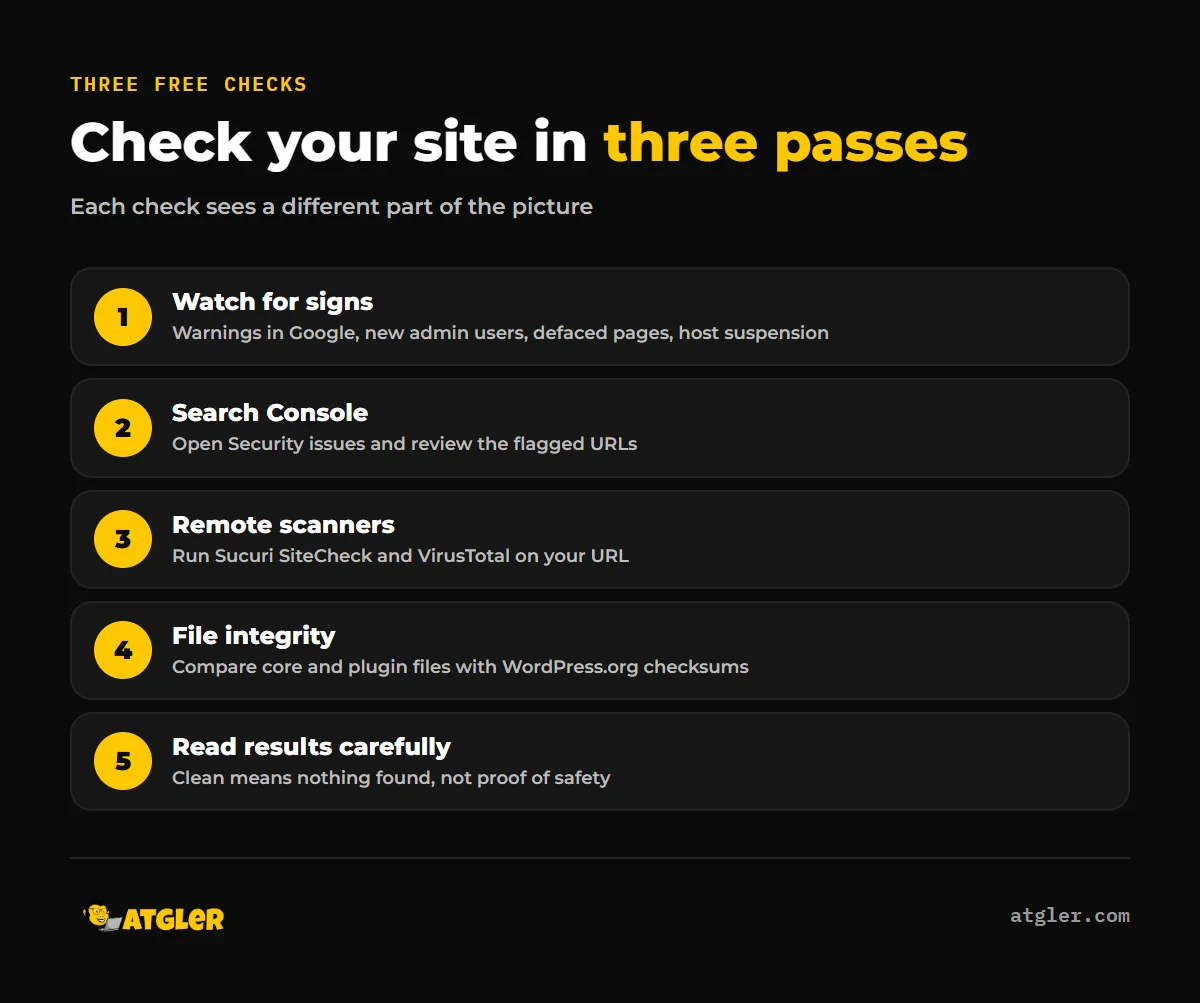
Run the free checks in this order, and stop to act as soon as one of them finds a problem.
- Look for the warning signs below, including a Google warning, unfamiliar admin users and visible defacement.
- Open the Security issues report in Google Search Console and read any flagged URLs.
- Scan your public URL with Sucuri SiteCheck and VirusTotal.
- Compare your WordPress core and plugin files with the official checksums using WP-CLI.
- Read every result as “nothing found by this tool”, not “the site is safe”.
What are the warning signs that a WordPress site is hacked?
The WordPress.org documentation lists several clear indicators of compromise, and any one of them is enough reason to investigate:
- Google or Bing has blacklisted the site.
- Your host has disabled the site.
- The site is flagged for distributing malware.
- Readers tell you their desktop antivirus flags your site.
- You are told the site is being used to attack other sites.
- Unauthorized behavior appears, such as new user accounts you did not create.
- The site is visibly defaced in the browser.
Some hacks stay invisible to you as the owner. Google’s guidance warns that hacked content may be hidden by cloaking, which it describes as showing different content to different types of users. That is why a site can look normal when you visit it while visitors from search results get something else. If you see spam pages or odd redirects, our guides on the Japanese keyword hack and on finding what is sending visitors away go deeper.
Check 1: What does the Search Console Security issues report show?
According to Google Search Console Help, the Security issues report shows Google’s findings when an evaluation determines a site was hacked or behaves in ways that could harm visitors, such as phishing or installing malware. Affected pages can show a warning in search results or an interstitial warning in the browser.
Register your site in Search Console, then open Security issues. Google groups findings into hacked content, malware and unwanted software, and social engineering. The listed errors are:
- Hacked: Malware
- Code injection
- Content injection
- URL injection
- Deceptive pages
- Harmful downloads
- Unclear mobile billing
Warnings include possible phishing on user login, suspected deceptive pages and uncommon downloads. Expanding an issue shows a description and a sample of affected URLs. Google notes the sample may not be complete, so do not assume the listed pages are the only ones.
Google’s web.dev guide adds two manual checks. Search Google for site:yourdomain.com, which it says shows all the pages on your site, including pages a hacker might have added. Then use the URL Inspection tool on suspicious pages. Because warnings depend on context, Google’s FAQ also says you might not be able to reproduce them in your own browsing.
How long does a Google security review take?
Google says most reviews take “several days or weeks” after you fix every affected page and select Request Review. Resubmitting before a final decision can lengthen the wait or lead to being marked a repeat offender, and fixing only some pages does not earn a partial return to search results.
Check 2: Which free remote scanners can scan WordPress for malware?
Two free remote scanners are worth running: Sucuri SiteCheck and VirusTotal, both of which WordPress.org names. WordPress.org recommends using remote scanners together with plugin scanners, saying “No one solution is the best approach, but together you improve your odds greatly.”
Sucuri SiteCheck says it scans externally visible source code for malware, blacklist status, outdated CMS and plugins, and security issues. Its own page says it “will not detect anything on the server-side” and that “Remote scanners have limited access and results are not guaranteed.” Server-level detection of backdoors, mailers and phishing pages needs its paid platform. That limitation is vendor-reported, and SiteCheck also serves as a path to that paid product, so read it with that in mind. It is still consistent with how remote scanning works.
VirusTotal checks files and URLs with, in its words, “over 70 antivirus scanners and URL/domain blocklisting services.” Results depend on those engines’ signatures. Two practical notes from its documentation: it is free to end users for non-commercial use, so check the terms before relying on it for a business site, and submitted content may be shared with partner engines and premium customers. A false positive, a harmless item that one scanner flags as malicious, is also possible, so one red flag from one engine is a reason to look closer, not a verdict.
Check 3: How do you check WordPress files for malware with checksums?
The free file integrity check is WP-CLI’s wp core verify-checksums. According to the WP-CLI Handbook, it downloads MD5 checksums for your current version from WordPress.org and compares them with the installed files, without loading WordPress while it verifies. The –include-root option, added in version 2.8.0, verifies all root files and folders and warns about items that do not belong to WordPress.
A matching plugin command, wp plugin verify-checksums, checks plugin files against WordPress.org’s checksums. You can run it with –all, on named plugins, or against a specific version. The documentation does not say what happens for plugins not hosted on WordPress.org, so premium and custom plugins may not be covered.
The core command’s page does not discuss the wp-content folder. We could not confirm from the documentation whether files added there are flagged, so treat themes, plugins and uploads as unverified by core checks alone, and core-file verification alone is not a full check.
This is the method Atgler uses too. We scan by comparing file checksums against clean WordPress files, which gives accurate, current results for core. WordPress.org also names .htaccess as one of the most commonly modified files and says to watch index.php, header.php, footer.php and the theme’s functions file.
What does a clean result not prove?
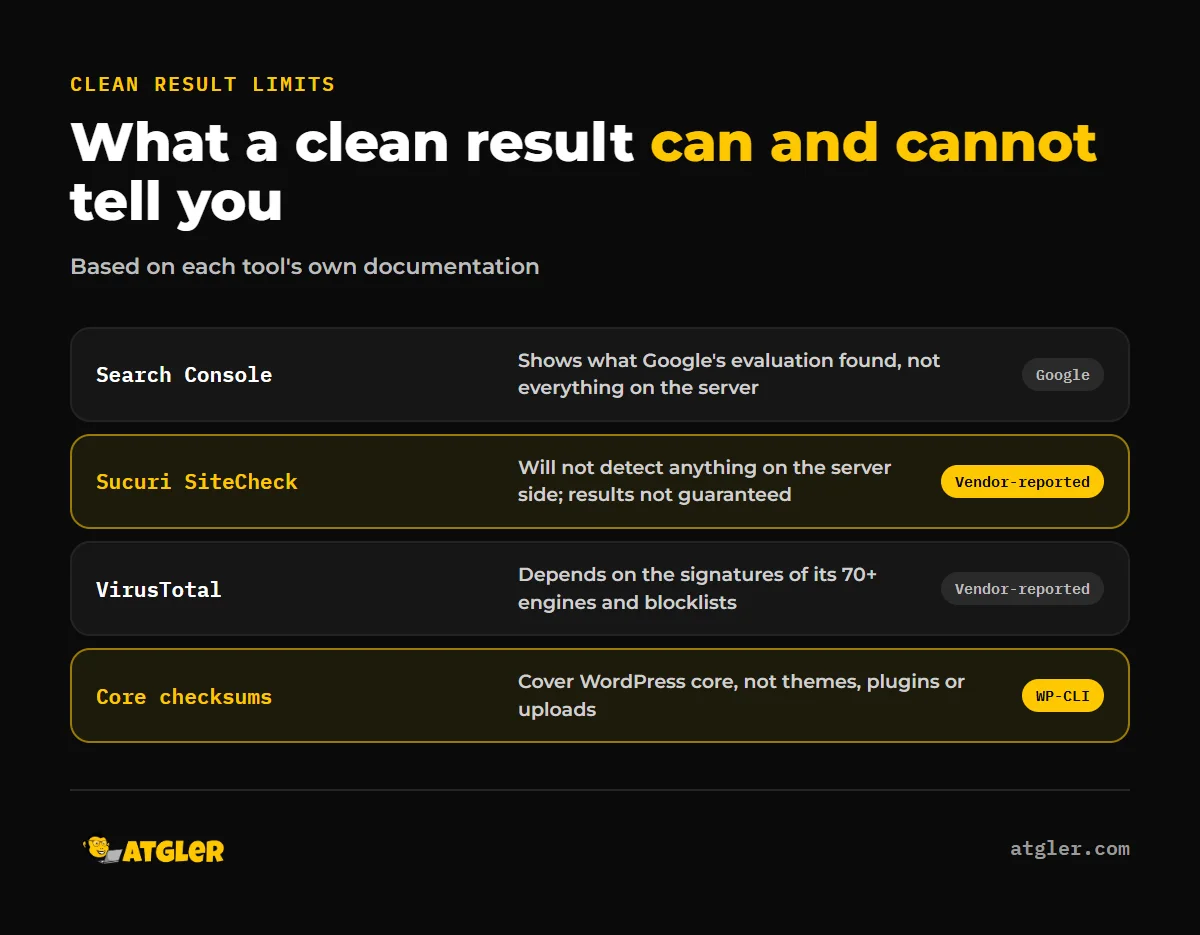
A clean result means that tool found nothing, not that nothing is there. We could not find any official statement from Google, Sucuri or VirusTotal that a clean report proves a site is unhacked. The closest statements are Sucuri’s “results are not guaranteed” and its server-side limitation.
| Check | What it can show | What it cannot show |
|---|---|---|
| Search Console Security issues | What Google’s evaluation found, and whether flagged issues were resolved | Anything Google has not flagged; the URL sample may be incomplete |
| Sucuri SiteCheck (vendor-reported) | Externally visible malware, blacklist status, outdated software | Server-side files, by its own statement |
| VirusTotal (vendor-reported) | Whether 70+ engines and blocklists flag a URL or file | Anything outside those signatures; its docs give no coverage limits |
| WP-CLI core checksums | Modified or unexpected WordPress core files | Themes, plugins and uploads, which the page does not cover |
The pattern is that remote tools see what is served to the public, and the file check sees only core. A backdoor sitting in a plugin folder could pass all of them, which is why a remote scan alone does not mean the file system is clean. Our posts on how well scanner plugins perform and on finding and removing a backdoor cover the gap in more detail.
If you have clear warning signs but every check comes back clean, trust the signs. Also note that we have not tested these tools on a live infected site for this article, so we make no claims about their detection or false positive rates.
What should you do if a check finds a problem?
Do not reinstall WordPress from the dashboard and assume that fixes it. WordPress.org says reinstalling through wp-admin is not recommended after a hack, because those installers often only overwrite existing files, and hacks often introduce new ones. It advises replacing the /wp-admin and /wp-includes folders over FTP or SFTP instead.
Once everything is cleaned, use Request Review in Search Console if Google flagged the site, and do it once. If you see a browser warning, our guide to the Deceptive Site Ahead warning walks through the order of fixes.
When should you get help with a hacked WordPress site?
Get help when a check finds malware, when you see warning signs but the free tools show nothing, or when you cannot say what the cleanup would involve. Atgler has worked with WordPress for 7 years and has built, managed and maintained more than 600 sites. We use one standard procedure on every infected site: remove the malware, rebuild core from clean files and patch the vulnerabilities we can identify. A thorough cleanup takes at least 8 hours, and hard cases such as old deprecated themes can take up to 50.
We do not promise to prove how a site was hacked, since weak passwords, outdated plugins and themes, file manager plugins and weak SSH credentials are all common causes. Restoring a site exactly as it was is not always possible either. Our hacked site repair is a flat fee of $149 Standard (48 hr) or $249 Priority (24 hr), with a 30-day re-hack guarantee.
Frequently asked questions
Is my WordPress site hacked if Sucuri SiteCheck says it is clean?
Not necessarily. Sucuri states that SiteCheck will not detect anything on the server side and that remote scan results are not guaranteed, so a clean result only covers what is visible from outside.
Does a clean VirusTotal result mean my site is safe?
No. VirusTotal’s results depend on the signatures of its engines and blocklists, and its documentation does not state coverage limits, so a clean result means those engines found nothing.
Why can’t I see the Google warning when I visit my own site?
Google’s FAQ says warnings depend on context, so you might not be able to reproduce them in your own browsing. Check the Security issues report in Search Console instead.
Do I need command line access to verify WordPress files?
WP-CLI is a command line tool, so you need a host that provides it or SSH access. If you do not have either, ask your host or a developer to run the checksum commands for you.
Can I fix a hack by reinstalling WordPress from the dashboard?
WordPress.org does not recommend it. Those installers often only overwrite existing files, and hacks often add new ones, so replace the core folders over FTP or SFTP instead.
Sources
- Google: Security issues report – Search Console Help (no last-updated date shown; fetched 2026-11-18)
- Google (web.dev): How do I know if my site was hacked? (no date shown)
- Google (web.dev): FAQ for hacked sites (no date shown)
- WordPress.org: FAQ My site was hacked (last updated 2026-07-26)
- WP-CLI Handbook: wp core verify-checksums (last modified 2026-11-18)
- WP-CLI Handbook: wp plugin verify-checksums (no date captured)
- Sucuri: Sucuri SiteCheck (fetched 2026-11-18; vendor-reported)
- VirusTotal: VirusTotal Docs: How it works (updated 2025-12-23; vendor-reported)