

On this page
- What is the fastest way to fix a slow WooCommerce store?
- Why is my WooCommerce store so slow? Start with hosting
- How should WooCommerce caching be set up?
- Do images slow down a WooCommerce store?
- How do you find which plugin is slowing down WooCommerce?
- Should you clean the database or enable HPOS?
- Why is the WooCommerce checkout page slow?
- What the evidence does not tell you
- Where can you get help to speed up WooCommerce?
- Frequently asked questions
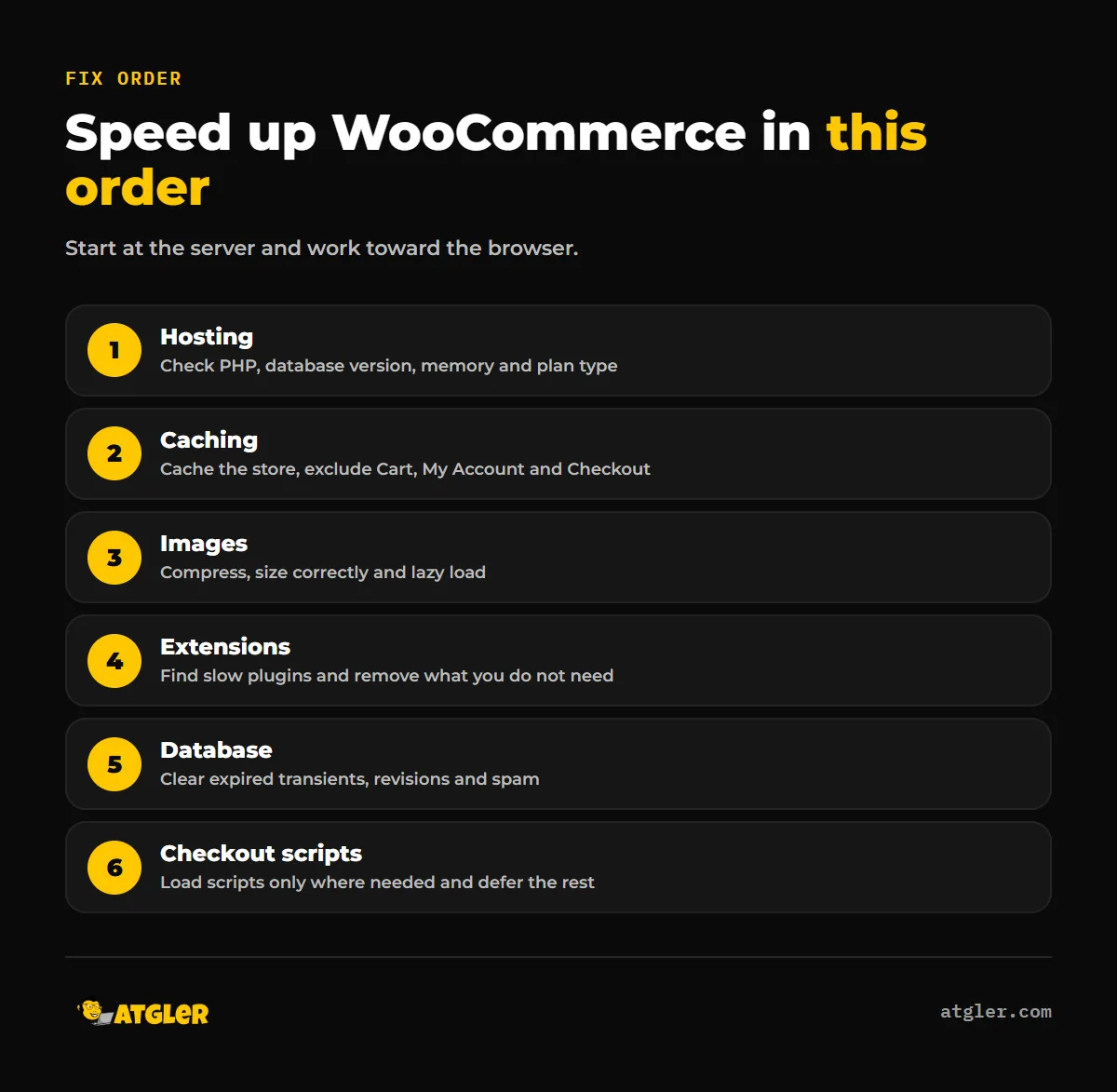
To speed up WooCommerce, fix problems in this order: hosting and server response first, then caching with the right exclusions, then images, extensions, the database and checkout scripts. According to web.dev, server response time is roughly 40% of Largest Contentful Paint, so slow hosting limits every other fix. Cart, My Account and Checkout must stay uncached.
This article walks through each cause of a slow WooCommerce store and what to do about it, using official WooCommerce and web.dev documentation. If you would rather have someone do the work, our site optimization service covers it.
What is the fastest way to fix a slow WooCommerce store?
Most cases come down to five actions, done in this order:
- Measure first. Run Chrome Lighthouse and note your Largest Contentful Paint (LCP), Interaction to Next Paint (INP) and Cumulative Layout Shift (CLS).
- Confirm your host runs current PHP and database versions and is not an overloaded shared plan.
- Turn on caching, and exclude the Cart, My Account and Checkout pages.
- Compress images, then deactivate plugins one at a time to find the slow ones.
- Trim the database and load checkout scripts only where they are needed.
Change one thing at a time and re-test. Otherwise you will not know which change helped, or which one broke something.
What numbers should you aim for?
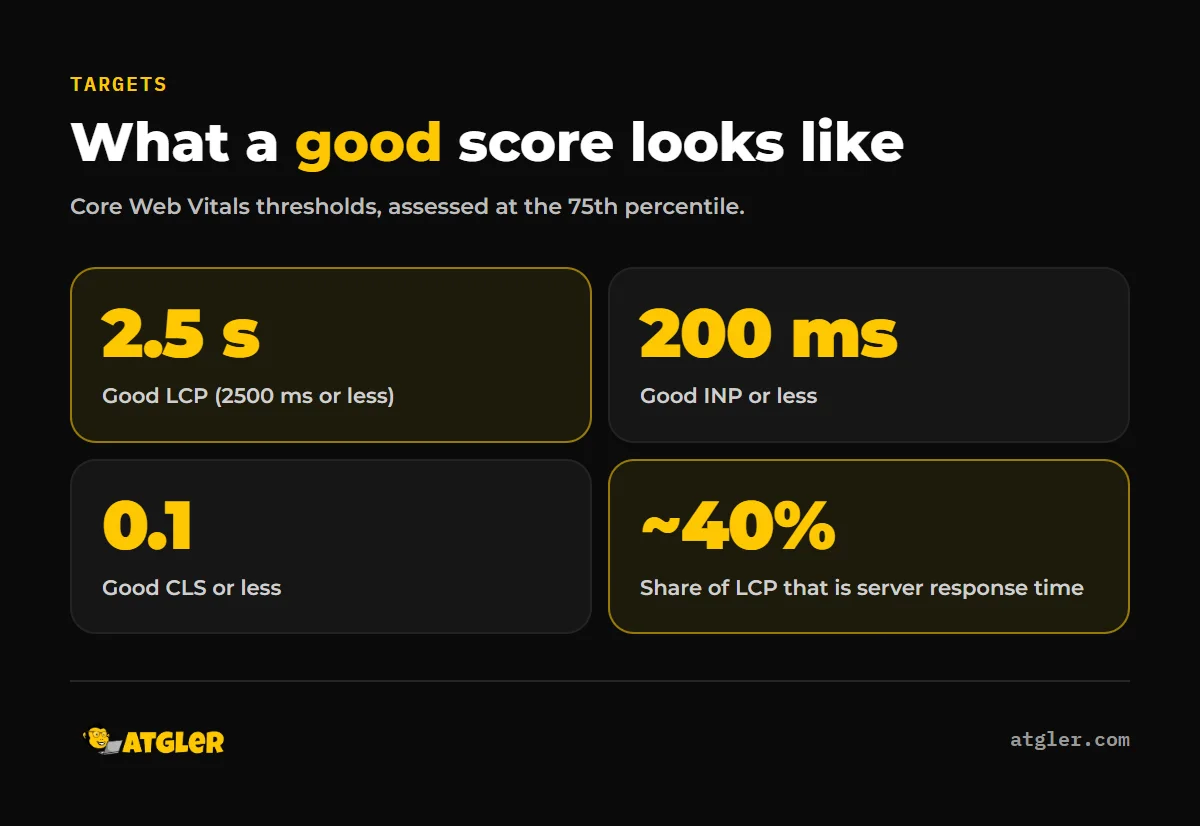
Google’s Core Web Vitals thresholds, documented on web.dev, are the standard targets. They are assessed at the 75th percentile of page views, so a fast result on your own laptop does not count if a quarter of your visitors have a poor experience.
| Metric | Good | Poor |
|---|---|---|
| LCP (loading) | 2500 ms or less | Over 4000 ms |
| INP (responsiveness) | 200 ms or less | Over 500 ms |
| CLS (layout stability) | 0.1 or less | Over 0.25 |
WooCommerce’s own performance guide sets a separate benchmark: a Lighthouse “Performance” score of 90 or above on a simple Woo site. A store with many plugins and a large catalog may score lower, so use it as a reference point, not a pass or fail grade.
Why is my WooCommerce store so slow? Start with hosting
Hosting is the first suspect because the server has to build every uncached page before the browser can show anything. web.dev breaks LCP into four parts and says time to first byte is about 40% of the total, with resource load duration at about 40% and the two delay parts under 10% each. It calls those shares guidelines, not strict rules, but the point stands: a slow server response drags down everything after it, which is why hosting comes before every other fix.
WooCommerce’s current server requirements list:
- PHP 8.3 or greater (tested up to PHP 8.4)
- MySQL 8.0+ or MariaDB 10.6+
- A WordPress memory limit of 256 MB or greater
- A host that supports HTTPS
That page is undated, so we cannot say when the PHP 8.3 recommendation took effect. Check what your host actually runs in your hosting panel or WordPress Site Health screen.
WooCommerce’s slow-site guide tells store owners to “contact your hosting provider to discuss the impact your hosting plan has on site performance” and recommends dedicated hosting over shared plans. It does not give a traffic or catalog size at which you must upgrade. Our experience across 600+ sites over 7 years is that the practical test is simple: if the store is slow with all plugins off and a default theme active, the server is the likely cause.
How should WooCommerce caching be set up?
Turn on caching for public pages, but exclude the Cart, My Account and Checkout pages so they stay dynamic. WooCommerce’s cache configuration guide is explicit about this. Those pages hold per-customer data, and WooCommerce warns that misconfigured caching plugins “have the potential to cause your site to load incorrectly.”
The guide lists five cookies that can be used for exclusion rules:
- woocommerce_cart_hash
- woocommerce_items_in_cart
- wp_woocommerce_session_
- woocommerce_recently_viewed
- store_notice[notice id]
Which caching approach is better?
WooCommerce’s optimization guide names two routes: server-side caching through your host (Varnish, NGINX FastCGI Cache or Redis) or a plugin such as WP Rocket, W3 Total Cache or WP Super Cache. Our comparison of WordPress cache plugins goes deeper on the plugin side.
Sources differ on the cookie details. WP Rocket’s documentation, which is vendor-written and was last updated November 9, 2023, says the plugin automatically excludes Cart, Checkout and My Account. It says to add woocommerce_items_in_cart to “Never Cache Cookies” only for a PHP-driven cart widget, and notes that “some cart widgets use AJAX and will work fine with caching.” WooCommerce’s docs say the cookie can be used for exclusion. Some hosting guides suggest varying the cache by cookie instead of excluding it, since exclusion stops caching for anyone with items in their cart. We have not verified that approach, so ask your host before relying on it.
After any caching change, test the full path as a logged-out visitor: add a product, open the cart, check out, and log in to My Account. If the cart or checkout breaks, a missing exclusion is the usual place to look, so cart and checkout pages keep working as intended only when you have verified them.
Do images slow down a WooCommerce store?
They can, especially on category pages that load dozens of product thumbnails. WooCommerce’s optimization guide recommends JPEG for photos and PNG for transparency, compression with tools such as TinyPNG or ShortPixel, and lazy loading. It gives no size or savings figures, and neither do we.
Because resource load duration is about 40% of LCP according to web.dev, the hero or main product image is worth special attention. Compress it, make sure it is not far larger than the space it fills, and do not lazy load the image at the top of the page, since the guidance is to keep load delay as close to zero as possible.
How do you find which plugin is slowing down WooCommerce?
Use WooCommerce’s own diagnosis steps. Deactivate all plugins, reactivate them one at a time, and re-test after each. Switch temporarily to a default WordPress theme to rule the theme in or out. For a more precise view, the WooCommerce optimization guide recommends Query Monitor or WP Hive to find slow plugins.
Do this on a staging copy if you can. Deactivating payment or shipping extensions on a live store will stop orders.
Outdated extensions also cause breakage, not just slowness. In our maintenance work, a dependent plugin or theme that does not support the latest PHP or WordPress version is the most common cause of layout or function problems after an update. We have seen an ecommerce site with a long-unupdated theme plugin whose broken CSS made a large product catalog hard to navigate. Weekly updates with a check afterward prevent most of this; see our WordPress maintenance checklist.
Should you clean the database or enable HPOS?
Yes to cleanup, and HPOS is worth considering, but neither comes with official speed figures. WooCommerce’s guide recommends deleting “spam comments, post revisions, and expired transients.” Take a backup first and clean only those items.
High-Performance Order Storage (HPOS) moves orders out of the _posts and _postmeta tables into four dedicated tables: _wc_orders, _wc_order_addresses, _wc_order_operational_data and _wc_orders_meta. It has been on by default for new installations since WooCommerce 8.2 in October 2023. Existing stores must enable it manually. WooCommerce says it means “fewer read/write operations and fewer busy tables” but publishes no benchmarks, and the page is written by WooCommerce itself. Check that your payment and order-related plugins support HPOS before switching.
Why is the WooCommerce checkout page slow?
Often it is JavaScript. web.dev’s INP guide explains that after a script downloads, the browser still parses, compiles and executes it, and “this work can introduce long tasks on the main thread” that delay responses to taps and clicks. That page does not mention WooCommerce or checkout, but the mechanism applies to any page loaded with payment, analytics, chat and marketing scripts.
WooCommerce’s performance guide says scripts and styles should be “loaded conditionally, only on pages where they’re needed,” and its optimization guide recommends deferring non-critical JavaScript. In practice:
- List every script that loads on checkout and ask what each one is for.
- Remove tracking or widgets that do not need to run there.
- Defer what is left, then test a real payment in your usual gateway.
The WooCommerce cart fragments script is often blamed for slow stores. No official page we reviewed covers it, so we cannot confirm how much it costs or how safe it is to disable. If you dequeue it, test the mini cart on staging first.
What the evidence does not tell you
- No official source we reviewed gives a safe size for autoloaded options in the database.
- WooCommerce’s docs give no numbers for image savings, HPOS speed gains or caching gains.
- We found no method-backed study linking WooCommerce speed to conversion or revenue, so we make no such claim.
- We did not review Google Search Central guidance, so we cannot say how much weight Core Web Vitals carry in rankings.
- Several WooCommerce documentation pages are undated, so their currency cannot be confirmed.
Treat the order in this article as a sensible diagnostic sequence, not a guarantee of results.
Where can you get help to speed up WooCommerce?
If you have worked through the fast path and the store is still slow, or you are nervous about touching caching rules on a live checkout, our site optimization service is built for this. We work through hosting, caching, extensions and checkout scripts in order and test the cart and checkout after each change. For ongoing upkeep, website care plans start from $99 a month, and our general guide to why a WordPress site is slow covers non-store causes.
Frequently asked questions
Which PHP version does WooCommerce need?
WooCommerce’s server requirements list PHP 8.3 or greater, tested up to PHP 8.4, along with MySQL 8.0+ or MariaDB 10.6+ and a WordPress memory limit of 256 MB or greater.
Which pages should I exclude from caching in WooCommerce?
Exclude the Cart, My Account and Checkout pages so they stay dynamic. WooCommerce also lists five cookies that can be used for exclusion rules, including woocommerce_cart_hash and wp_woocommerce_session_.
Why did my checkout break after I turned on caching?
WooCommerce warns that misconfigured caching plugins can cause a site to load incorrectly. Check that Cart, My Account and Checkout are excluded, then test as a logged-out shopper.
Is shared hosting enough for WooCommerce?
WooCommerce recommends dedicated hosting over shared plans and tells owners to discuss their plan’s impact with the host. It gives no traffic threshold, so test with plugins off to see if the server is the limit.
Should I enable HPOS on an existing store?
It is on by default for new installs since WooCommerce 8.2, but existing stores must enable it manually. WooCommerce publishes no benchmarks, so confirm your plugins support it and take a backup first.
Sources
- web.dev: How the Core Web Vitals metrics thresholds were defined (updated May 7, 2025)
- web.dev: Optimize Largest Contentful Paint (updated March 31, 2025)
- web.dev: Optimize Interaction to Next Paint (updated September 2, 2025)
- WooCommerce.com: Server requirements (undated)
- WooCommerce.com: Troubleshooting a slow site (undated)
- WooCommerce developer docs: How to configure caching plugins for WooCommerce (undated)
- WooCommerce developer docs: Performance optimization (undated)
- WooCommerce developer docs: Performance best practices (undated)
- WooCommerce developer docs: High-Performance Order Storage (undated; vendor-authored, qualitative claims only)
- WP Rocket docs: Using WP Rocket on your ecommerce site (last updated November 9, 2023; vendor-reported)